Discovering the Connection Explorer interface
Learn how you can navigate to the Connection Explorer interface and use it to connect to data in Cloudera Data Visualization.
- In the main area, click the Connection Explorer tab.
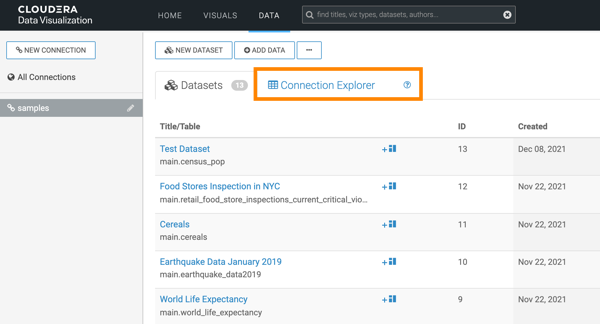
The Connection Explorer interface appears, where you can explore the databases and tables available on the connection and you can also manage all functions related to the data on the connection. You can click a connection in left navigation that you want to explore and select a database. You can also select a specific table from that database, and explore its details.
The Connection Explorer interface contains the following items:
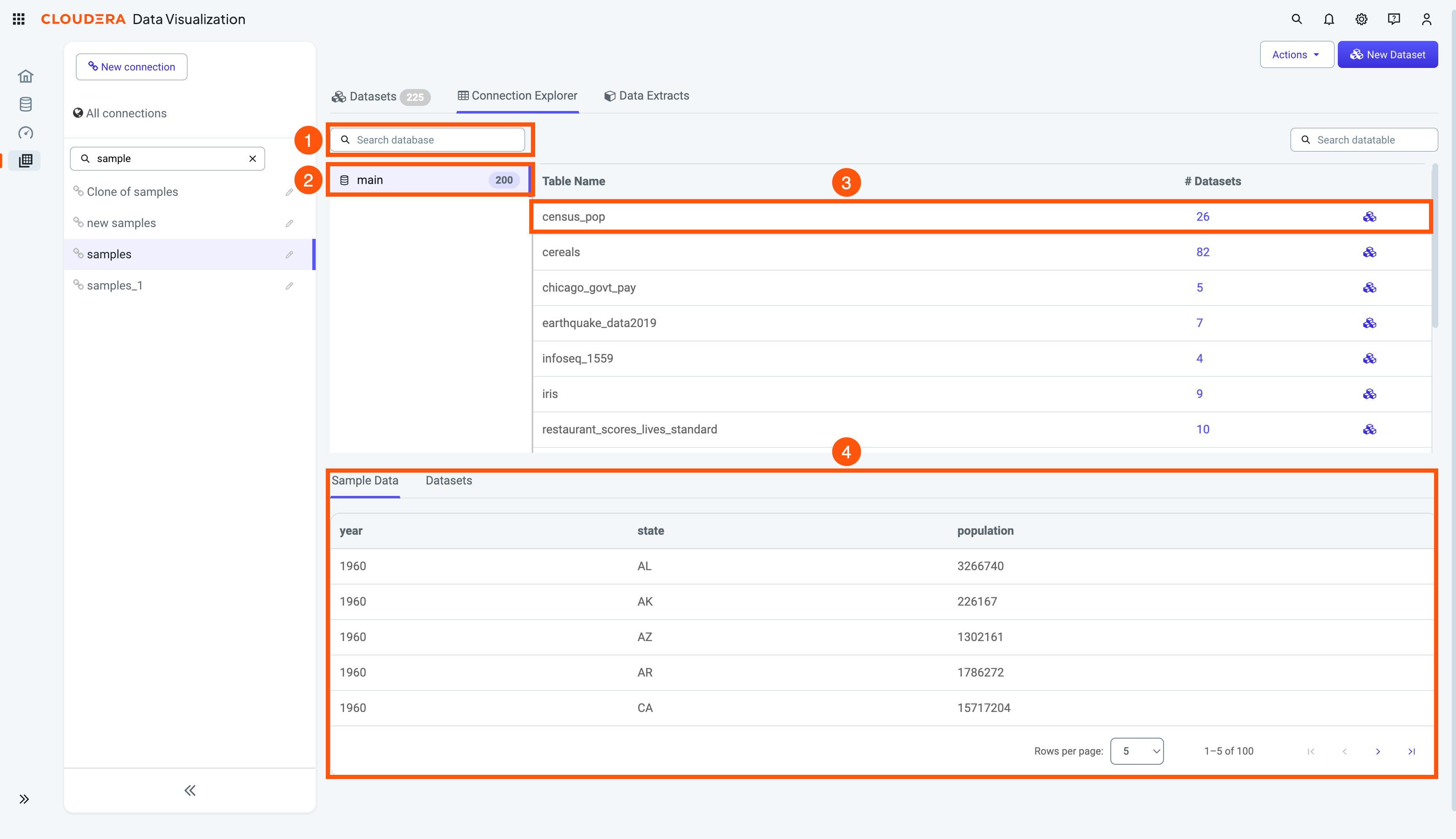
- 1. Search database
-
Filters the databases shown for the selected connection.
- 2. Database list
-
Select a database to display its tables. The number beside its name indicates the table count.
- 3. Table list
-
Shows the tables in the selected database and the number of datasets based on each table. Select a table to inspect it in the lower panel.
- Use Search datatable to filter this list.
- Use New Dataset in the table row to create a dataset on a specific table.
- 4. Table details
-
The Sample Data tab previews rows and columns from the selected table. The Datasets tab lists datasets created from that table. for more information, see Previewing data table details.
