Running a SQL query in Direct Access
Learn how you can run a SQL query in the Direct Access interface of Cloudera Data Visualization.
-
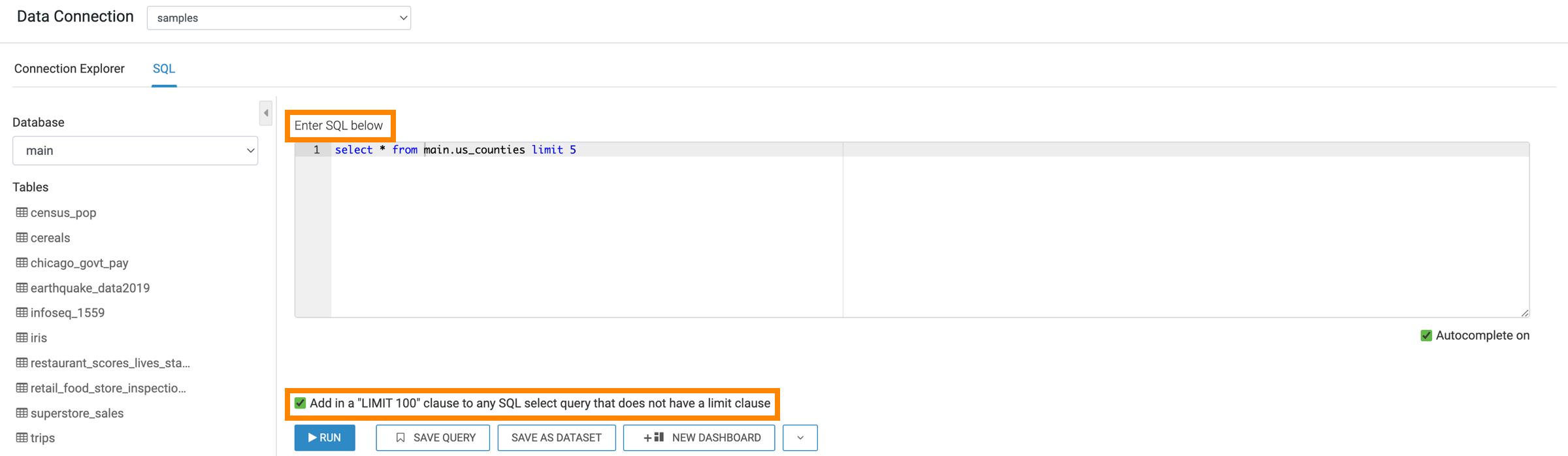
Add your SQL data query to the Enter SQL below code-enabled text
box.
The Autocomplete on option is on by default. It controls query suggestions as you type.
If you want to limit the number of, you have two options:
- You can add a limit clause in the SQL query syntax.
- You can mark the Apply "100 LIMIT" clause option, which limits the displayed results to 100 rows. This setting is on by default. If you set a record limit in the SQL query itself, it overrides this default option, even if it is checked.
-
Click SHOW DATA to run the SQL query.
After the query runs, the results tab shows the query results.
In this example, the following query has been run:
select * from
              main.us_counties limit 5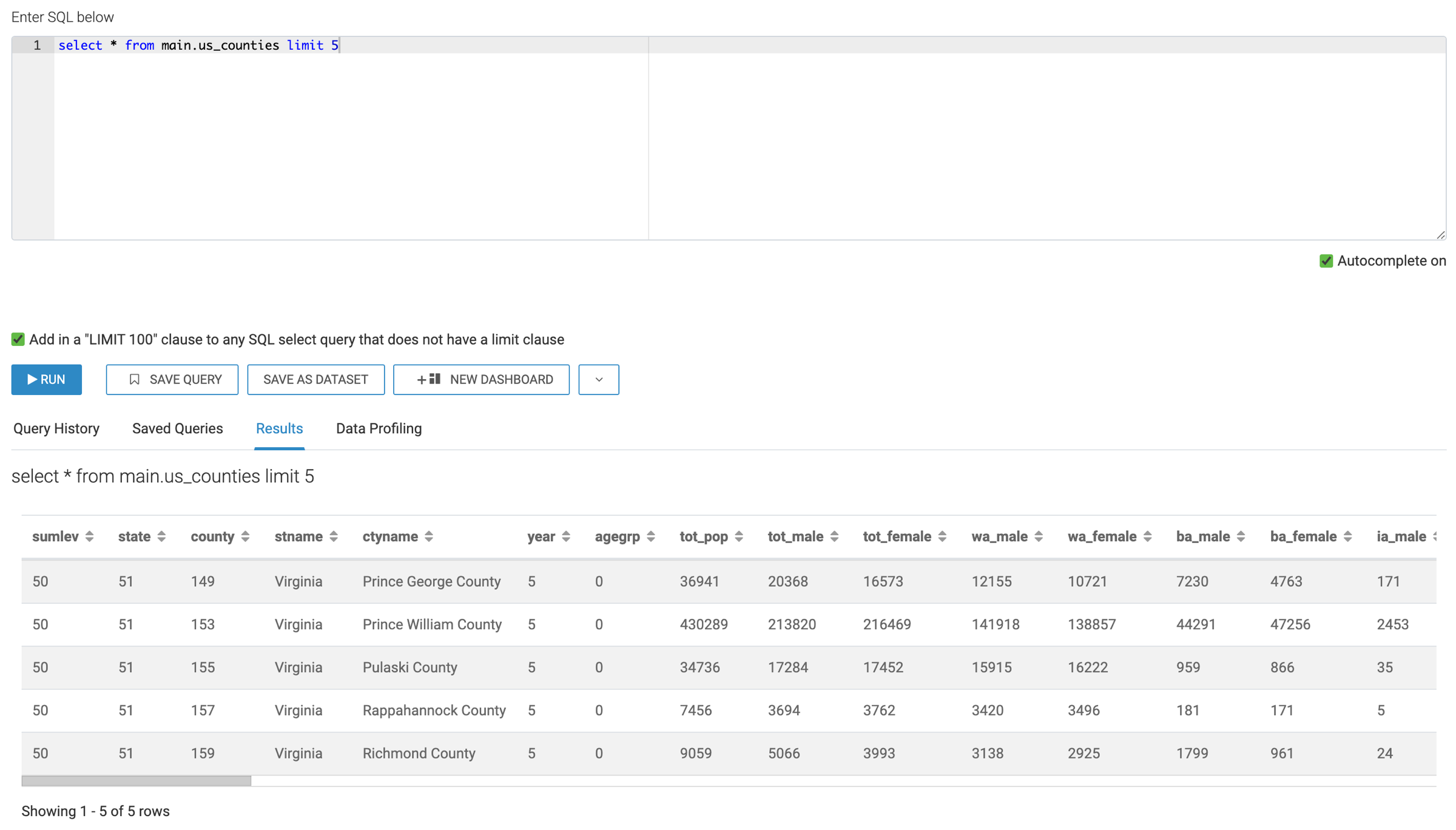
For more information about the content available on the other tabs, see Cloudera Data Visualization SQL view.
