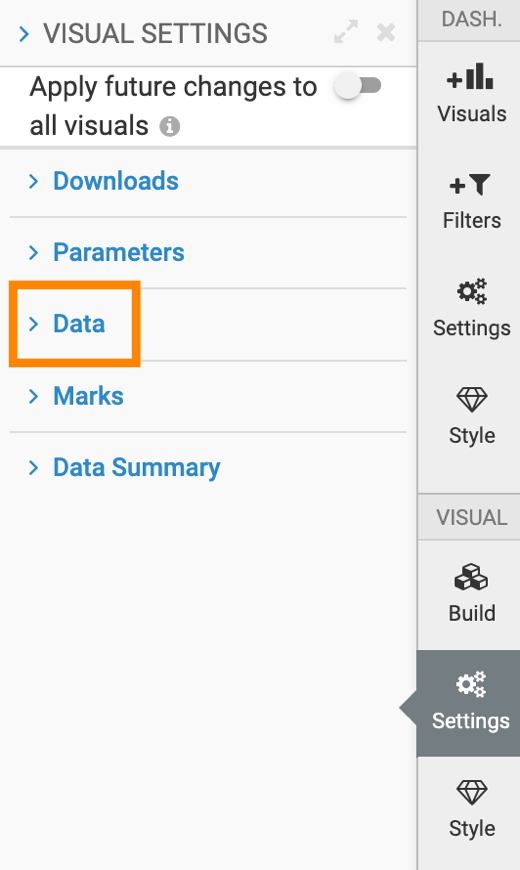
Customizing data for visuals Follow these steps to get to the data options: On the right side of Visual Designer, click Settings. In the Settings menu, click Data. Under Data, select one of the following options: Ordering NULL rowsChanging the number of rows downloaded as CSV or Excel filesYou can control the number of rows included in CSV/Excel exports and Detailed Data views for an individual visual by using the Number of rows downloaded during CSV/Excel export and Detailed Data option.Changing maximum number of rows to fetchDisabling incremental queriesDisplaying NULL rowsEnabling URL linksSpecifying qualitative range as percentagesParent topic: Customizing visual settings