Areas
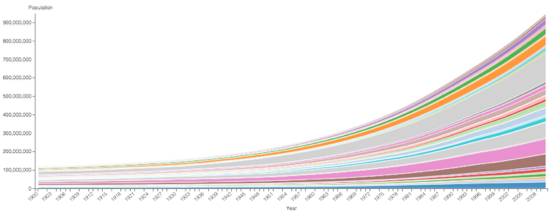
An Area visual shows how values change over time. Use it to show how several series contribute to a total, or to compare the values and trends of individual series over time. For example, you can compare population trends across countries or see how those countries contribute to a combined total.
When you add a field to the Colors shelf, the visual
creates a separate area for each value of that field. You can choose how those areas are
displayed:
- Stacked (default): The areas sit on top of one another. The Y-axis shows their cumulative total, making it easier to see how each series contributes to the whole.
- Unstacked: Each area starts from the same zero baseline and can overlap with other areas. The Y-axis and tooltips can show each series’ individual value, rather than a cumulative total.
The following steps show how to create an Areas visual. This example uses the World Life Expectancy from the samples connection. For an overview of shelves that specify this visual, see Shelves for areas.
-
In the VISUALS menu, select Areas.
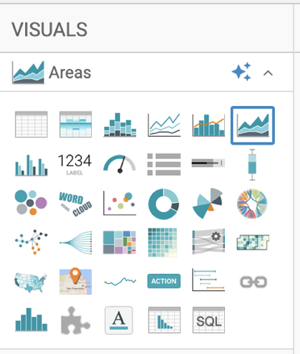
The shelves of the visual changed. The mandatory shelves are X Axis and Y Axis. To swap the fields on these shelves, click

-
Set the aggregation of
populationto Average:-
Close FIELD PROPERTIES and click REFRESH
VISUAL.
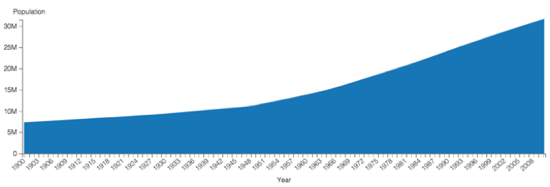
The Areas visual appears.
-
Close FIELD PROPERTIES and click REFRESH
VISUAL.
-
Click REFRESH VISUAL to display the updated chart.