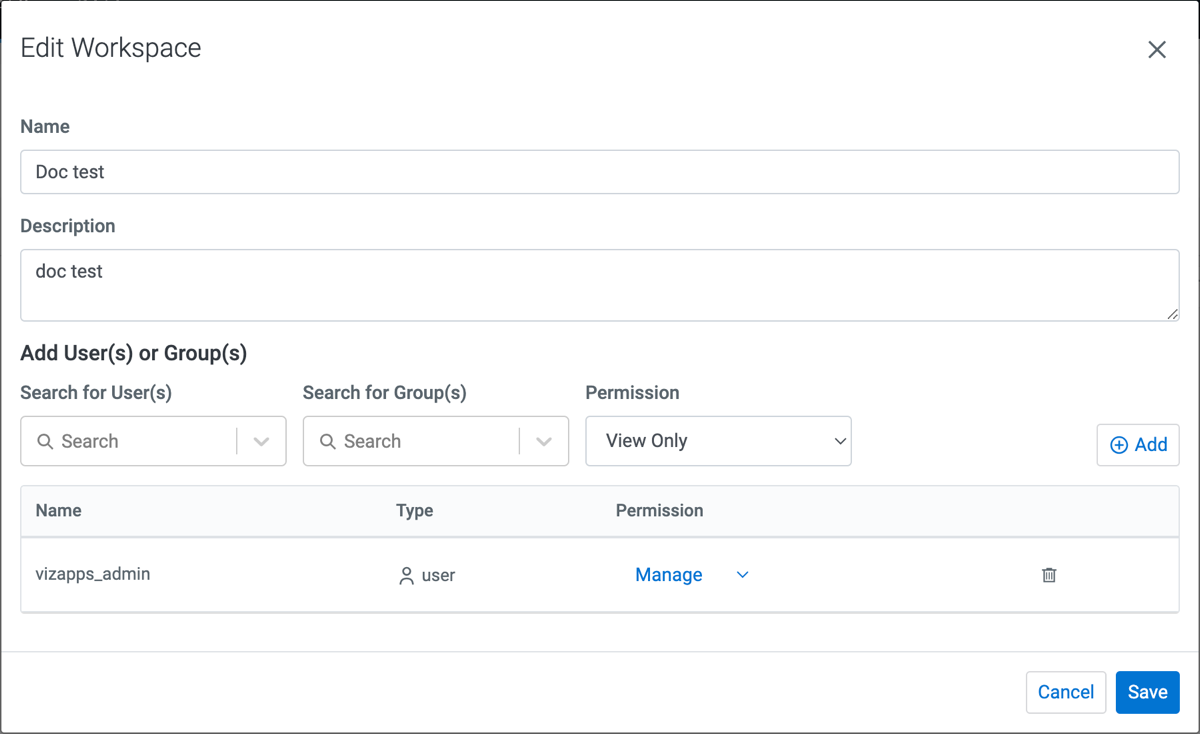
Editing a workspace
In Cloudera Data Visualization, editing a workspace allows you to update workspace properties and manage user access in a controlled and consistent way.
By default, all users can edit the Public workspace. Administrators can manage the Public workspace and user permissions for all users; but they cannot rename or delete it, or change its description.
If you do not have the necessary permissions for a workspace, the Edit action is not available.
For more information about the different workspace types, see Workspaces in Cloudera Data Visualization.
-
Make the required changes to the workspace properties.
For example, you can:
- Add users or user groups
- Remove users or groups from the access list
- Update access levels