The Job Details page provides comprehensive insights into a
selected job, helping you understand and manage job operations effectively. You can access this
page by clicking the name of the job on either the Runs (Latest) or
Scheduled Jobs tab.
Job Details
In this section, you can review basic job details and scheduling parameters. You can also
use the options in the top-right corner to perform the following actions:
Edit opens the Edit Job Schedule Details
modal, allowing you to modify schedule details.
Change Owner opens the Change Job Owner
modal, allowing you to assign a new owner to the job.
Delete allows you to remove the job if it is no longer
needed.
Run Now allows you to start the job immediately.
Pause Scheduling allows you to suspend a scheduled or triggered
job indefinitely while preserving its definition. This action temporarily stops the job
scheduling without affecting its underlying configuration. You can resume a paused
job.
Resume Scheduling allows you to restart a previously paused
scheduled or triggered job.
Depending on the type of the job you are looking at, you can also review data extract or
email details on this page.
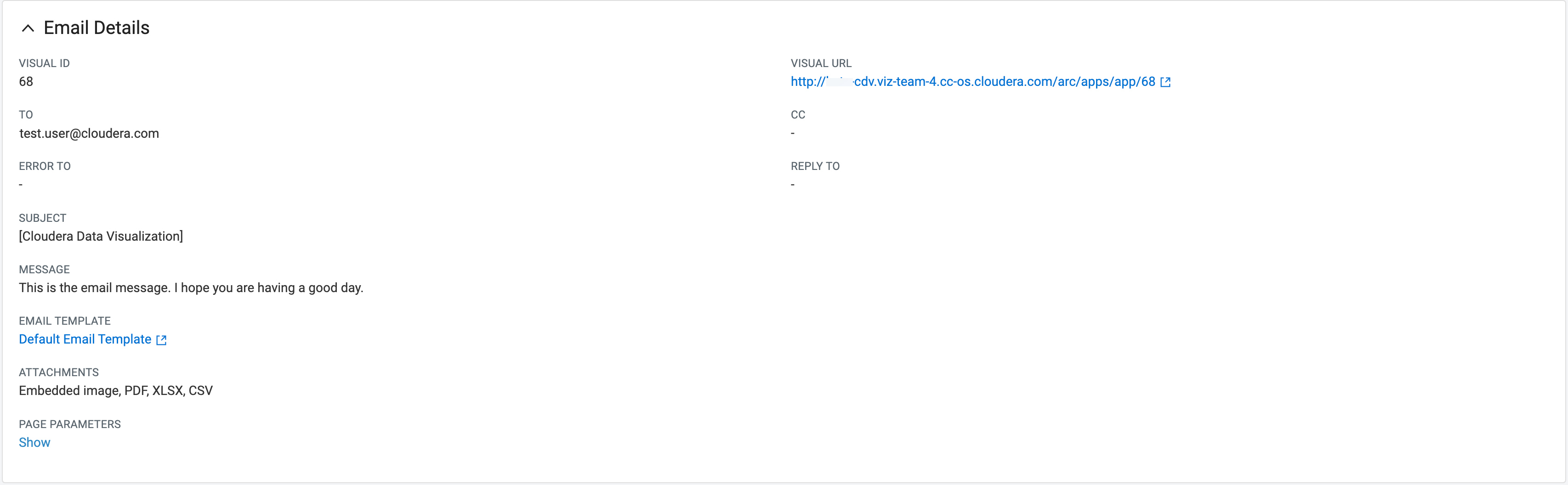
Email Details
In this section, you can explore information about email jobs including subject, message
content, email template, attachments, and other relevant details.
(next to the URL of the
visual URL) updates the URL to reflect the current application location. This is useful if
the domain or application name has changed, as the URL does not update automatically.
Data Extract Details
In this section, you can explore specifics like extract ID, source dataset,
target data connection, and other details related to the data extraction process.
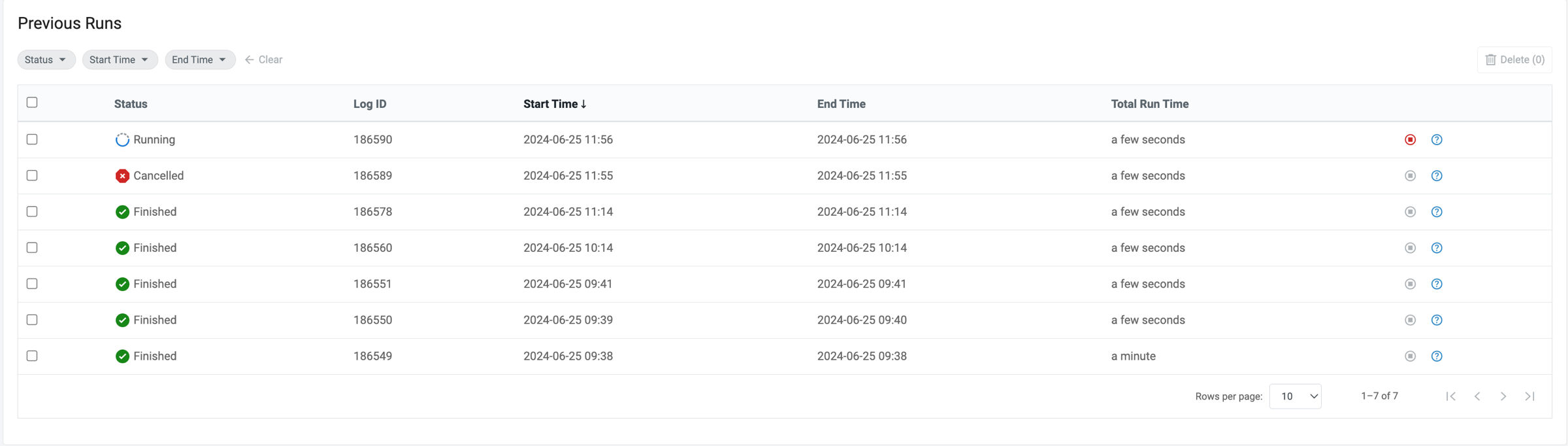
Previous Runs
In this section, you can see a comprehensive list of past job operations, which
can help in diagnosing and troubleshooting errors.
Filters
You can adjust the list of displayed previous runs using the following filters:
Status – This filter is based on job status.
Start Time – This filter is based on the start time of job runs. The selected
value will be the minimum start time of the displayed runs.
End Time – This filter is based on the end time of job runs. The selected value
will be the maximum end time of the displayed runs.
Actions
You can perform the following actions:
allows you
to delete logs from the list of previous runs. To select logs for deletion,
click the checkbox at the start of each log row. To select all logs, click the
checkbox on the left side of the list header.
allows you to stop a running job. This option is only active for jobs currently
in progress.
opens the Run Details modal, which includes information
about the tasks performed in connection with the job instance and any errors
encountered.
It has three
tabs:
TasksDetailed Logs
It provides additional job run
details for debugging. The Download Details button allows
you to export all run details in JSON format, which can be used for debugging or
can be shared with other users.

 (next to the URL of the
visual URL) updates the URL to reflect the current application location. This is useful if
the domain or application name has changed, as the URL does not update automatically.
(next to the URL of the
visual URL) updates the URL to reflect the current application location. This is useful if
the domain or application name has changed, as the URL does not update automatically.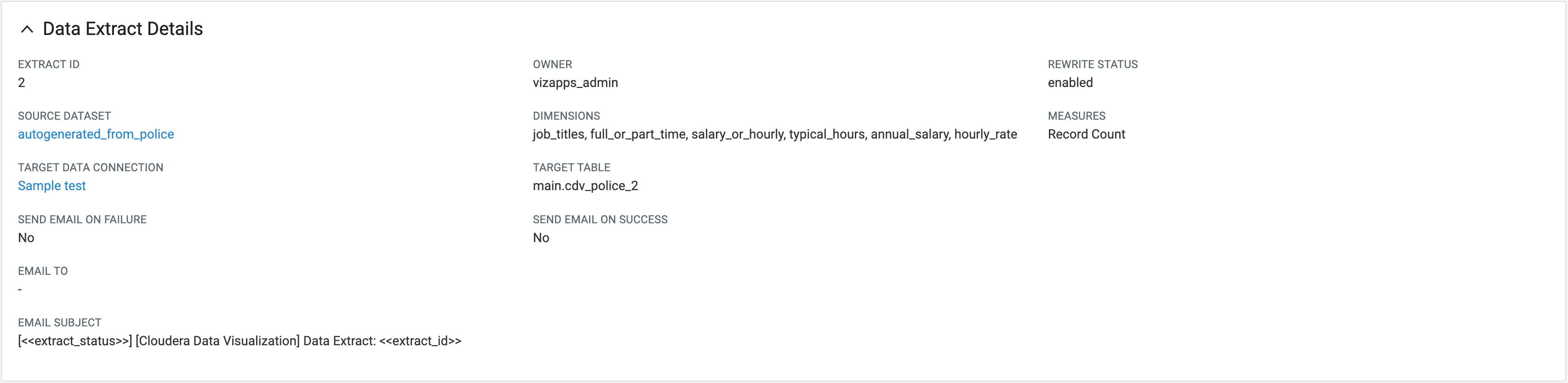
 allows you
to delete logs from the list of previous runs. To select logs for deletion,
click the checkbox at the start of each log row. To select all logs, click the
checkbox on the left side of the list header.
allows you
to delete logs from the list of previous runs. To select logs for deletion,
click the checkbox at the start of each log row. To select all logs, click the
checkbox on the left side of the list header. allows you to stop a running job. This option is only active for jobs currently
in progress.
allows you to stop a running job. This option is only active for jobs currently
in progress. opens the Run Details modal, which includes information
about the tasks performed in connection with the job instance and any errors
encountered.
opens the Run Details modal, which includes information
about the tasks performed in connection with the job instance and any errors
encountered.


