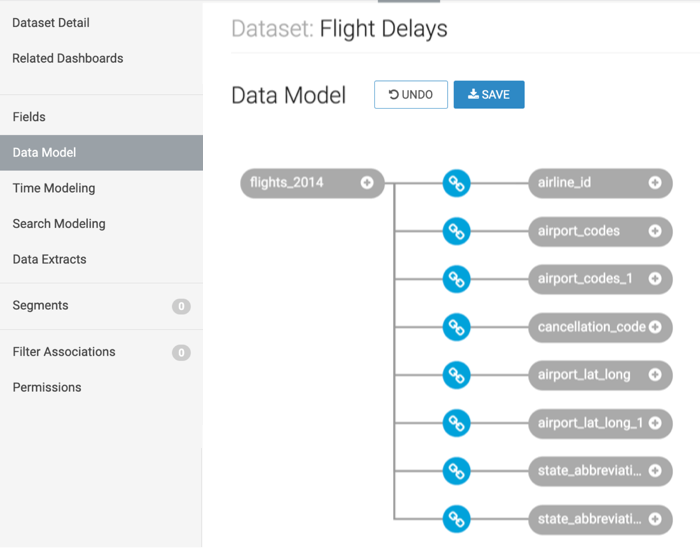
Creating a join
Learn how you can create new data joins in a dataset in Cloudera Data Visualization.
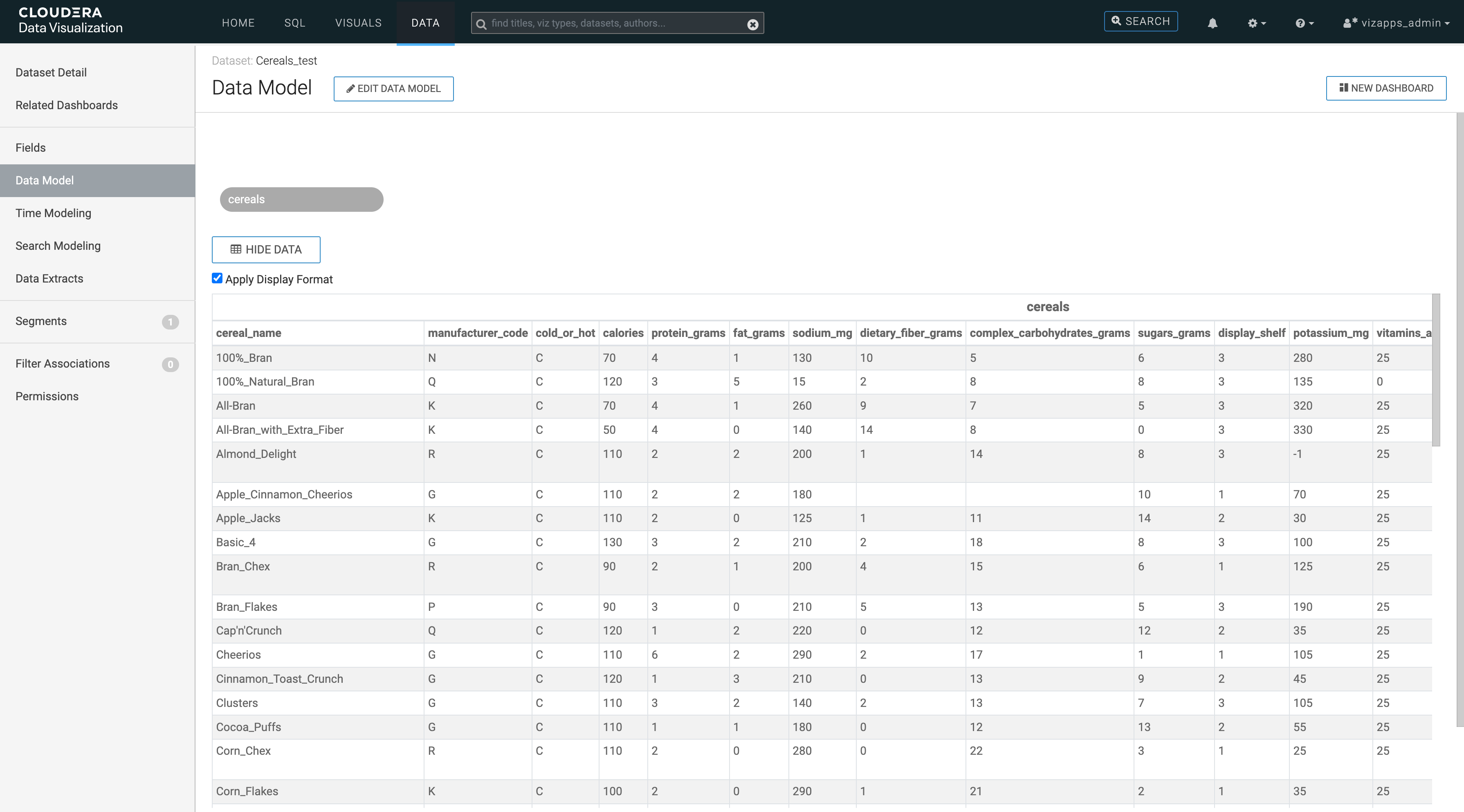
- In the side navigation menu, click Data Model.The Data Model view appears, and shows the name of the only table in the dataset.
-
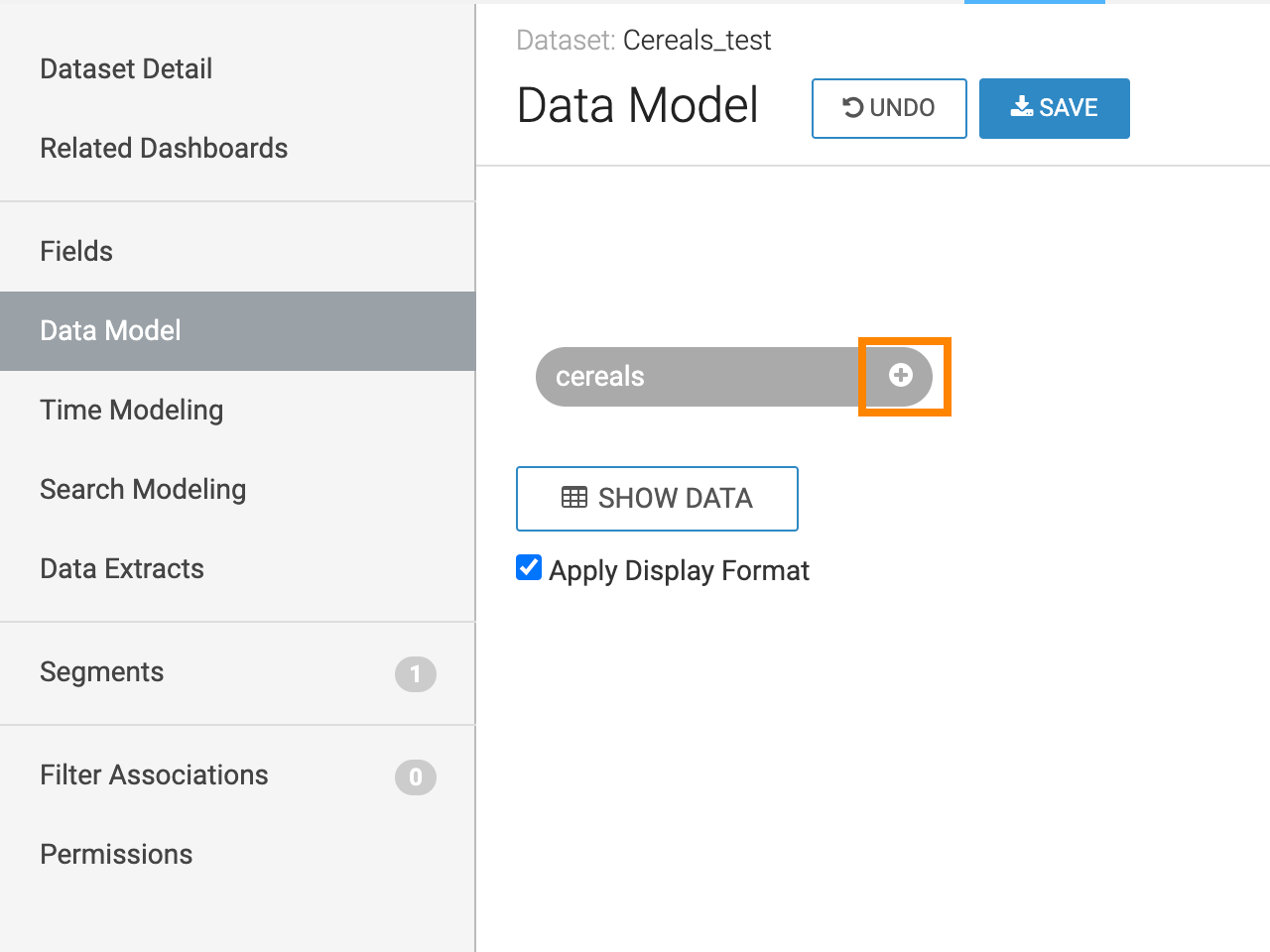
Click the
 sign
on the table representation.
sign
on the table representation.
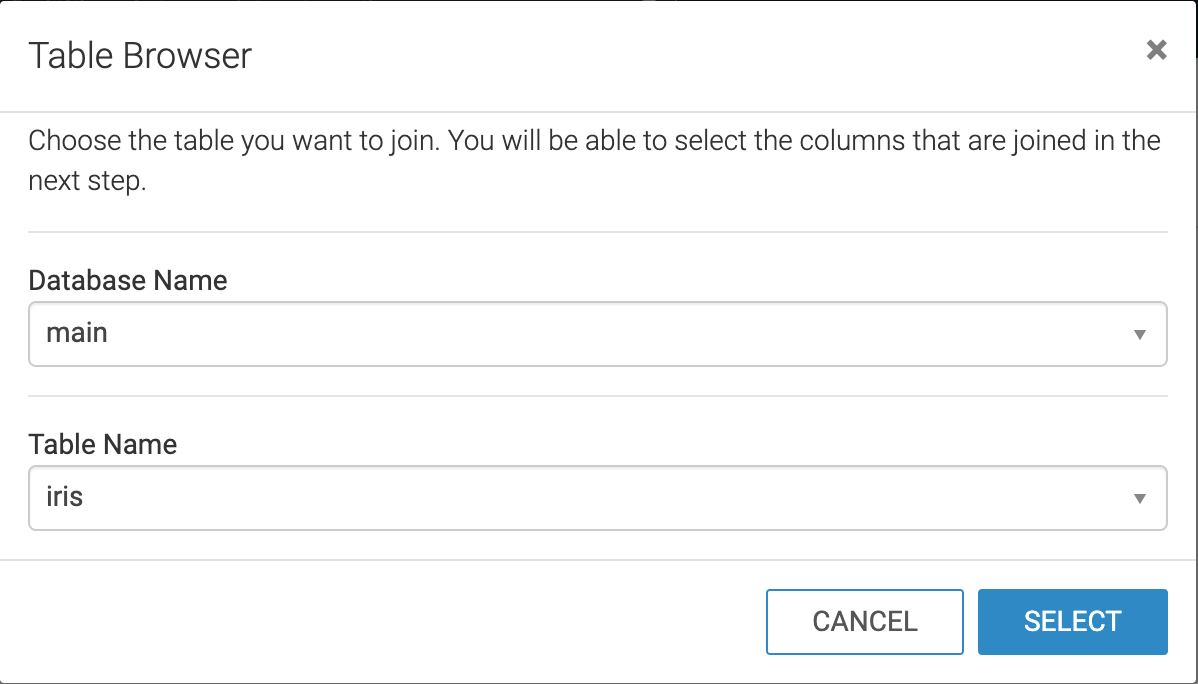
The Table Browser modal opens.
-
Select the table to join.
In this example, the following settings are used:
-
Under Database Name, choose main.
-
Under Table Name, choose the
us_countiestable.This value is pre-populated to match the existing table of the dataset, but it may be changed.
-
-
Click Select
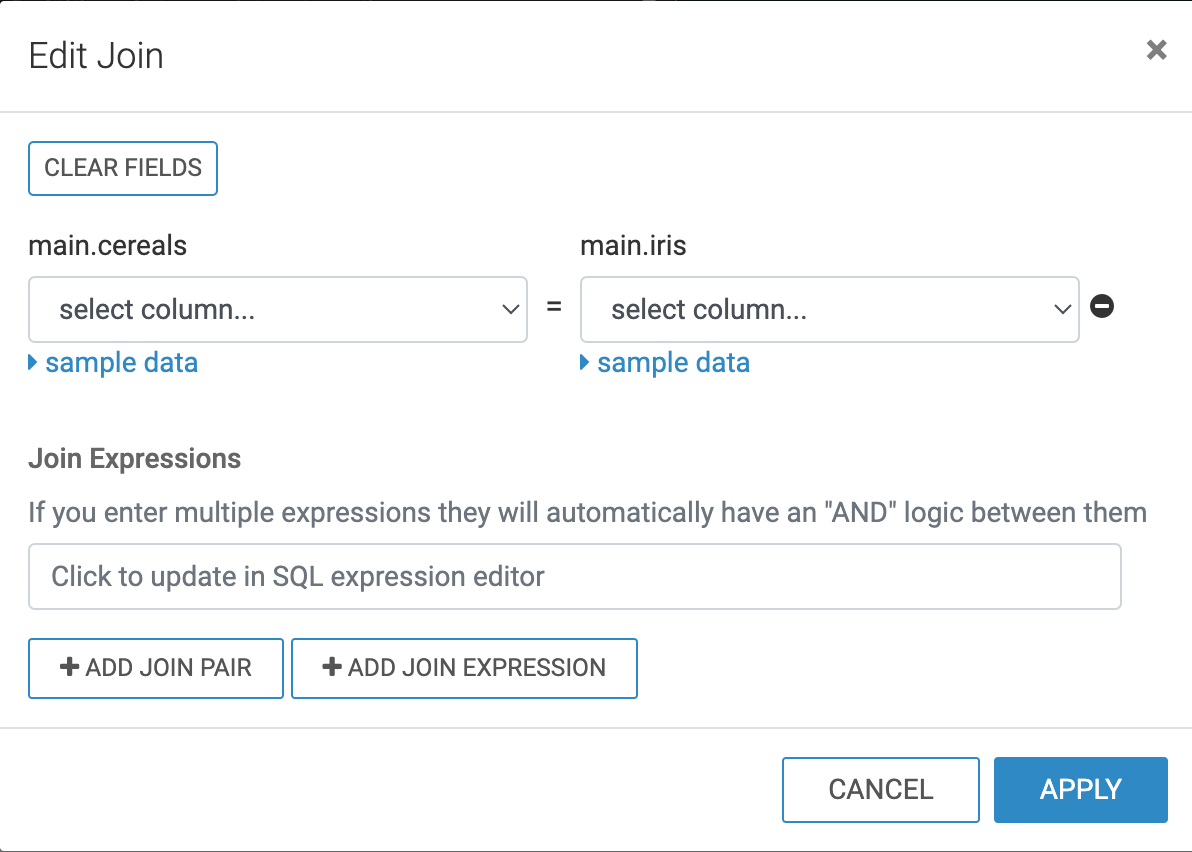
The Edit Join modal opens.
When editing a join, the following options are available:
- Clear Fields is for clearing all already defined joins between the two tables.
- Add Join Pair is for adding another column connection between the same two tables.
-
The trash icon beside a join pair is for removing it.
- Add Join Expression is for adding a join between the two tables based on a custom SQL expression.
- icon (minus) is for removing an existing join pair or an existing join expression.
- In the Join Expressions section, you can click the text box to open the Join Expression modal, where you can specify or update a custom SQL expression that defines the join conditions.
-
Click Save.