Editing join details
Learn how you edit an existing join to change its matching columns or define custom SQL join conditions in Cloudera Data Visualization.
-
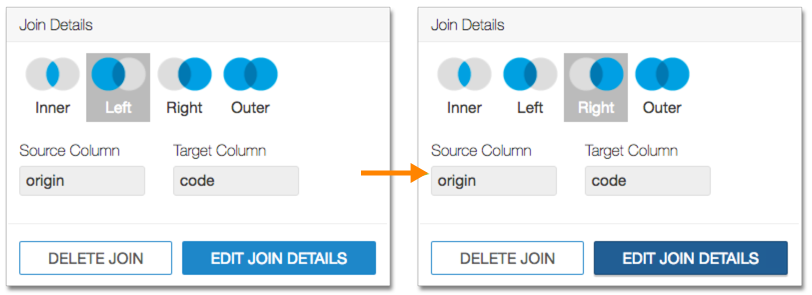
Click the two overlapping circles on the line connecting the tables to edit the join
conditions.
-
Update the join conditions using the following options.
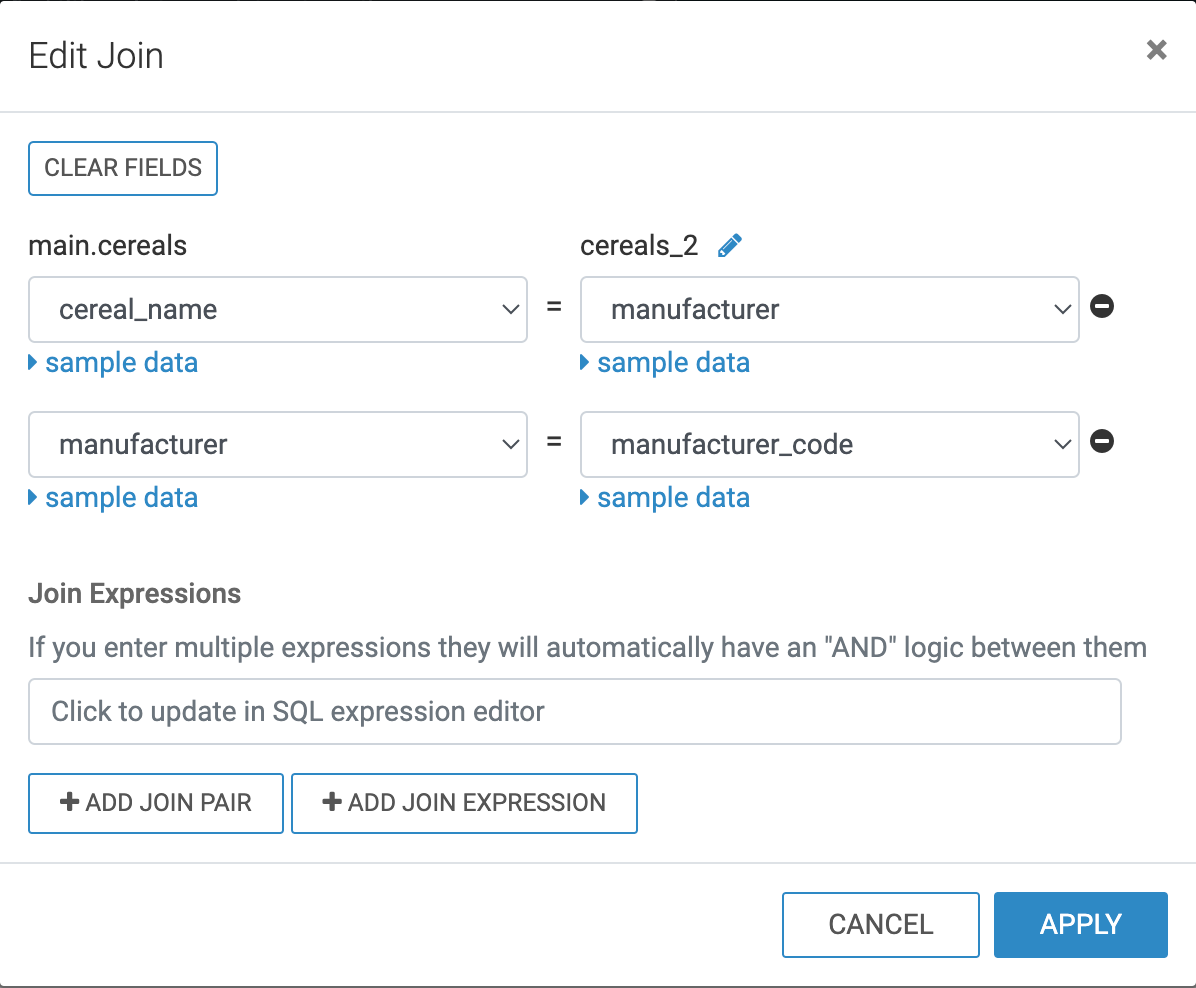
- CLEAR FIELDS allows you to clear all already defined joins between the two tables.
- Use the column drop-downs to change the matching columns.
 allows you
to edit the name of the joined table.
allows you
to edit the name of the joined table.If you wish to modify this duplicated alias for clarity or consistency, you can edit the duplicated table name. When you provide a new alias, it is applied to the corresponding dimension and measure names of the dataset.
- sample data allows you to preview the data from the tables. Click it again to hide the sample data.
 allows you
to remove an existing join pair or an existing join expression.
allows you
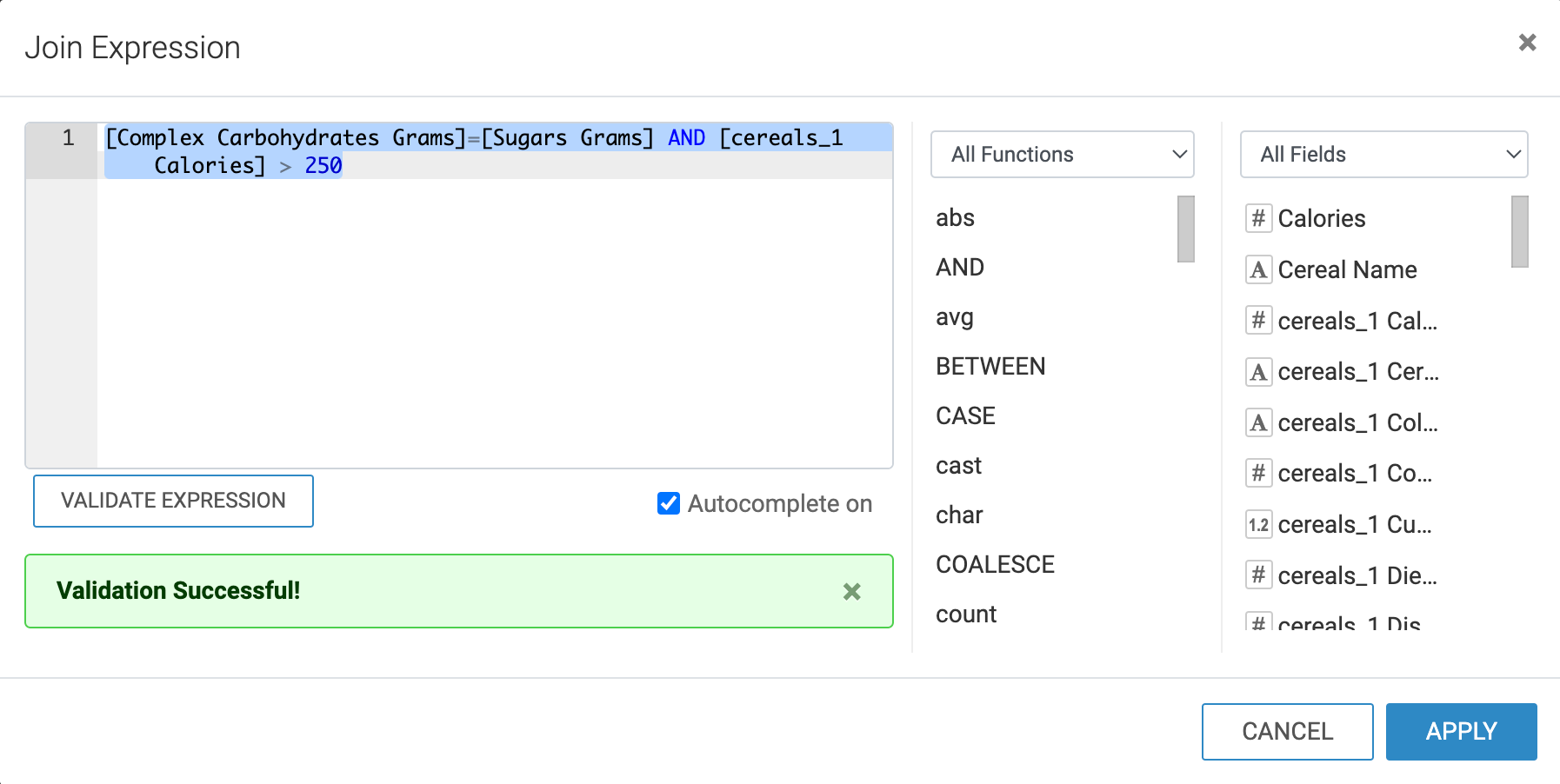
to remove an existing join pair or an existing join expression.- Clicking the Join Expressions text box opens the Join Expression modal where you can specify or update a custom SQL expression that defines the join conditions.
- Add Join Pair can be used to add another pair of matching columns.
- Add Join Expression can be used to add a custom SQL condition and then define it in the SQL expression editor.
Click Apply to save the changes.
- To add a a join expression and replace the original field:field join, perform the
following steps in the Edit Join modal window:
- Remove the initial join between the two columns by clicking the (minus) icon.
- Under Join Expressions, click the text box to open the
Join Expression interface, where you can specify or update
the custom SQL expression that defines the join conditions.For example, you can enter the following expression to only show data where the amount of complex carbohydrates equals the amount of sugars, and the calorie content is greater than 250.
[Complex Carbohydrates Grams]=[Sugars Grams] AND [cereals_1 Calories] > 250