Exploring dataset details
Cloudera Data Visualization makes it easy to check out and examine the information available about your datasets. The Dataset Detail page shows a dataset’s source, configuration, and ownership information.
-
Click the dataset name.
The dataset side navigation panel appears, open on Dataset Detail view, with the dataset name appearing at the top of the page.
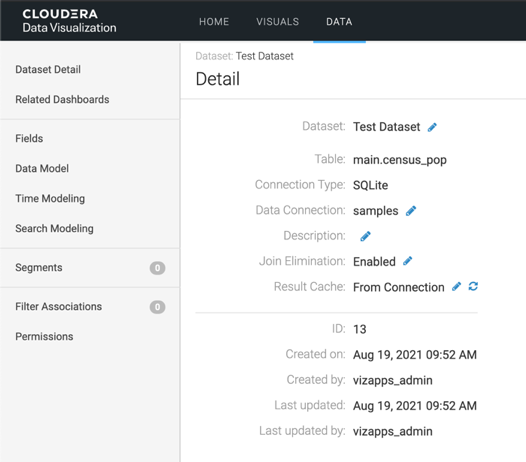
The following information is available about the dataset under Detail:
- Dataset
-
The dataset’s name.
- Table
-
The source table used by the dataset.
- Connection Type
-
The type of the underlying data connection, such as SQLite.
- Data Connection
-
The connection that contains the source table.
- Regional Display Format
-
The locale used to display dates and numbers. The pencil icon lets you change this setting.
- Description and Tags
-
Optional information that helps users identify and find the dataset. A dash indicates that no value has been set.
- Join Elimination
-
Shows whether join elimination is enabled for the dataset.
- Result Cache
-
Shows the dataset’s cache setting. From Connection means the dataset inherits the setting from its data connection. Reset cache clears its cached results.
- ID and activity details
-
Show the dataset ID, when it was created and last updated, and the users who made those changes.
Click Edit to change editable dataset details.
Use New Dashboard at the top of the page to start a dashboard based on this dataset.
You can clone or delete the dataset from the Actions menu.
