Migrating Workflows
This section details the steps to transfer a workflow template between Cloudera AI Agent Studio instances, covering both export from the source and import into the target instance.
Migrating Workflow across Agent Studio
Workflow templates are exported as ZIP files, and includes the following essential components:
- Workflow template configuration
- Agent templates
- Tool templates
- MCP templates
- Task templates
- Associated icons and assets
- Export workflow template from source Agent Studio
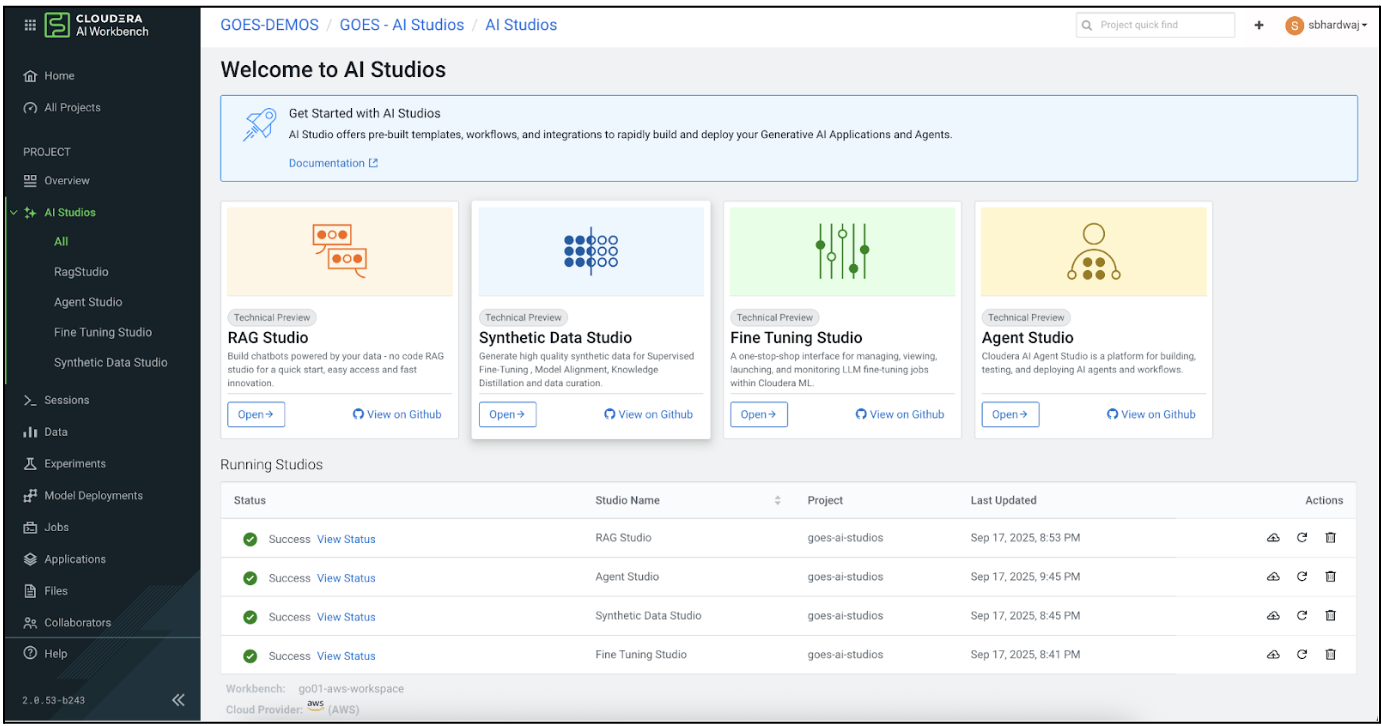
- Navigate to the Workflows page in your source Agent Studio instance
- Find the workflow template you want to migrate in the Templates section
- Click the Download Workflow Template icon from the menu. The workflow template is downloaded as a ZIP file to your local machine. The file is named based on the template name
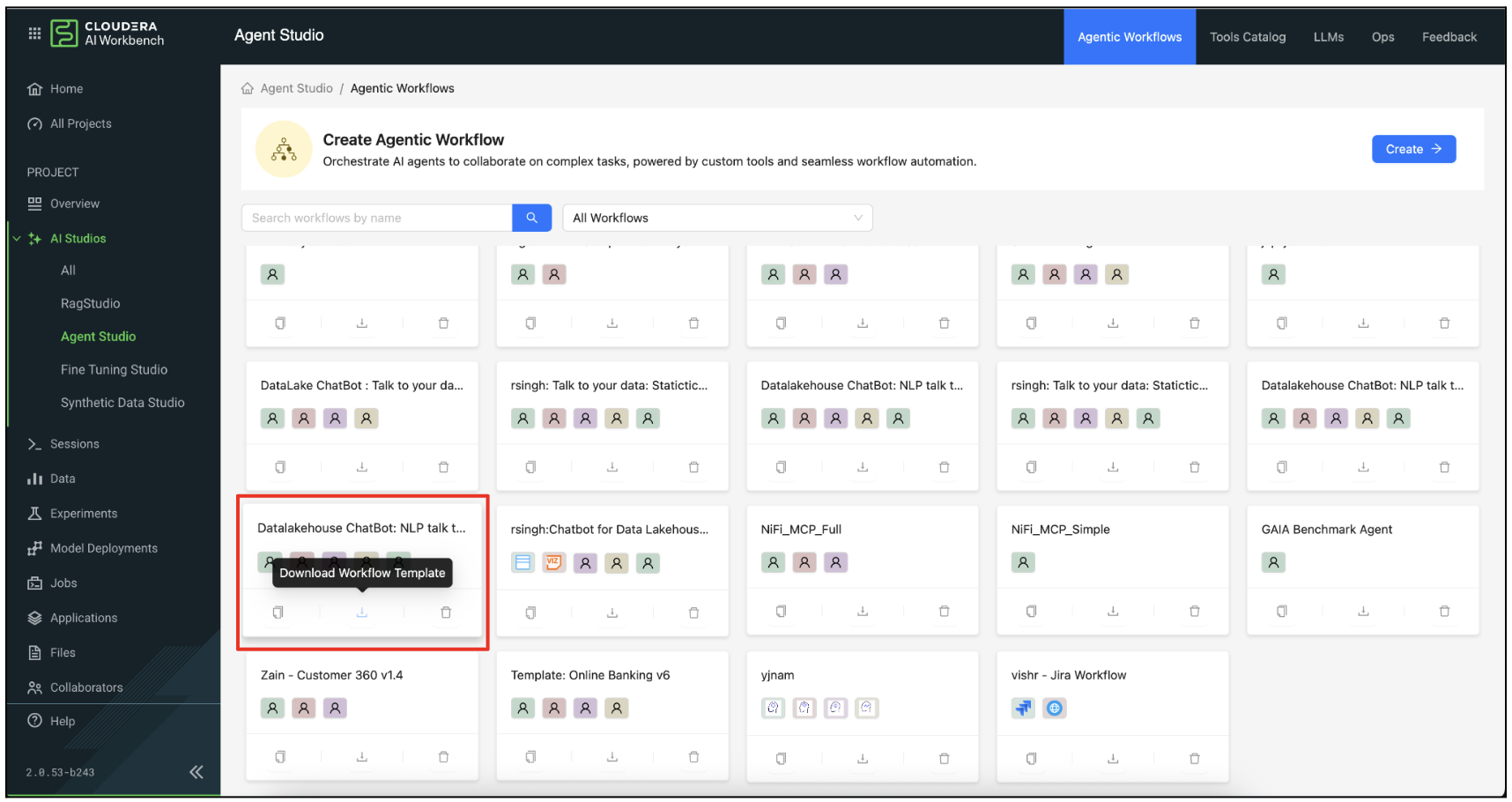
- Upload ZIP file to target Agent Studio:
- In your target Agent Studio instance, you must to upload the ZIP file to the project
files.
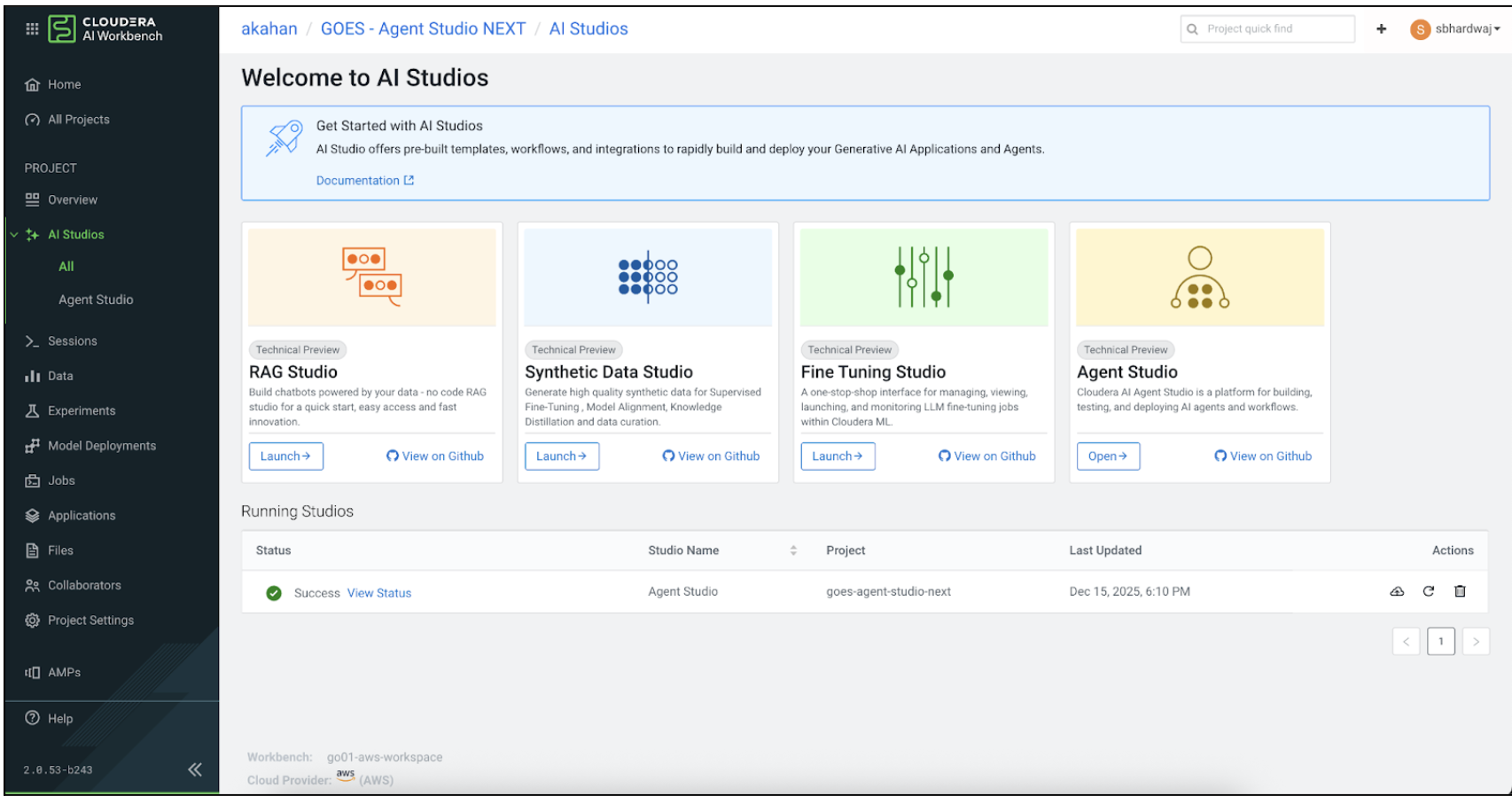
- Navigate to the Cloudera AI Workbench project file browser
- Upload the ZIP file to a location such as, /home/cdsw/ or any
accessible directory
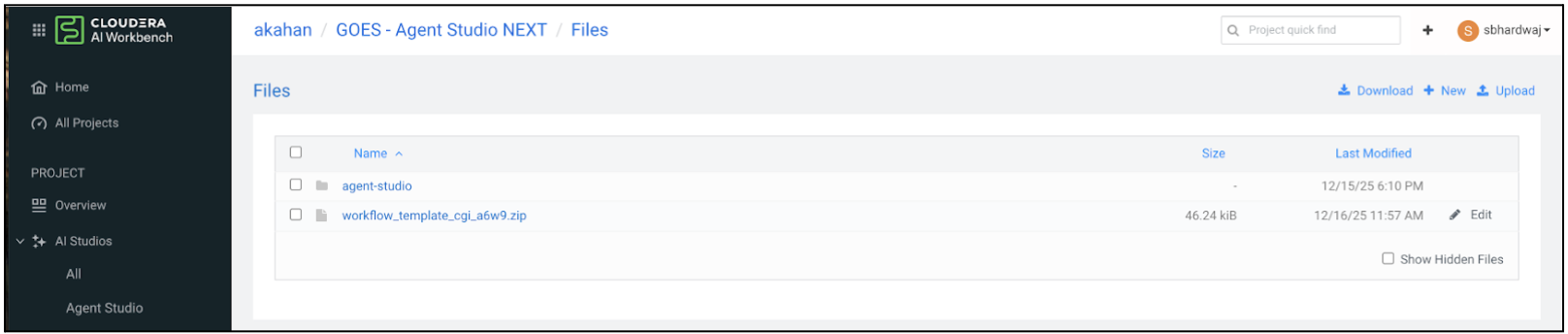
- Make a note of the complete relative path of the uploaded file (for instance, workflow_template.zip).
- In your target Agent Studio instance, you must to upload the ZIP file to the project
files.
- Import Workflow Template in Target Agent Studio
- Navigate to the Workflows page in your target Agent Studio instance.
- In the Templates section, click the Import
Template button (with a plus icon).
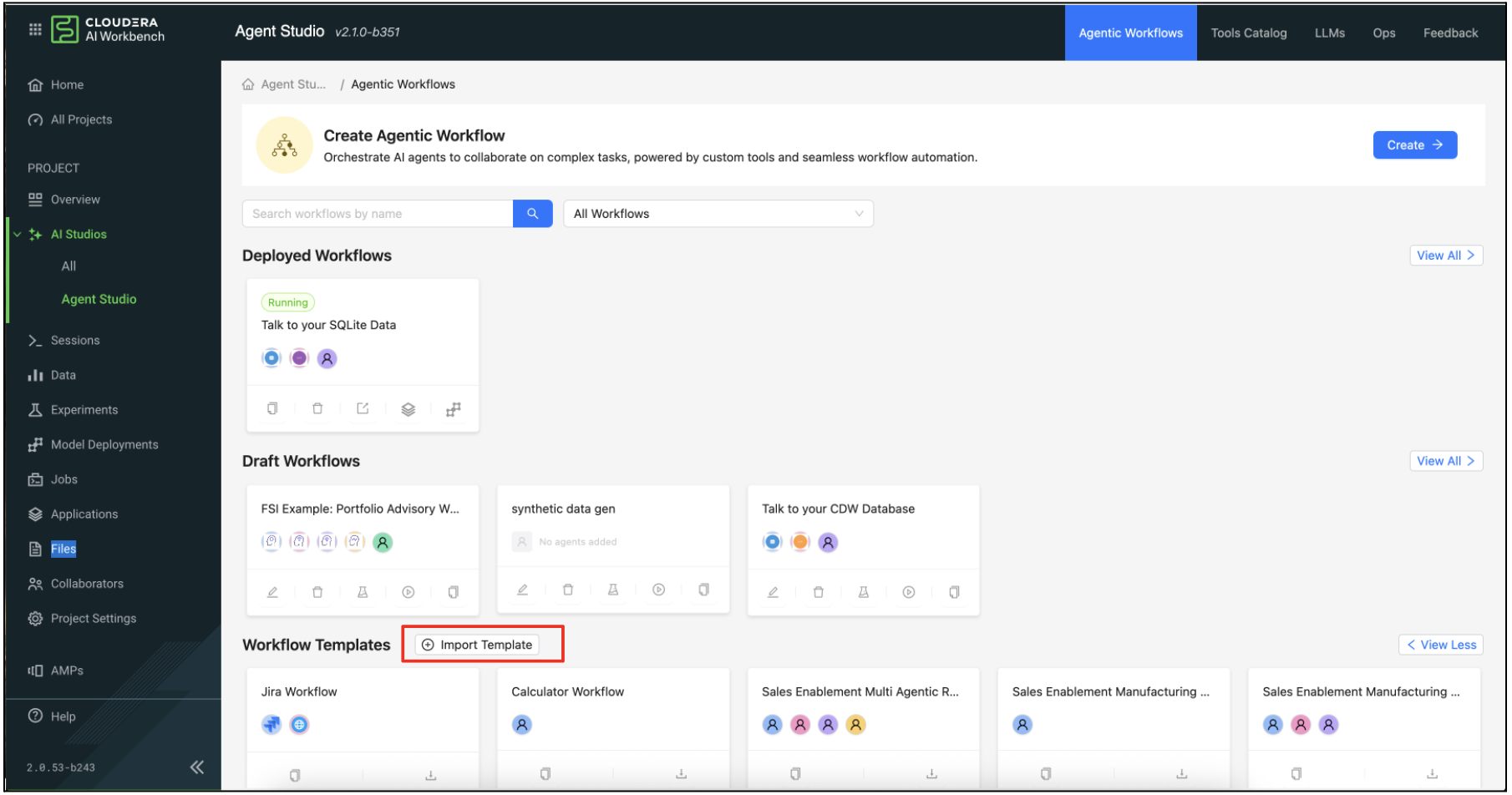
- The Import Workflow Template modal pops-up.
- Enter the relative path to the uploaded ZIP file in the input field.The path prefix /home/cdsw/ is automatically included, you must enter the relative path after /home/cdsw/ (for example, if the file is at /home/cdsw/workflow_template.zip, enter workflow_template.zip)
-
The system automatically checks if the file exists at the specified path. You'll see:A green success message if the file is found and A warning message if there are some auth issues faced when confirming the file presence. You can ignore this warning message in most of the cases.
If the file is successfully located, a green success message is displayed. Conversely, a warning message appears if authorization issues are encountered while attempting to confirm the file's presence. You can ignore this warning message in most of the cases.
- Once the file path is validated, click the Import button, or click
the OK button.
The workflow template import process ensures a smooth transfer by extracting the ZIP file, creating new UUIDs for all templates to prevent conflicts, importing all workflow components (agents, tools, tasks, MCP servers), copying associated assets (icons, tool templates), and, by making the template accessible in the target instance.
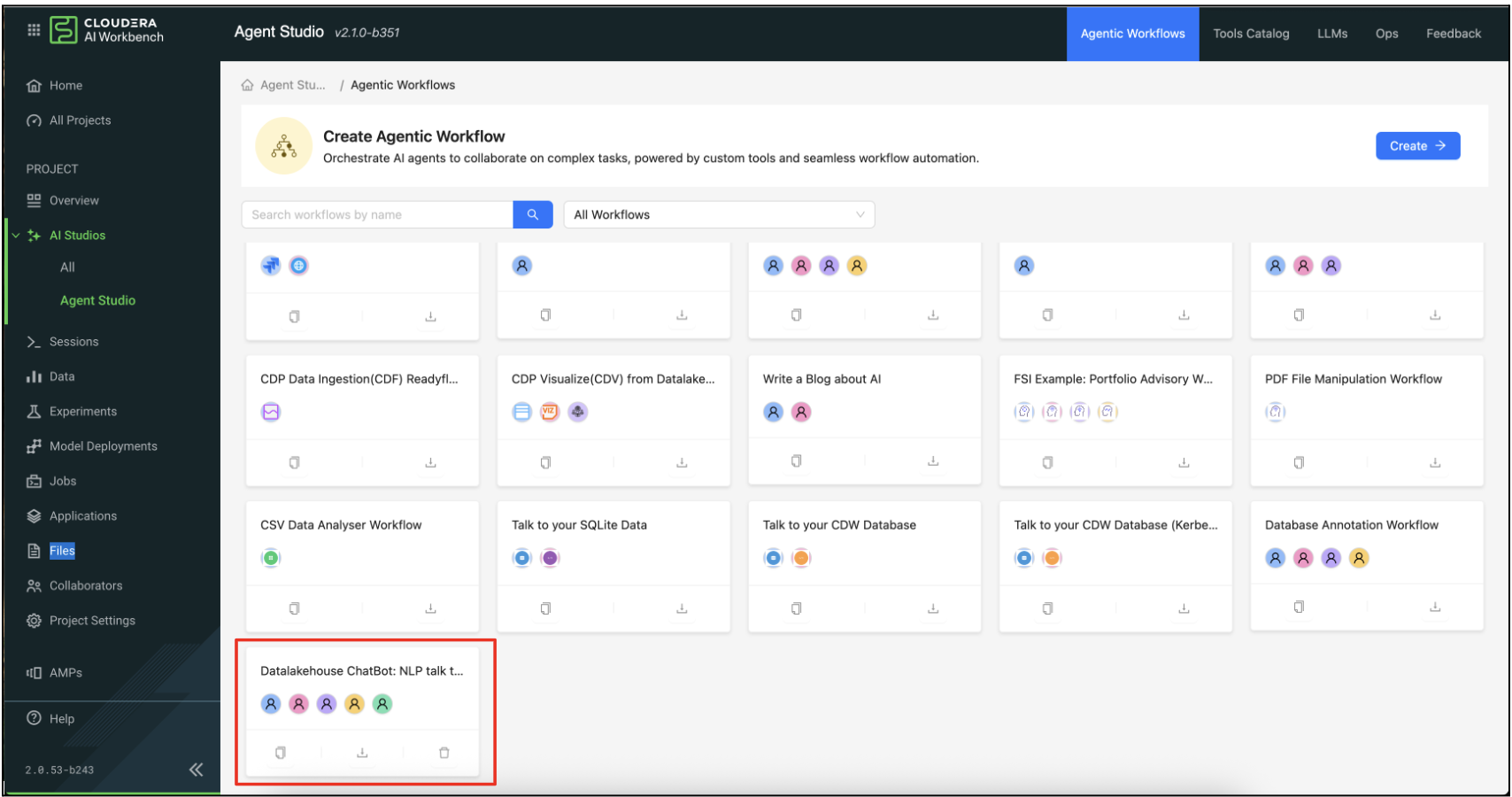
- The imported workflow template now appears in the Templates section and
can be used to create new workflows.
Migrating Workflows from GitHub Mode to Runtime Mode
This section outlines the necessary code modifications for migrating workflows from the deprecated GitHub mode (AMP mode) to the new, more secure runtime mode.
When migrating a workflow from the deprecated AMP mode (Public Github Repo) deployment to runtime mode, you must modify your tool code for compatibility with sandboxed execution. Runtime mode enforces security restrictions, requiring tools to follow specific patterns for accessing data connections and project files.
The sandboxed execution environment isolates tool execution to prevent security risks such as, credential exposure and data leakage. This isolation mandates updates for tools to use secure access patterns for:
- Data Connections: Tools accessing Cloudera data connections (e.g., CDW and Hive) must explicitly use the CDSW API v2 key for authentication. System environment variables and inherited authentication are blocked in the sandboxed environment.
- Project Files: Tools that use absolute paths to access project files must be updated. For reading files, use the read-only /workflow_data directory. For writing output files, use the session directory (/workspace).
