Deploying an application on Cloudera AI Inference service
Learn how to select a specific Cloudera AI Inference service instance and
create a new application. You must configure your application to run on port 8080. Cloudera AI Inference service will map this internal port to port 443 for external
access.
To deploy an application on the Cloudera AI Inference service, the following
prerequisites must be met:
Cloudera AI Inference service: A Cloudera AI Inference service
instance must be created. For instructions on creating a Cloudera AI Inference service instance, see Create a Cloudera AI Inference service
instance.
In the Cloudera console, click
the Cloudera AI
tile.
Click Applications under Deployments on the left navigation menu.
The Applications home page displays.
Click the Deploy Application button.
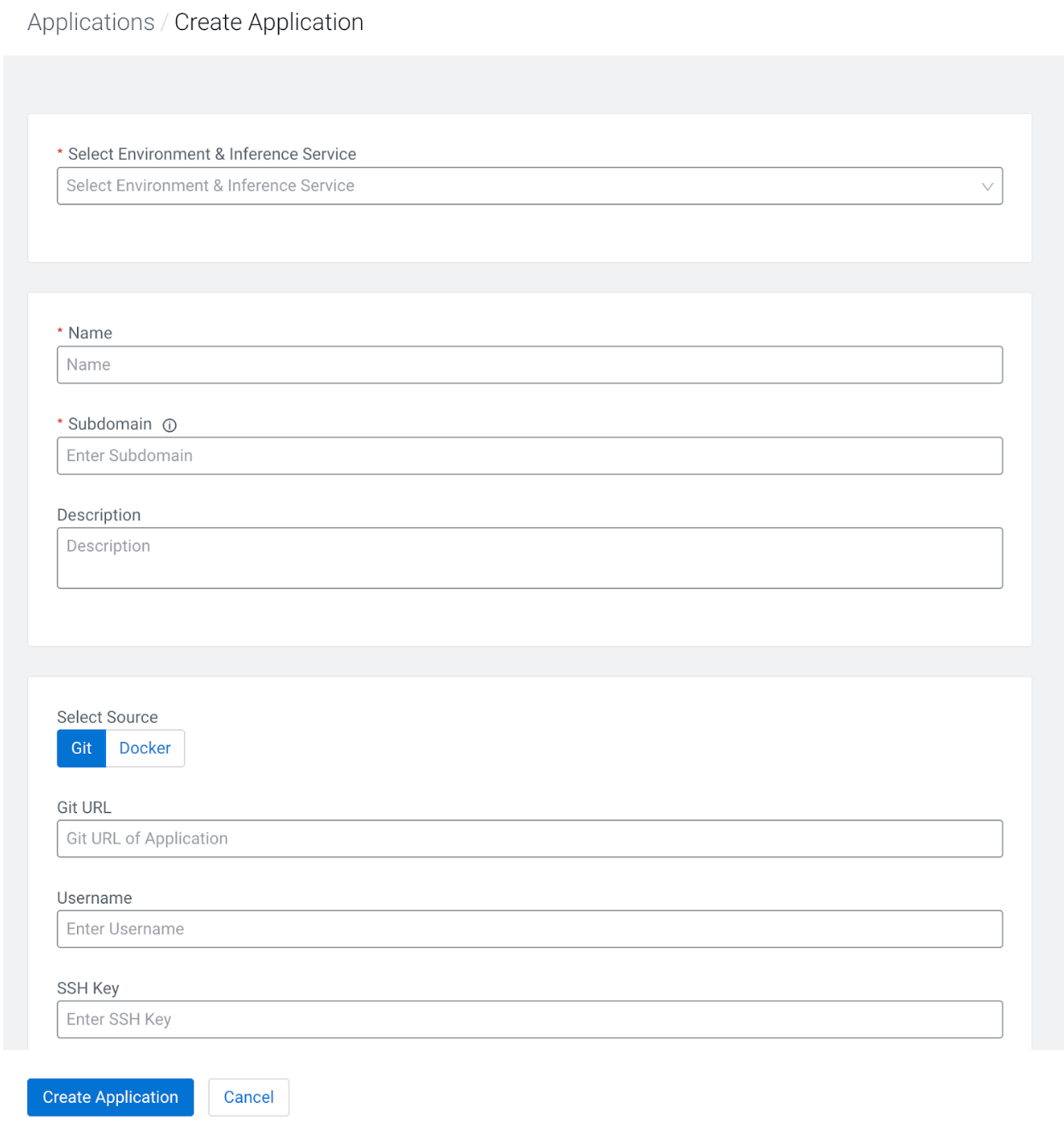
The Applications / Create Application page displays.
From the Select Environment & Inference Service drop-down list,
select your Cloudera environment and the Cloudera AI Inference service instance within which you want to create the
application.
In the Name textbox, enter a name for the application.
In the Subdomain textbox, enter a subdomain name. The application
will be deployed at https://<domain>.serving-apps.<caii-domain>.
In the Description textbox, add a description of the application.
For the Select Source field, choose Git if your application is from a Git repository or Docker if it is a container image.
For Git repositories: Select this if your application is in a Git repository.
Git URL: Enter the repository URL. For example:
https://github.com/cloudera/caii-apps-demo.git.
Authentication: If the repository is private, you may
use either an SSH Key or a Personal Access Token (PAT). Enter your Git
Username and paste the Token into the
password or token field in the UI.
Entrypoint: Enter the path to your startup script. For example, cml/launch_app.py.
For Docker images: Select this if your application is a container image.
Docker Image URL: Enter the full URL of the image.
Authentication: If the image is private, enter the associated username and access
token.
For the Authentication Type field, select SSO for a web application or JWT for an API-based application.
For the Resource Profile field, configure the following resource requirements for each application replica:
In the Instance Type field, select the instance type from the drop-down list.
In the GPU field, specify the number of GPUs each application replica requires.
In the CPU field, specify the number of CPUs each application replica requires.
In the Memory field, specify the amount of CPU memory each application replica requires.
Using the Application Autoscale Range slider bar, specify the
minimum and maximum number of replicas for the application. The autoscaler scales the replicas
to manage the incoming workload. In the Autoscale Range section of the
deployment UI, select your desired Metric Type and enter a
Target Value (for example, 70 for concurrency).
In the Environment Variables field, add any custom key and value pairs your application needs.
In the Tags field, add any custom key and value pairs your application needs.
Click the Create Application button to deploy the application.
System Environment Variables
The following variables are automatically populated and available to your
application at runtime:
Variable
Description
SERVICE_DOMAIN
The domain name of the Cloudera AI Inference service.
APP_URL
The external URL where the application is accessible.
APP_PORT
The internal port the application must listen on (hardcoded to
8080).
OWNER_ID
The identity of the user who deployed the application.