Launching RAG Studio when AI Studios mode is enabled
This section outlines the process for launching RAG Studio when AI Studios mode is enabled.
- In the Cloudera console,
click the Cloudera AI tile.
The Cloudera AI Workbenches page displays.
- Click on the name of the workbench.
The workbench Home page displays.
- Click Projects, and then click New Project
to create a new project.
In the left navigation pane, the new AI Studios option is displayed.
-
Click RAG Studios.
-
Check the View on Github link for RAG Studio within the AI Studios tile interface. Ensure it points to the correct public repository: https://github.com/cloudera/Rag-Studio-Runtime-Config. If the link is incorrect, proceed to the manual steps outlined in the Launching when AI Studio Mode is Disabled topic.
-
Click the Launch button in the RAG Studio box to initiate installation in runtime mode. The Configure Studio: Rag Studio page is displayed.
-
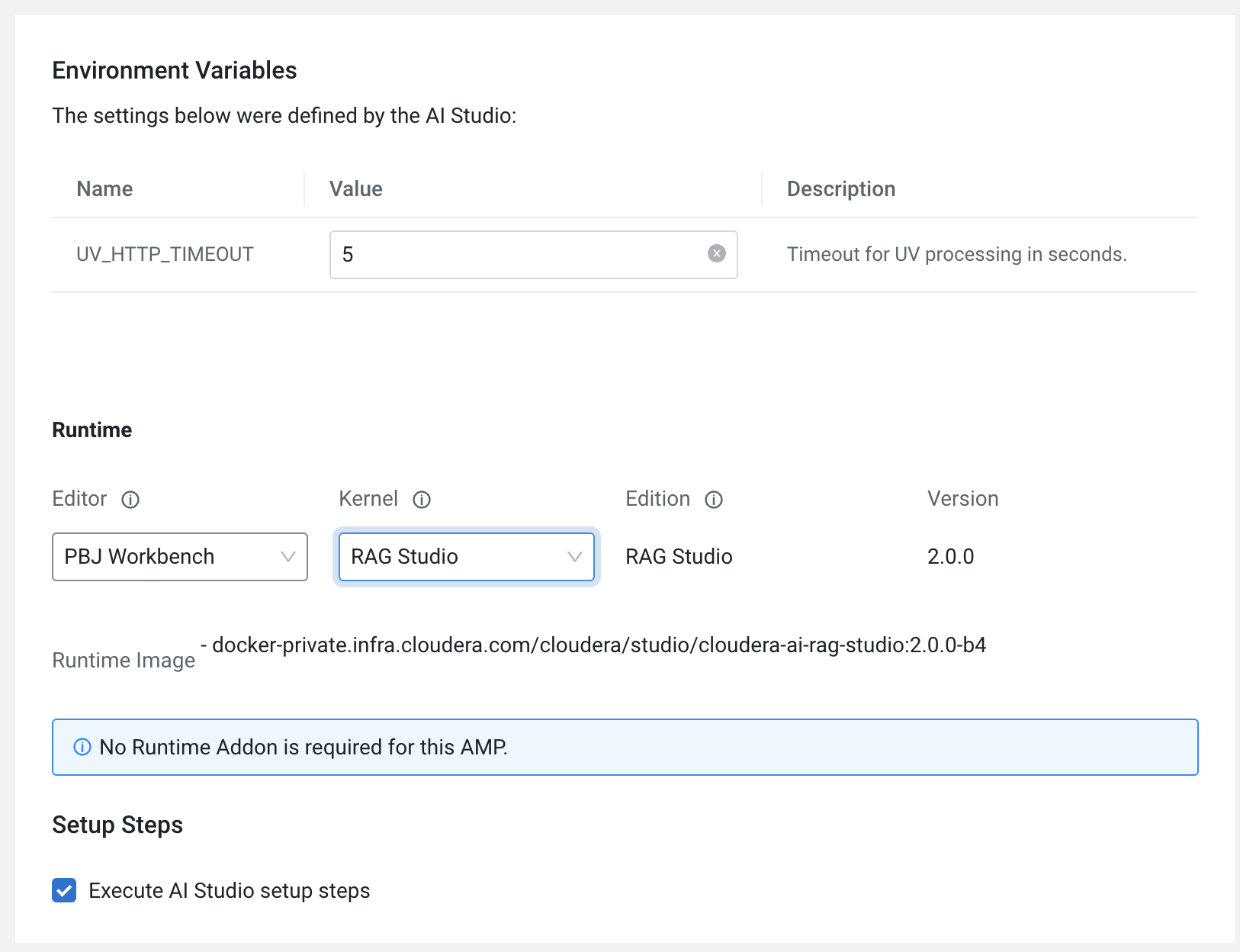
Set the environment variables for the RAG Studio.
-
Select the Editor as PBJ Workbench.
-
Under Runtime, select Rag Studio as the Kernel.
-
Click Launch AI Studio.
The AI Studio Setup Steps page is displayed.
After launching, you can view the list of tasks being executed as part of the AI studio deployment.
-
After configuration, RAG Studio is displayed in the left navigation page under AI Studios.
-
Click RAG Studio and click Get Started.
