Collecting Cloudera on premises diagnostics data
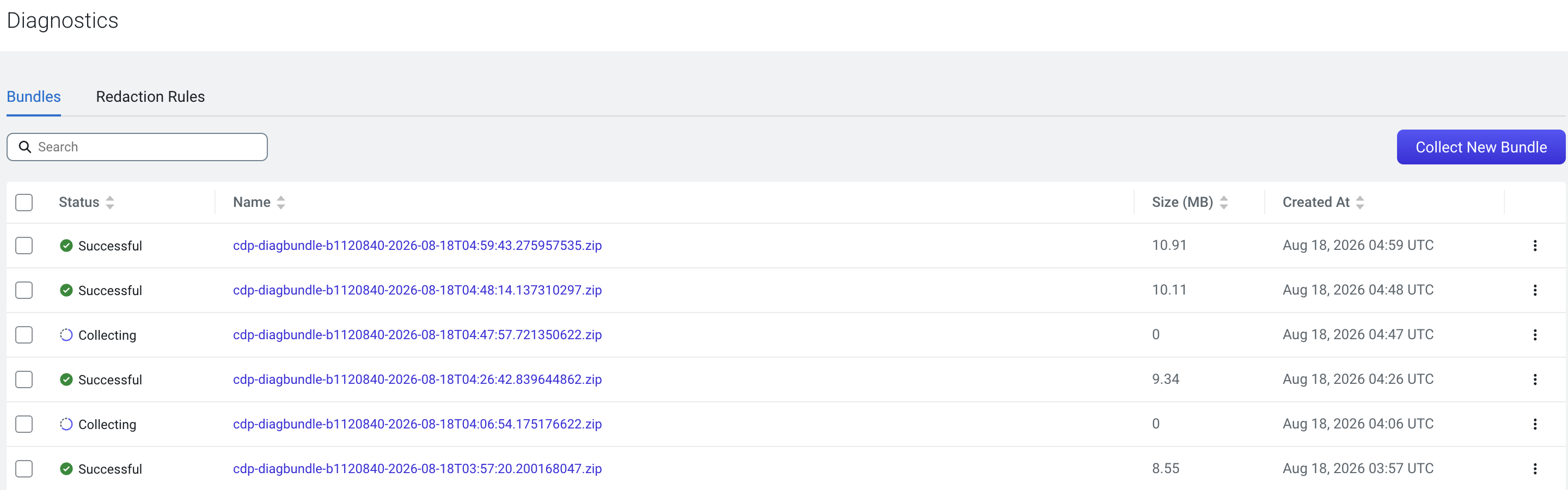
You can collect and download Cloudera on premises diagnostic data for different components and services from the Diagnostics page of the Cloudera Management Console. In addition, you can specify the type of workloads and the duration for which you want to collect the diagnostic data.
-
Click Collect and Send Diagnostic Data to commence the
process.
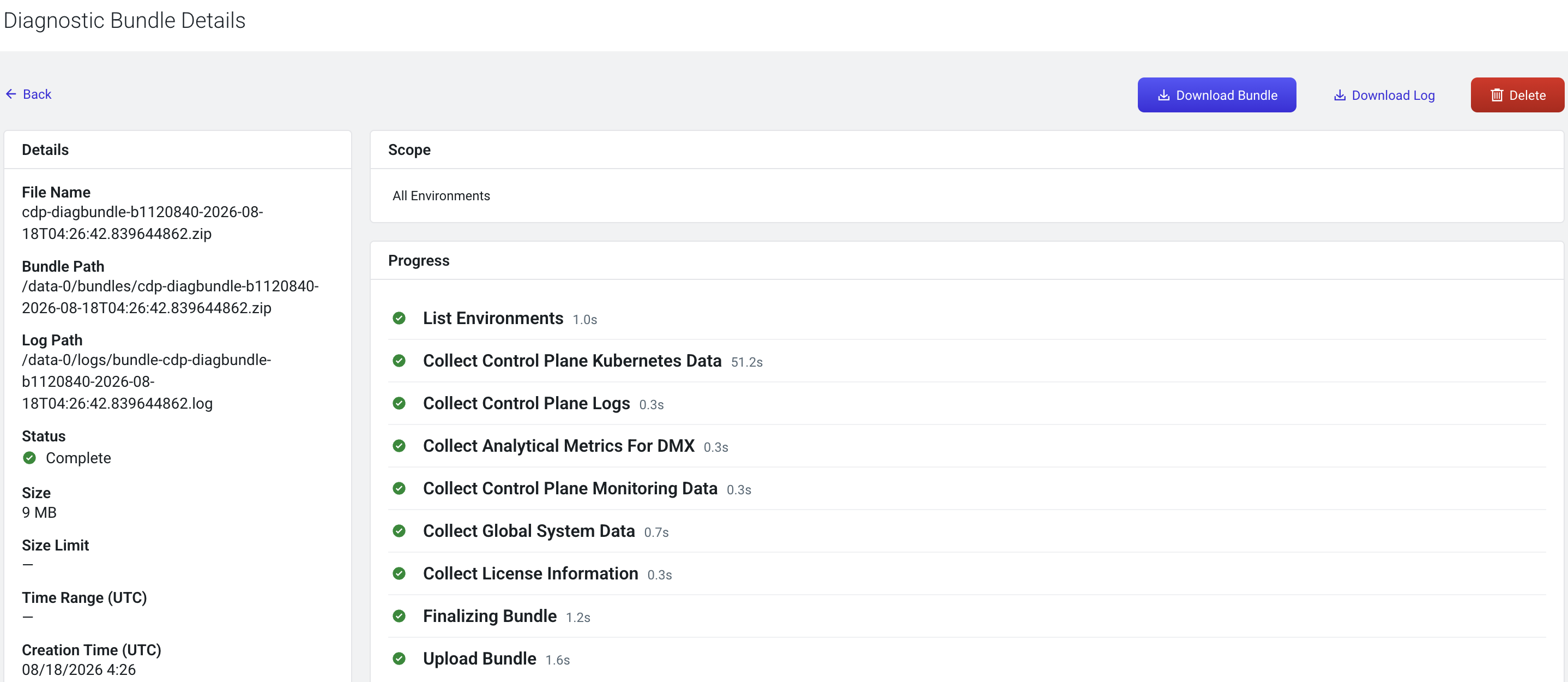
Cloudera Management Console initiates the process of generating the diagnostic data based on the options that you select. After the data is generated, the Last Collected Time field is updated with the collection time.Once the collection process is completed, navigate to the Diagnostics homepage and click on the collected bundle name to fetch more details. Alternatively, you can download or delete the selected bundle. The diagnostic data is downloaded in a
.zipfile. You can send this file to Cloudera support. If your system is connected to the internet, Cloudera Management Console collects the diagnostic data and sends it to Cloudera Support.
-
On the Diagnostics home page select the Redaction Rules
tab and click Add New Rule.
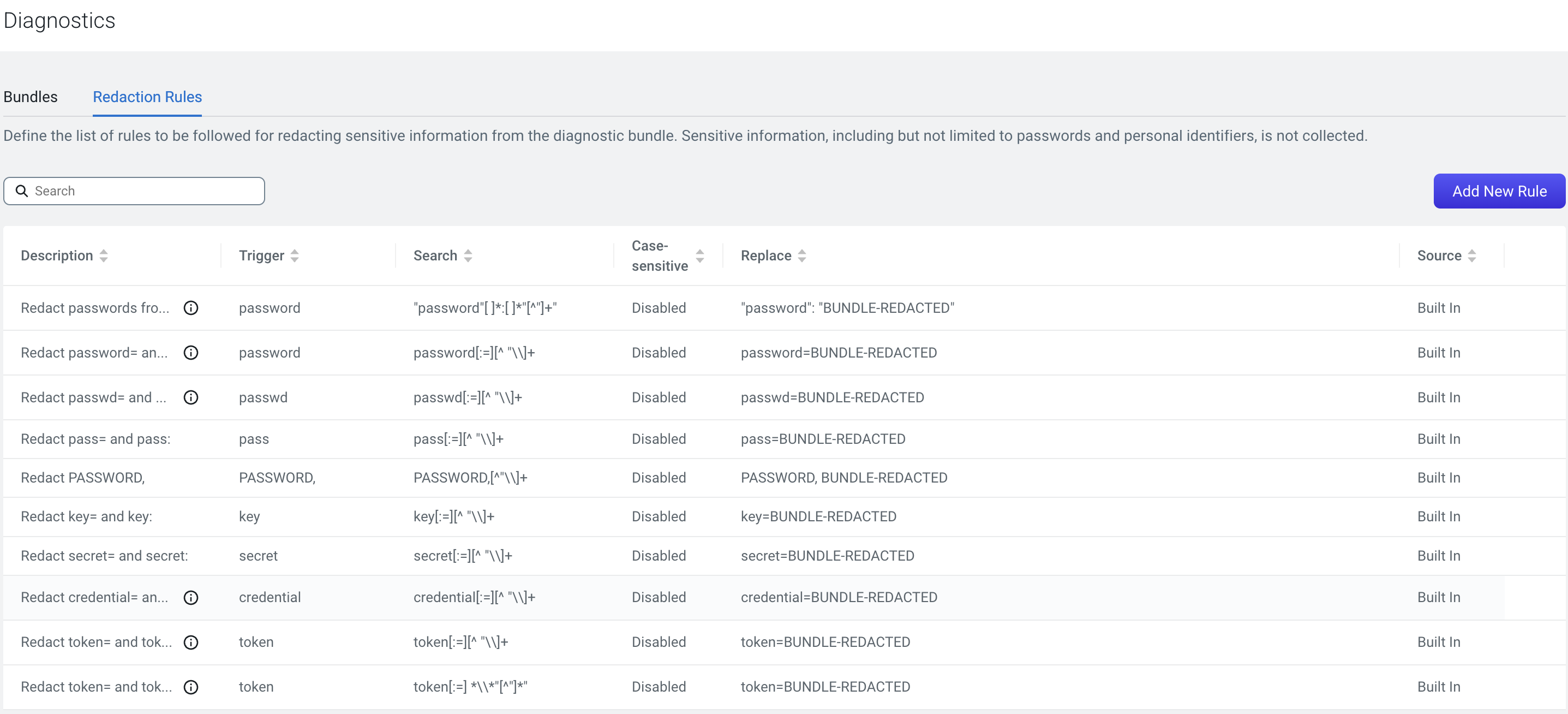 Redaction Rules define the list of rules to be followed for redacting sensitive information from the diagnostic bundle. Sensitive information, including but not limited to passwords and personal identifiers, is not collected.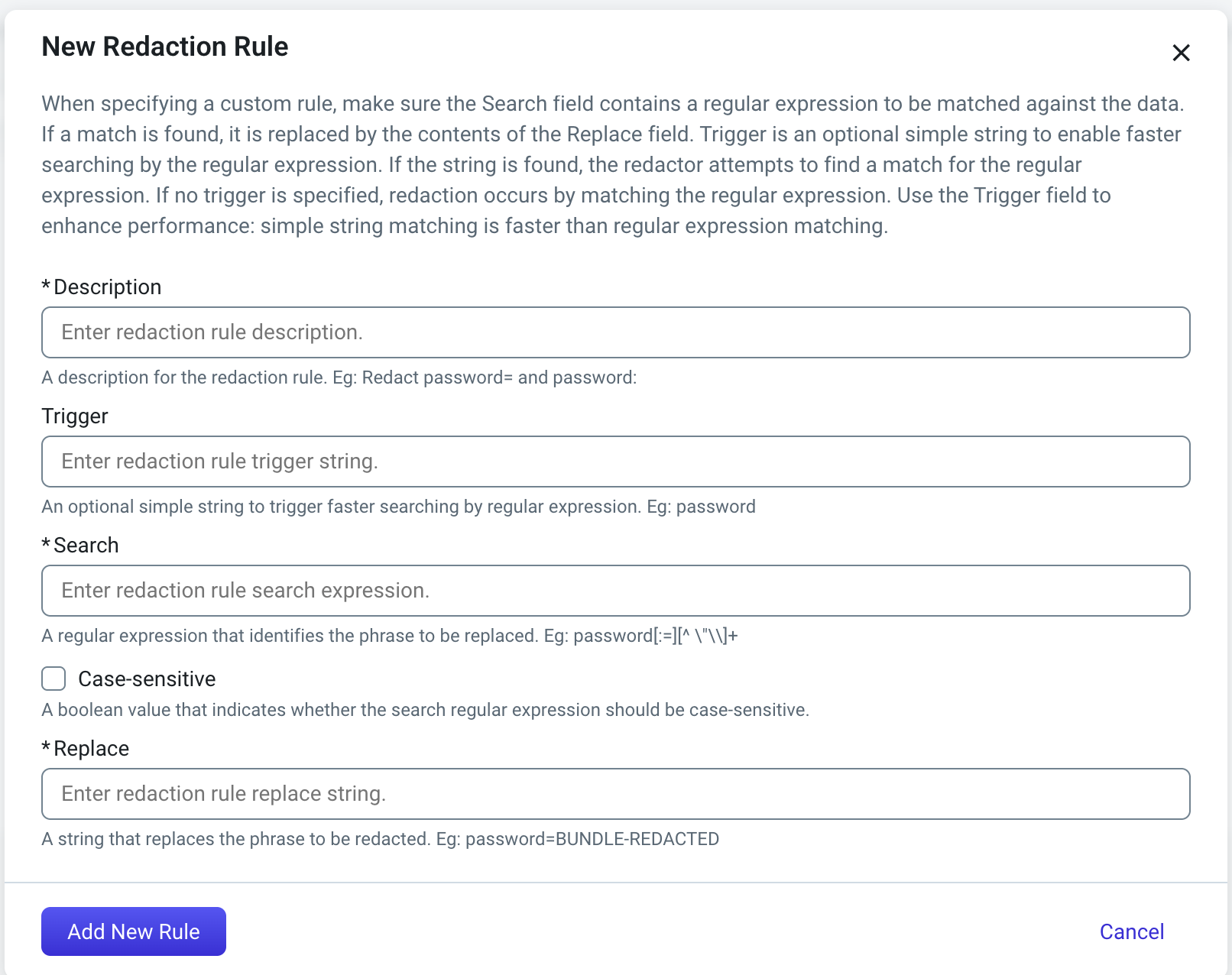
- Description: (Mandatory) Enter the description for the redaction rule.
- Trigger: Enter the redaction rule trigger string.
- Search: (Mandatory) Enter the redaction rule search expression.
- Replace: (Mandatory) Enter the redaction rule replace string.
