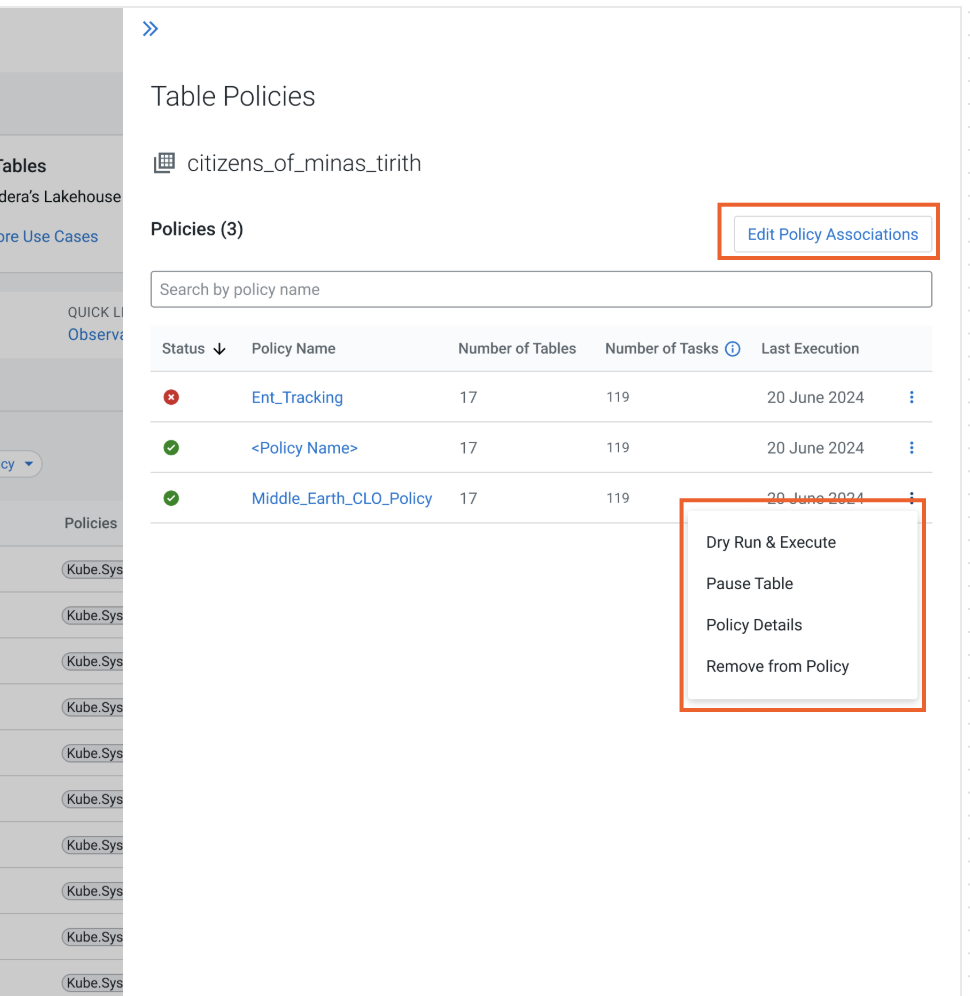
The table name and the list of policies it is associated with.
The Edit Policy Associations button that opens the
Edit Policy Associations modal window.
Policy details, including the Policy Name, the
Policy Status icon, the Number of Tasks
that have run on the table, the Last Execution timestamp, and the
Policy Actions menu.
The Policy
Actions menu in Cloudera on cloud 7.3.2 and
higher versions displays the following options:
The Dry Run & Execute action that opens the
Dry Run & Execution modal window or side panel.
The Pause Table action to pause the maintenance tasks on
the table.
The Policy Details action that opens the View
Policy page.
The Remove From Policy action that removes the table from
the chosen policy.
In Cloudera on cloud 7.3.1.500 and higher
versions, the Policy Actions menu displays the View
Policy action that opens the View Policy page, and
the Remove From Policy action that removes the table from the
chosen policy.
The following image shows the Table Policies side panel:Figure 1. Table Policies side panel
Edit Policy Associations
The side panel is displayed when you click one of the following options:
The Actions > Edit Associations option on the View Policy page
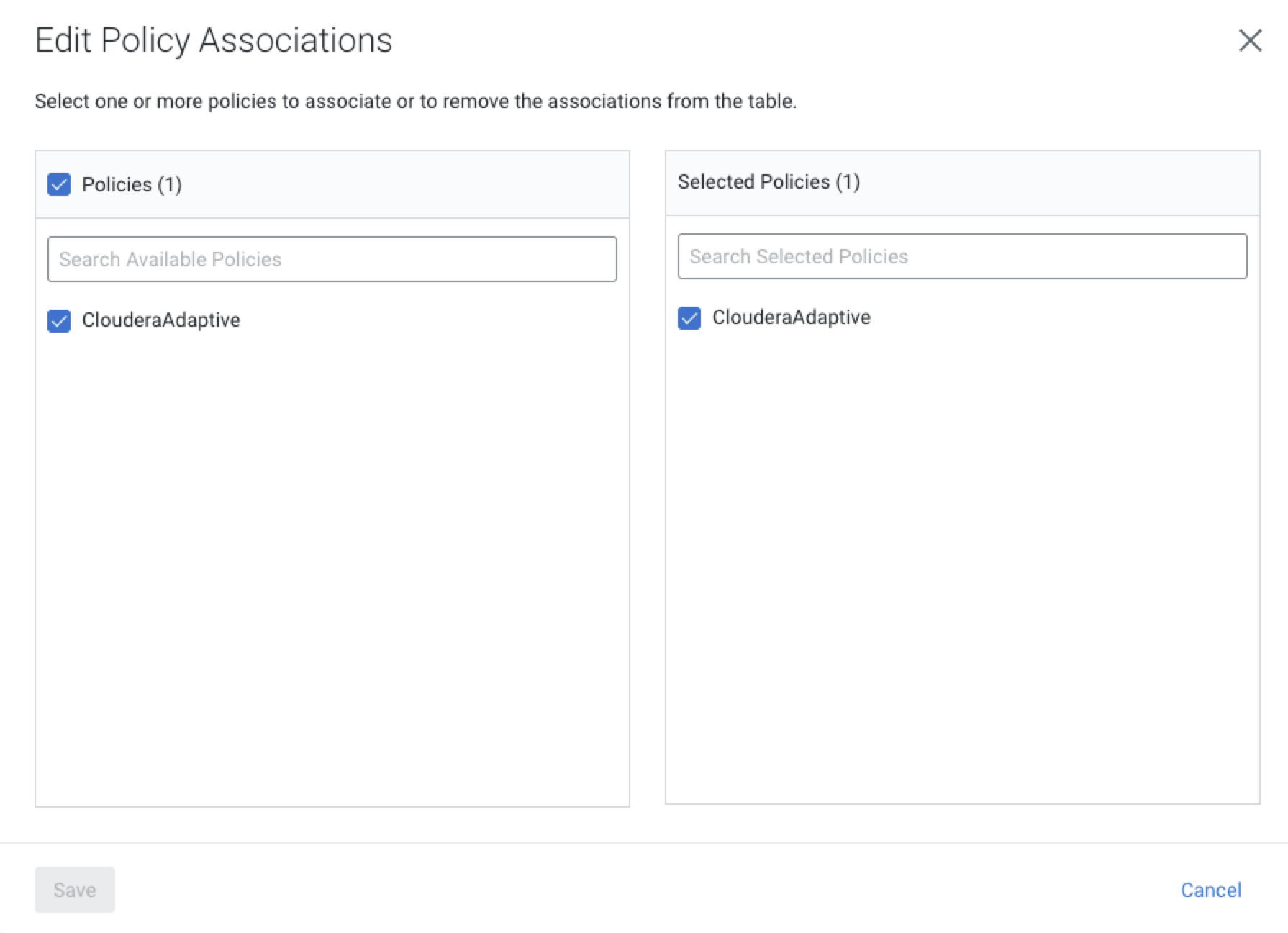
On the Edit Policy Associations modal window, you can perform the
following actions:
Select one or more policies to associate with the table.
Remove policy associations from the table.
Search for available policies to create associate with the table.
Search for policies currently associated with the table.
Save the changes.
The following image shows the Edit Policy Associations modal
window:Figure 2. Edit Policy Associations modal window
Namespace Details
The side panel is displayed when you click a namespace on the Namespace
Associations subtab.
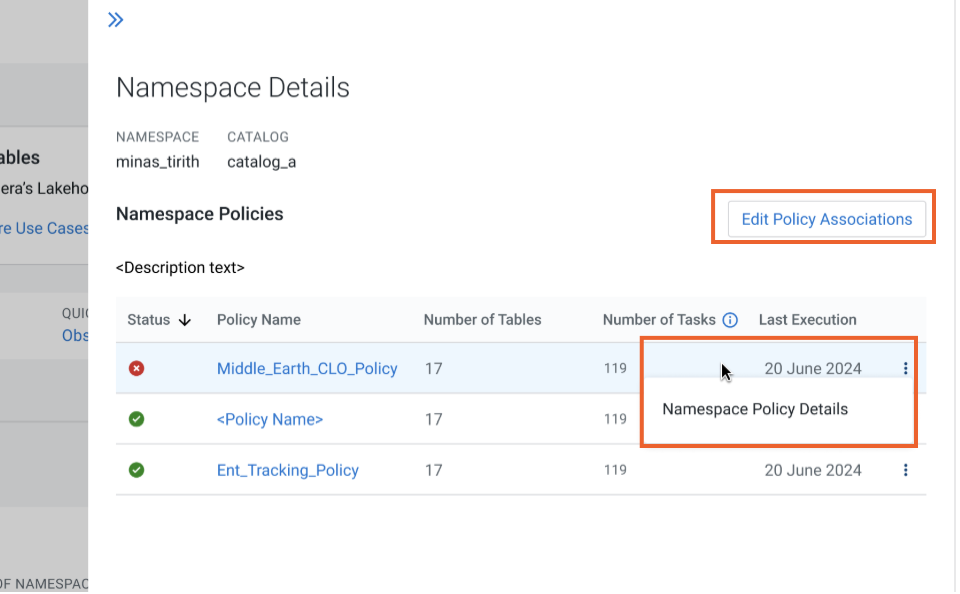
The side panel displays the following details:
The namespace name, catalog name, and the list of policies it is associated with.
The Edit Policy Associations option that opens the
Edit Policy Associations modal window.
The namespace details, including the Status icon, the
Policy Name, the Number of Tables in the
policy, the Number of Tasks that have run on the policy, and the
Last Execution timestamp.
The
icon displaying the Namespace Policy Details option that opens
the View Policy page.
The following image shows the Namespace Details side panel:Figure 3. Namespace Details side panel
 icon displaying the Namespace Policy Details option that opens
the View Policy page.
icon displaying the Namespace Policy Details option that opens
the View Policy page.