In Cloudera on cloud 7.3.1.500 and higher versions, the
Tables tab in Cloudera Lakehouse Optimizer provides the list of all the Iceberg tables in
the selected namespace, including tables undergoing table maintenance and tables in
Pause state, and the table maintenance details.
The namespaces that you declare for Cloudera Lakehouse Optimizer populate the namespaces
drop-down list, allowing you to choose the required namespace to view its tables.
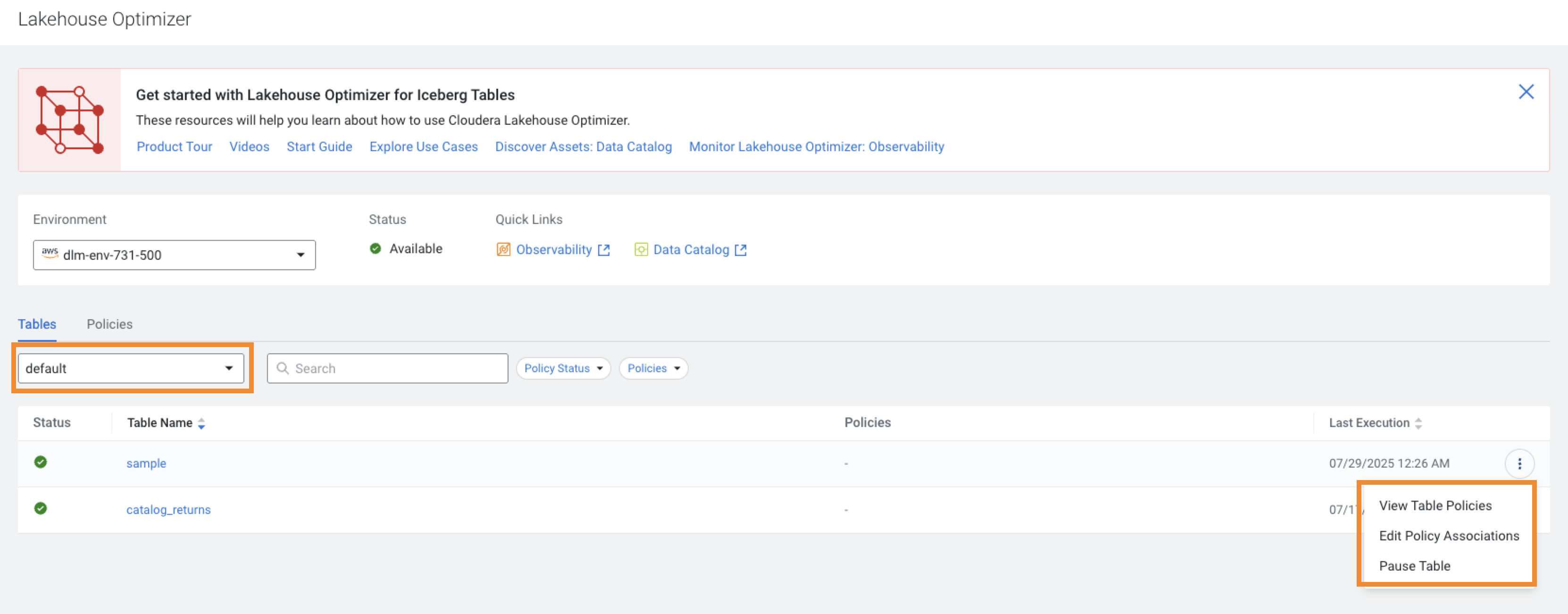
The following image shows the Tables tab on the Lakehouse Optimizer page,
which lists the tables in the default namespace:Figure 1. Tables tab
The Tables tab displays the following details:
The current table maintenance task Status icon.
The Table Name.
The Policies that the table is associated with.
The Last Execution timestamp for each table.
You can select the following actions, when you click for a table:
View Table Policies that shows the
list of policies associated with the table on the Table Policies side
panel. The panel is also displayed when you click the table name on the
Tables tab.
Edit Policy Associations that opens
the Edit Policy Associations modal window. The option is also displayed on
the Table Policies side panel.
Pause Table that pauses the
maintenance tasks that are scheduled to be run on the table. You can click Unpause
Table later to pause a table when required.
The following table describes the status icons displayed on the Tables
tab:
Table 1. Status icon descriptions
Status icon
Status description
The last policy run for the table completed successfully.
The last policy run for the table failed.
One of the following conditions is true:
You paused the table maintenance.
Cloudera Lakehouse Optimizer paused the table maintenance because the recurring
failures during the execution phase for the policy exceeded the retry value. For
instructions about setting the retry value, see Pause and resume table maintenance.
 for a table:


