Enabling SSO for Cloudera Data Lineage with Entra ID (former Azure Active Directory)
Learn about enabling SSO for Cloudera Data Lineage (formerly Octopai) using Entra ID (former Azure Active Directory) by leveraging OAuth 2.0 and OpenID Connect (OIDC) protocols. This integration enhances security, scalability, and compliance, ensuring seamless authentication and secure access to resources.
OAuth 2.0, serving as an authorization framework, allows third-party services to exchange web resources on behalf of users, utilizing access tokens over HTTP. When paired with OIDC, it introduces an authentication layer, verifying user identity before any authorization or data exchange, enhancing the security model.
This authorization has the following key benefits:
- Delegated Access – The synergy of OAuth 2.0 and OIDC is ideal for scenarios requiring the Cloudera Data Lineage systems to access metadata on behalf of users securely, without directly handling user credentials.
- Scalability and Flexibility – This combination supports a wide array of applications, meeting diverse client requirements from desktop and mobile apps to server-side and client-side applications.
- Enhanced Security and Azure AD Compatibility – Integration with Azure AD ensures a reliable and secure ecosystem, crucial for enterprise environments.
Implementing OAuth 2.0 with OIDC enriches our SSO capabilities, streamlining authentication across services with a single set of credentials. This demonstrates the reliability and security of the protocols, endorsed by critical sectors like banking, manufacturing, and healthcare.
For those upholding the highest data security and governance standards, our alignment with OAuth 2.0 and OIDC, facilitated by Azure Active Directory, signifies a proactive, security-first approach. It ensures our platform interactions adhere to stringent security protocols, evolving with digital threat landscapes and regulatory demands.
The Cloudera Data Lineage adoption of OAuth 2.0, enhanced by OIDC for authentication, underscores our commitment to security and meeting the complex needs of our diverse clientele. Cloudera Data Lineage is dedicated to continuous improvement, aligning with industry-best practices to deliver the most secure, efficient, and compliant data lineage solutions available.
To set up SSO authentication for Cloudera Data Lineage using Entra ID (former Azure Active Directory), perform the following steps:
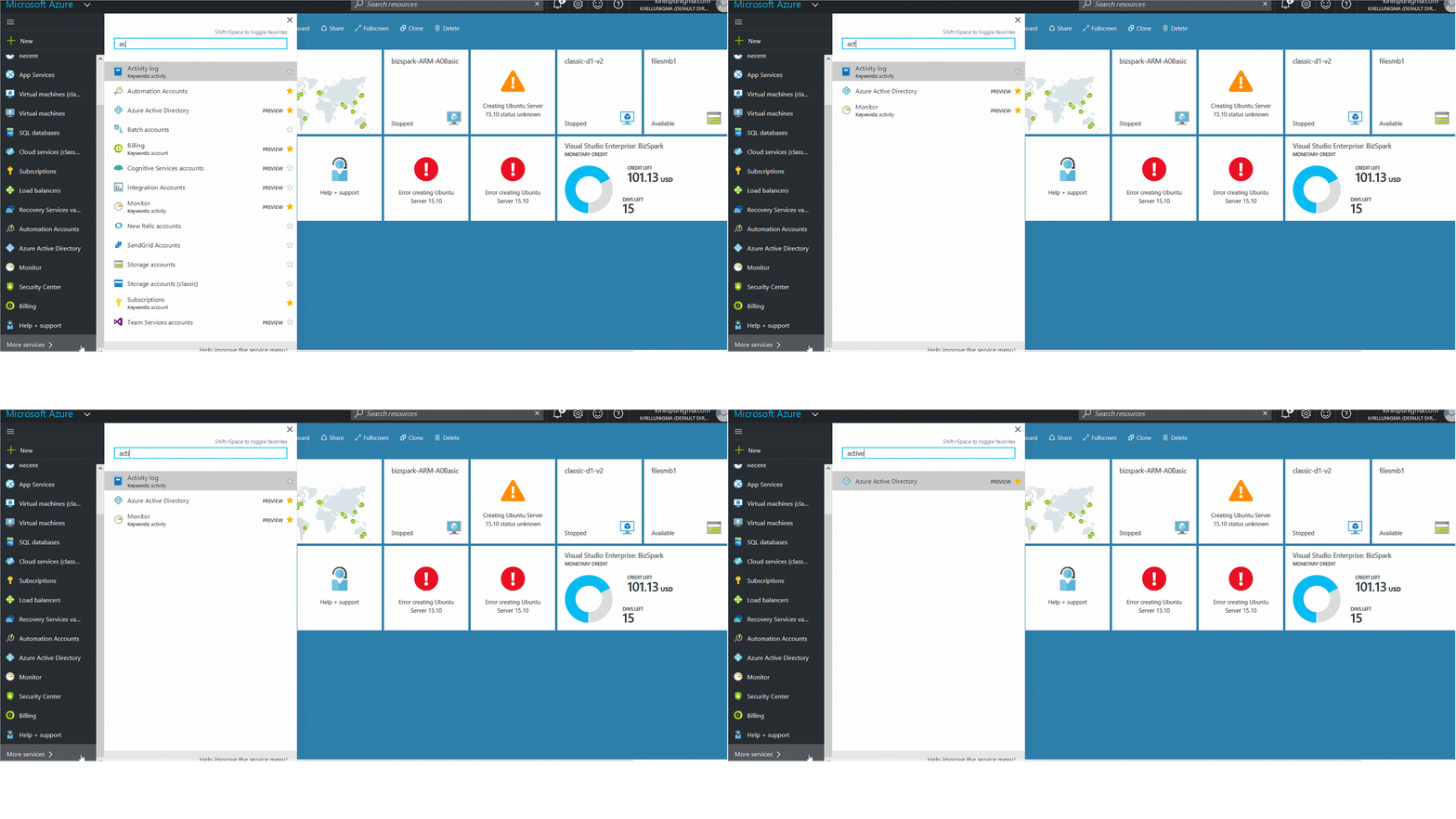
-
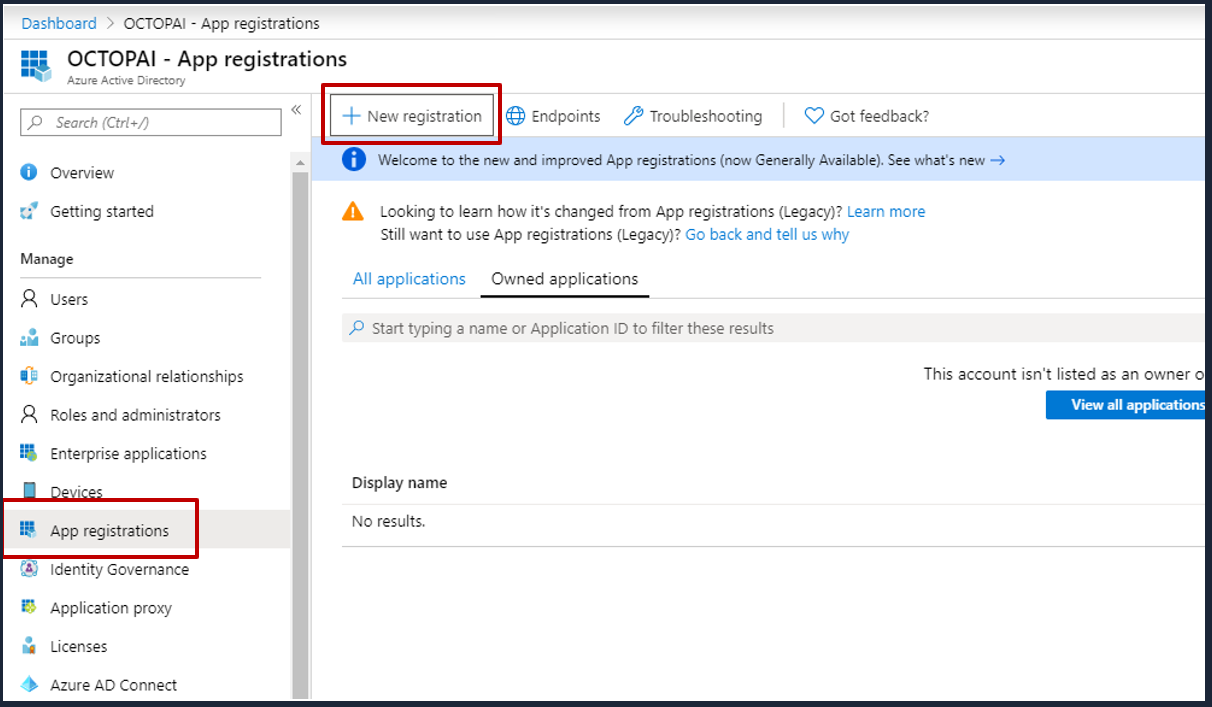
Choose App registrations and then select New
application registration.
-
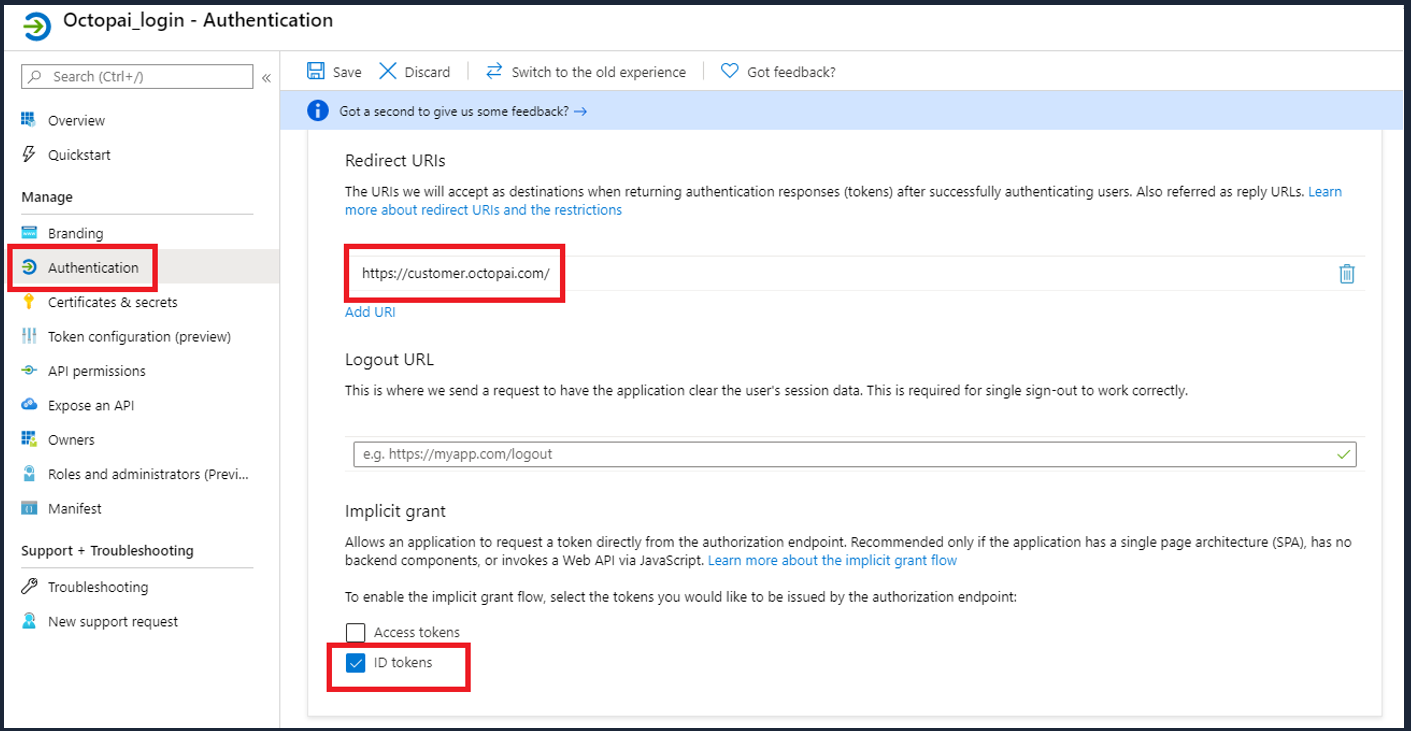
Add your Cloudera Data Lineage tenant URL as the redirect URI (for
example,
https://[***YOUR TENANT NAME***].octopai.com/).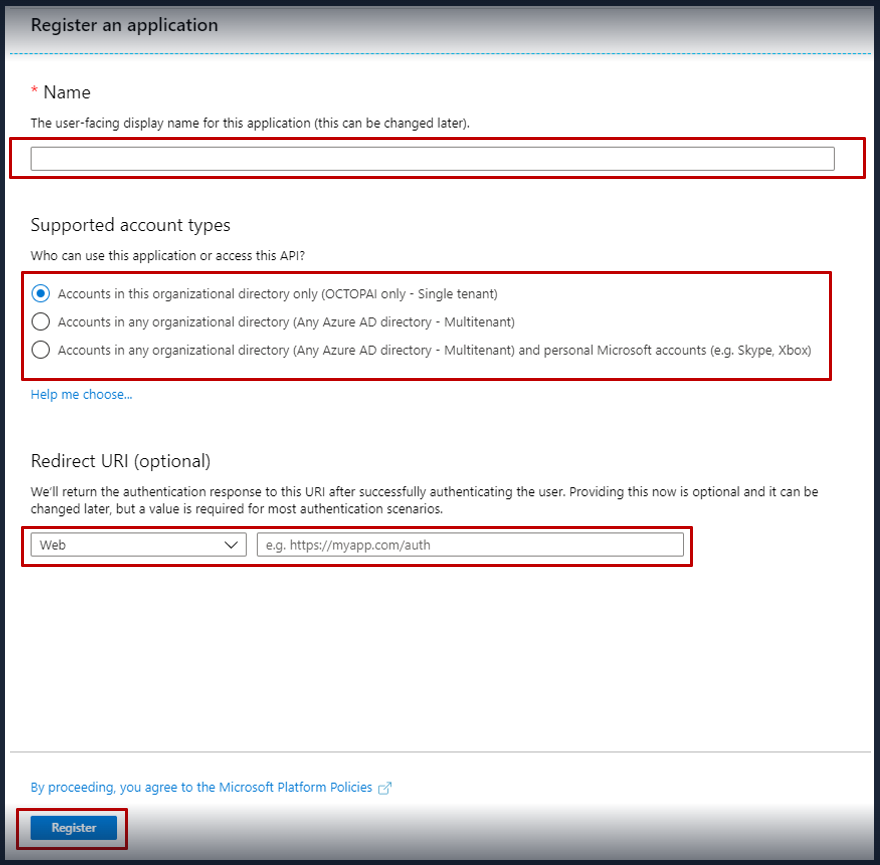
Once you completed registration, Azure AD will assign your application a unique client identifier, the Application (Client) ID. Copy this ID from the application page and send it to Cloudera Data Lineage.
- Your tenant name or ID.
- Your application (client) ID.
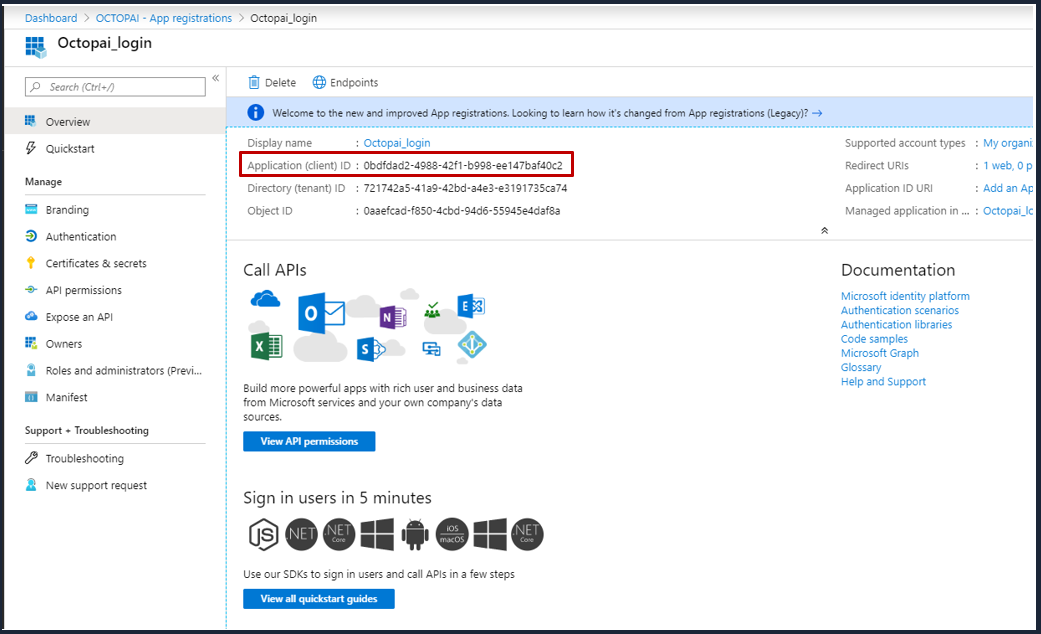
- The redirect URI you set, for example
https://[***YOUR NAME***].octopai.com/.