Power BI (Microsoft Fabric)
The Cloudera Data Lineage Power BI (Microsoft Fabric) connector requires a Microsoft Entra service principal, Fabric admin tenant settings, Power BI Service API permissions, and Contributor workspace access.
Overview
Before you set up the Power BI (Microsoft Fabric) connector, ensure that you have the following:
-
Microsoft Entra application credentials: a registered service principal with a tenant ID, application (client) ID, and client secret. See Application registration (service principal).
-
Fabric admin tenant settings: settings that allow the service principal to call Fabric public APIs and access Fabric items. See Tenant settings (Fabric admin portal).
-
Power BI Service API permissions: delegated API permissions for the service principal, including
Dataset.Read.Alland related scopes. See Tenant-level permissions. -
Fabric workspace permissions: the Contributor role assigned to the service principal on the target workspace. See Workspace permissions.
How this integration works
-
Cloudera Data Lineage connects to a single Microsoft Fabric workspace, identified by Workspace ID, in your Microsoft Entra ID (Azure AD) tenant.
-
Extraction uses service principal (client credentials) only.
-
API access is scoped by workspace access.
-
Cloudera Data Lineage calls Microsoft Fabric APIs and can also read Power BI content in the same workspace.
Required components on the customer side
You must have all of the following:
-
Microsoft tenant: A Microsoft Entra tenant.
-
Microsoft Fabric or Power BI enabled: Microsoft Fabric enabled in the tenant, or at a minimum enabled for the relevant capacity or workspace path.
Minimum permissions model
Because Cloudera Data Lineage connects to one workspace at a time, you must configure two permission layers:
-
Tenant-level permissions allows the service principal call Fabric and Power BI APIs.
-
Workspace-level permissions allows the service principal access the target workspace.
Application registration (service principal)
- In the Azure portal, open , and select New registration.
- Give the application a name, and select Accounts in this organizational directory only.
- Select Register.
- From the application overview, record the Directory (tenant) ID and Application (client) ID.
- Create a Client secret under .
The Cloudera Data Lineage Power BI (Microsoft Fabric) connector authenticates using a Microsoft Entra service principal. The service principal is used for:
- Microsoft Fabric REST API access
- Power BI Service API access for workspace and item metadata
You must record the following values for configuration in Cloudera Data Lineage:
- Tenant ID
- Application (client) ID
- Client Secret Value
Tenant settings (Fabric admin portal)
In the Fabric admin portal, enable the following settings:
- Open Microsoft Fabric.
- Select Settings, and then select Admin portal.
- Open Tenant settings.
- Find and enable Service principals can call Fabric public APIs.
- Find and enable Allow apps to access Fabric items.
Tenant-level permissions
In the app registration, go to , select Power BI Service, and add the following delegated permissions:
Dataflow.Read.AllDataset.Read.AllReport.Read.AllSemanticModel.Read.AllWorkspace.Read.All
Workspace permissions
Enabling tenant settings does not grant workspace access. You must also assign the service principal to the target workspace with the Contributor role. You need Contributor access for complete metadata extraction coverage, including:
- Reports
- Datasets and semantic models
- Dataflows
- Tables, measures, and lineage definitions
For metadata extraction (tables, measures, and lineage), you need Build and XMLA access, available with Contributor or equivalent permissions. The Viewer role is not sufficient for full metadata extraction.
Setting up Power BI (Microsoft Fabric) metadata source
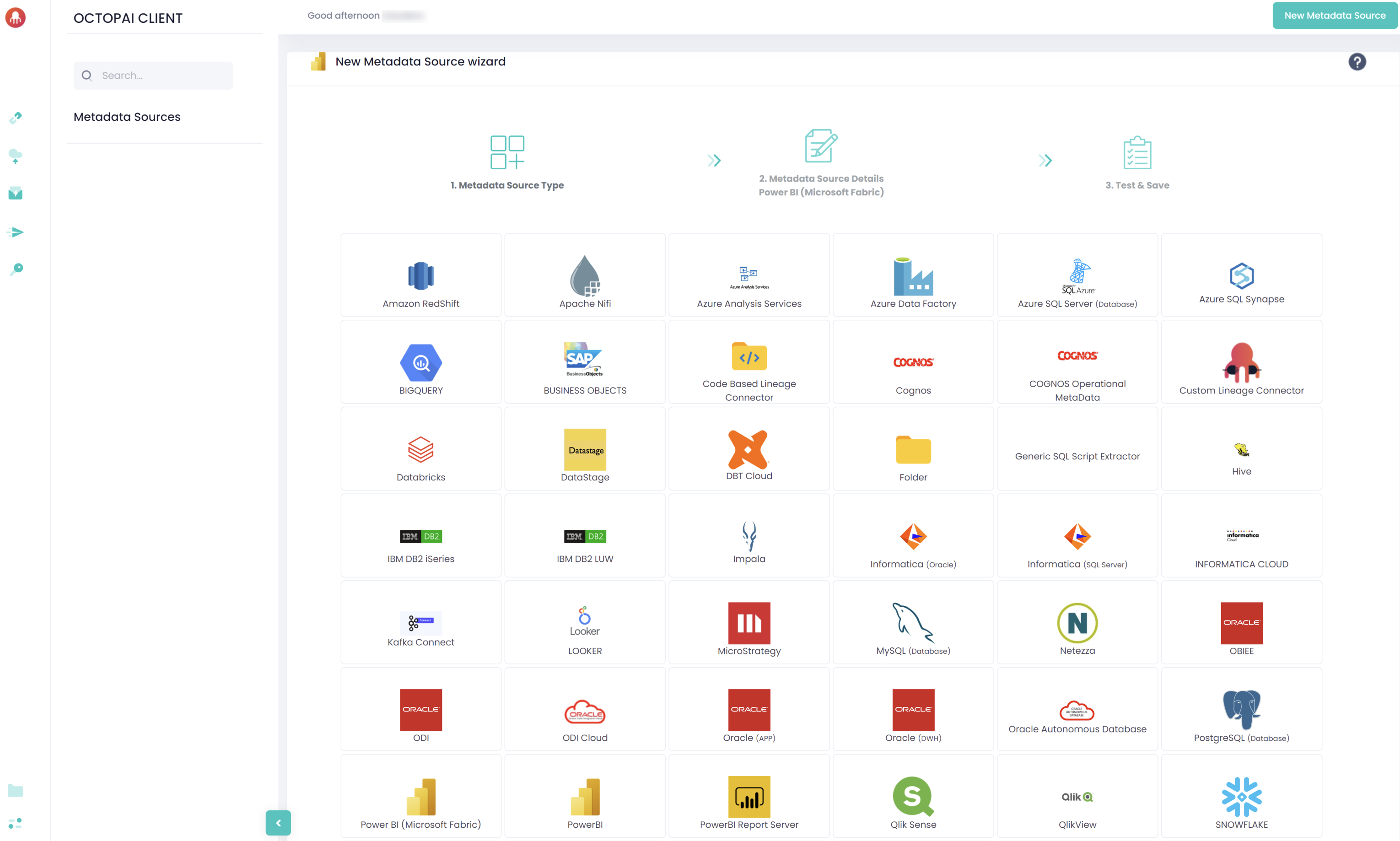
Configure the metadata source on the Octopai Client. In the New Metadata Source wizard, on Metadata Source Type, select Power BI (Microsoft Fabric).
On Metadata Source Details, select Client Secret Authentication, and enter the following:
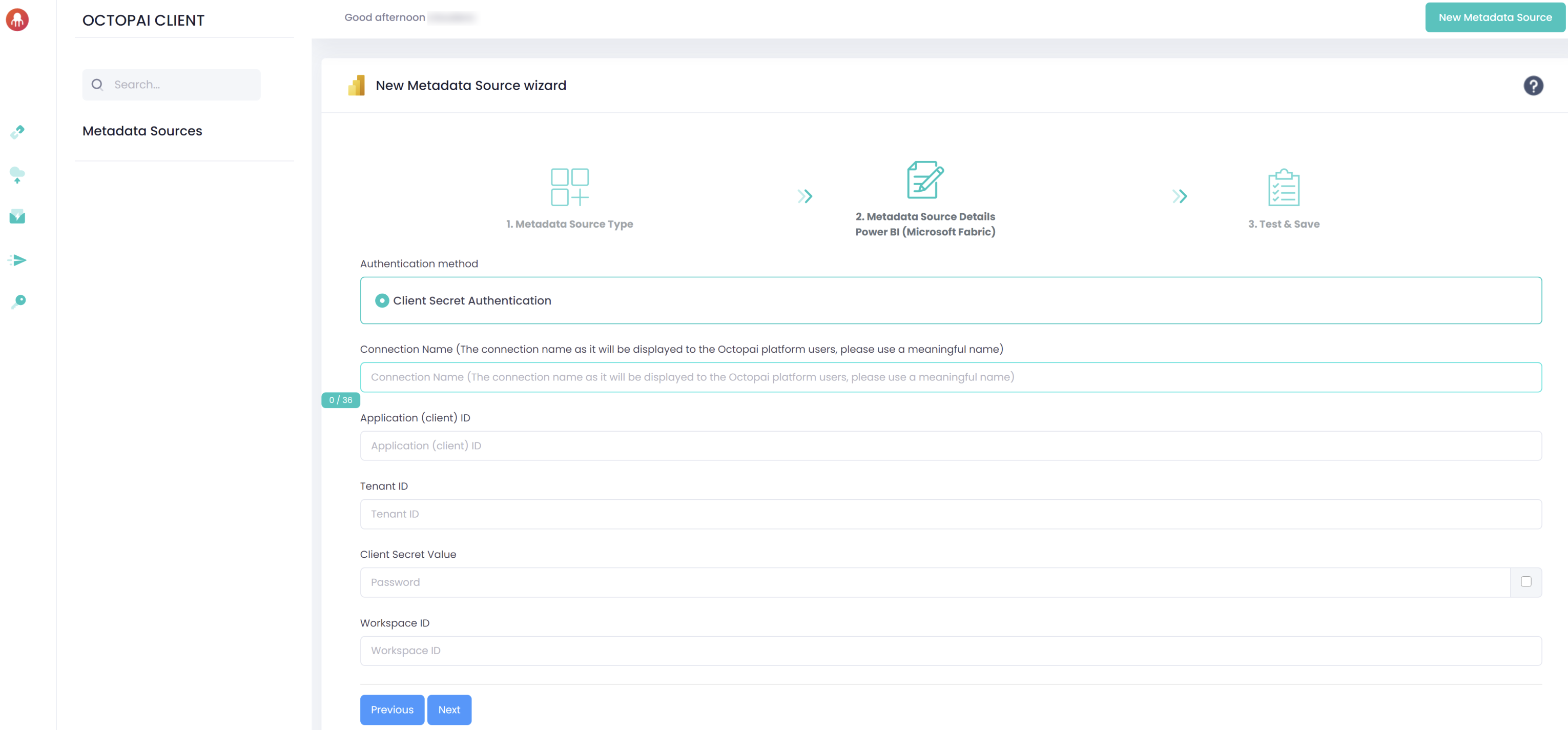
- Connection Name: Enter a meaningful name. The name is displayed to Cloudera Data Lineage platform users.
- Application (client) ID
- Tenant ID
- Client Secret Value
- Workspace ID
