Textual Files or Folder connector
The Textual Files or Folder connector allows you to extract file metadata from directories. You can set this connector up by configuring metadata sources and validating permissions.
Supported file types
The following file types are supported:
- Upload (Discovery Display): text file, CSV file, SQL file, log file, XML file, JSON file, bash file, output file, BTEQ file, BTQ file, control file, report file, Perl file, KornShell file, C# file, Siddhi file
- Fully Analyzed (All Modules Supported): SQL file, BTEQ file, BTQ file, control file, Siddhi file
Limitations
The following limitations apply to the Textual Files or Folder connector:
- Archive files, including .zip and other archive formats, are not supported. The connector does not extract archives, and nested archives (for example, a .zip inside another .zip) are also not extracted.
- Only files placed directly in the configured Source Folder are analyzed. Files that remain inside an archive are ignored, even if the archive itself is in the source folder.
- Uploading a .zip or other archive through the Cloudera Data Lineage (formerly Octopai) portal does not trigger connector processing. The archive must be fully extracted, and the individual files placed in the source folder, before the connector runs.
Tool Permissions Prerequisites
Enable read permission for Cloudera Data Lineage Windows NT User to the folder (which contains the textual files).
Setting up Textual Files Metadata Source
Metadata Sources are set on the Octopai Client
- From the Octopai Client, click the Folder connector.
- In the New Metadata Source wizard, choose the authentication method
between a Local Folder or a Github Folder,
and enter the appropriate information:
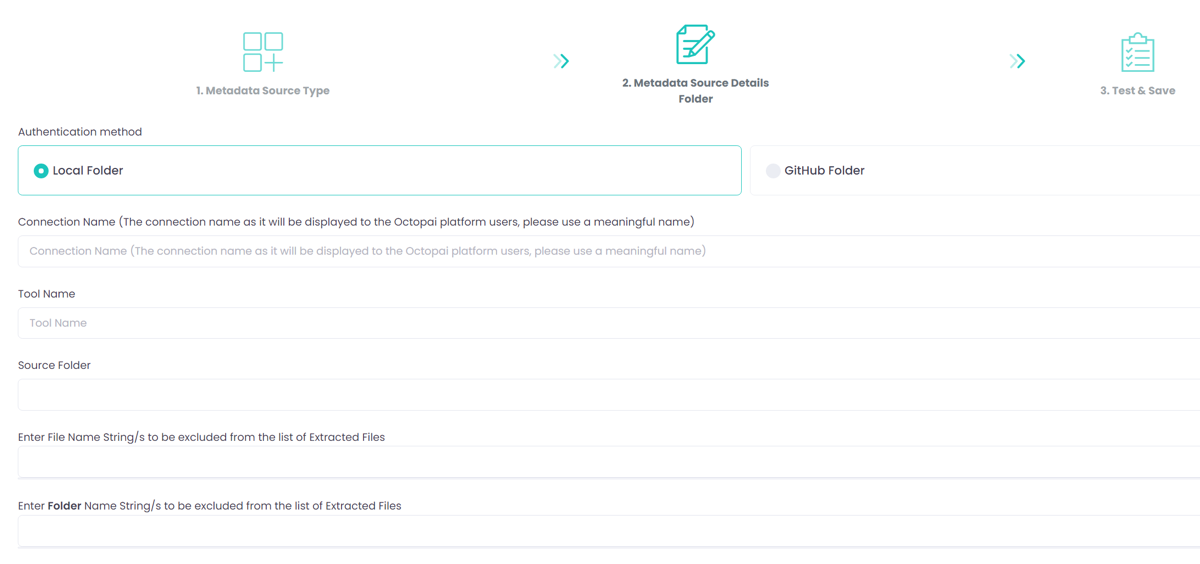
- Local Folder: Choose the Local Folder option if you want to upload files from a local directory for data lineage analysis.
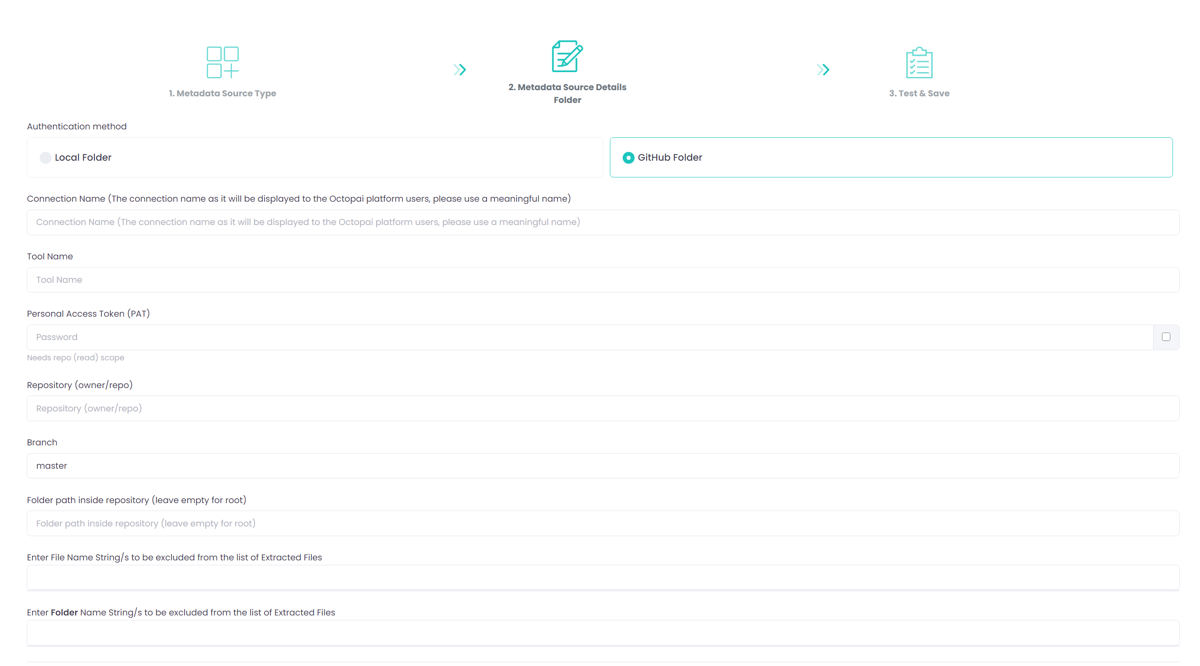
- Github Folder: Choose the Github Folder option if you want to connect to your Github repository to extract the required files for data lineage analysis.
- Connection Name: Provide a meaningful name for this connection to help you easily identify it later in the Cloudera Data Lineage application.
- Tool Name: Specify the tool or language environment you are using. For example, enter "JSON" if you are uploading JSON scripts.
- Source Folder: Click the blank field to select the folder containing the files you want to analyze. The folder must contain individual, extracted files of a supported type. Archives (for example, .zip files) and nested archives are not extracted. Extract them first and place the raw files (for example, .sql) directly in this folder. Remove any archives and unrelated files from the source folder.
- Exclude Files or Strings: Enter file names, suffixes, strings, or patterns you want to exclude from the export.
- Exclude Folders: Specify folder names to exclude from the export if you have multiple subfolders.
- Connection Name: Provide a meaningful name for this connection to help you easily identify it later in the Cloudera Data Lineage application.
- Tool Name: Specify the tool or language environment you are using. For example, enter "JSON" if you are uploading JSON scripts.
- Personal Access Token (PAT): Enter your Github Personal Access Token to authenticate and authorize the connector to access your repository.
- Repository (owner/repo): Enter the repository name in the format 'owner/repository-name'.
- Branch: Specify the branch within the repository from which you want to extract files (for example, 'main').
- Folder path inside the repository: Provide the specific path to the directory
within the repository that contains the files you want to include. The path
must contain individual, extracted files of a supported type — archives (for
example,
.zipfiles) are not extracted. - Exclude Files or Strings: Enter file names, suffixes, strings, or patterns you want to exclude from the export.
- Exclude Folders: Specify folder names to exclude from the export if you have multiple subfolders.
- Click .
Troubleshooting
The connector run completes successfully but returns no scripts (empty result). This usually means the Source Folder did not contain any individually extracted, supported files at the time of the run. To resolve this issue:
- Confirm the source folder contains individual files of a supported type (for example,
.sql) and not .zip or other archives. Fully extract any archives, including nested archives, and place the raw files directly in the source folder. - Remove archives and unrelated files from the source folder.
- Verify that the Cloudera Data Lineage Windows NT user has read permission on the Source Folder and its contents (see Tool Permissions Prerequisites).
- Rerun the connector.