Viewing lineage
Atlas lineage graphs include lots of detail that you can reveal and configure.
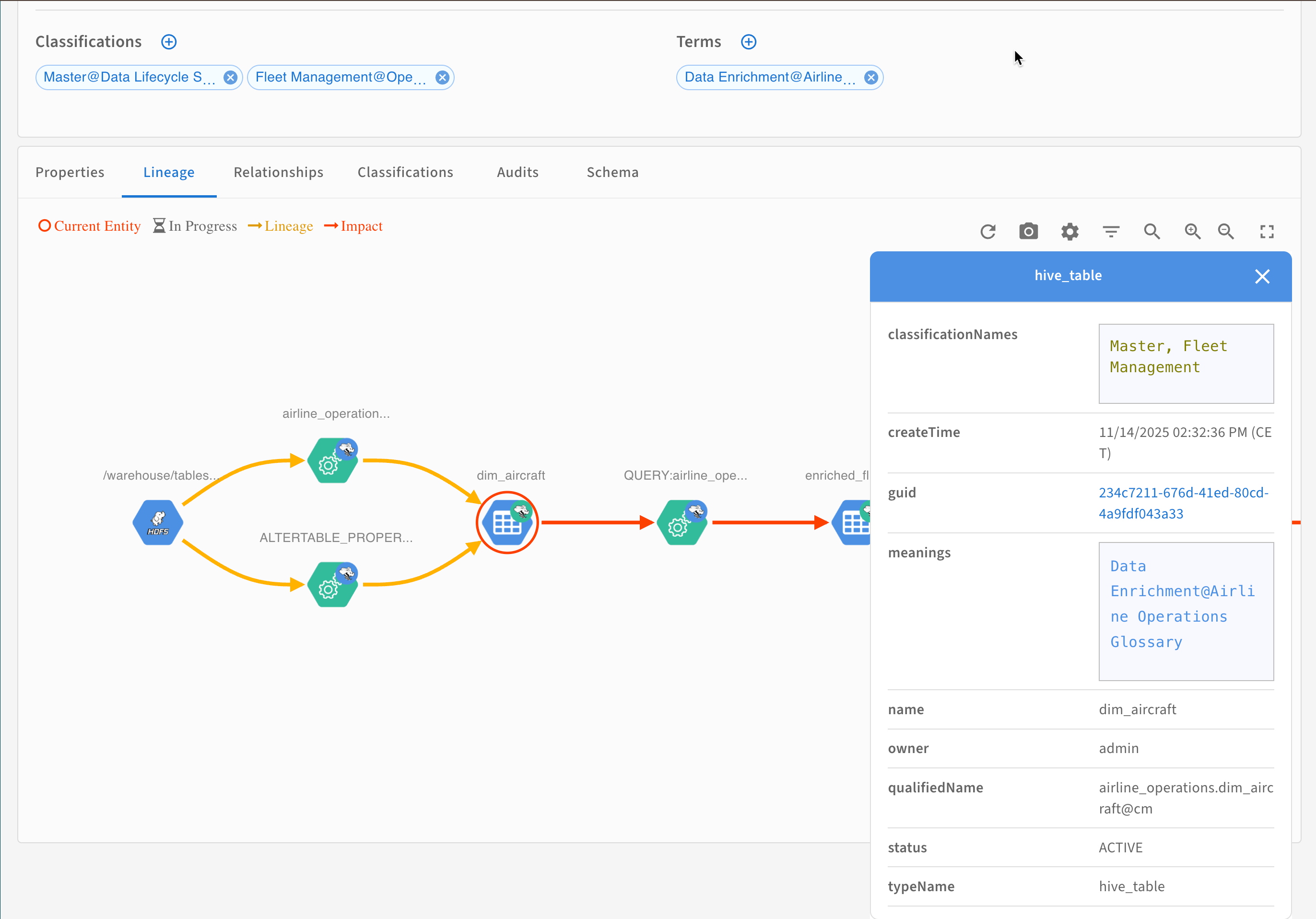
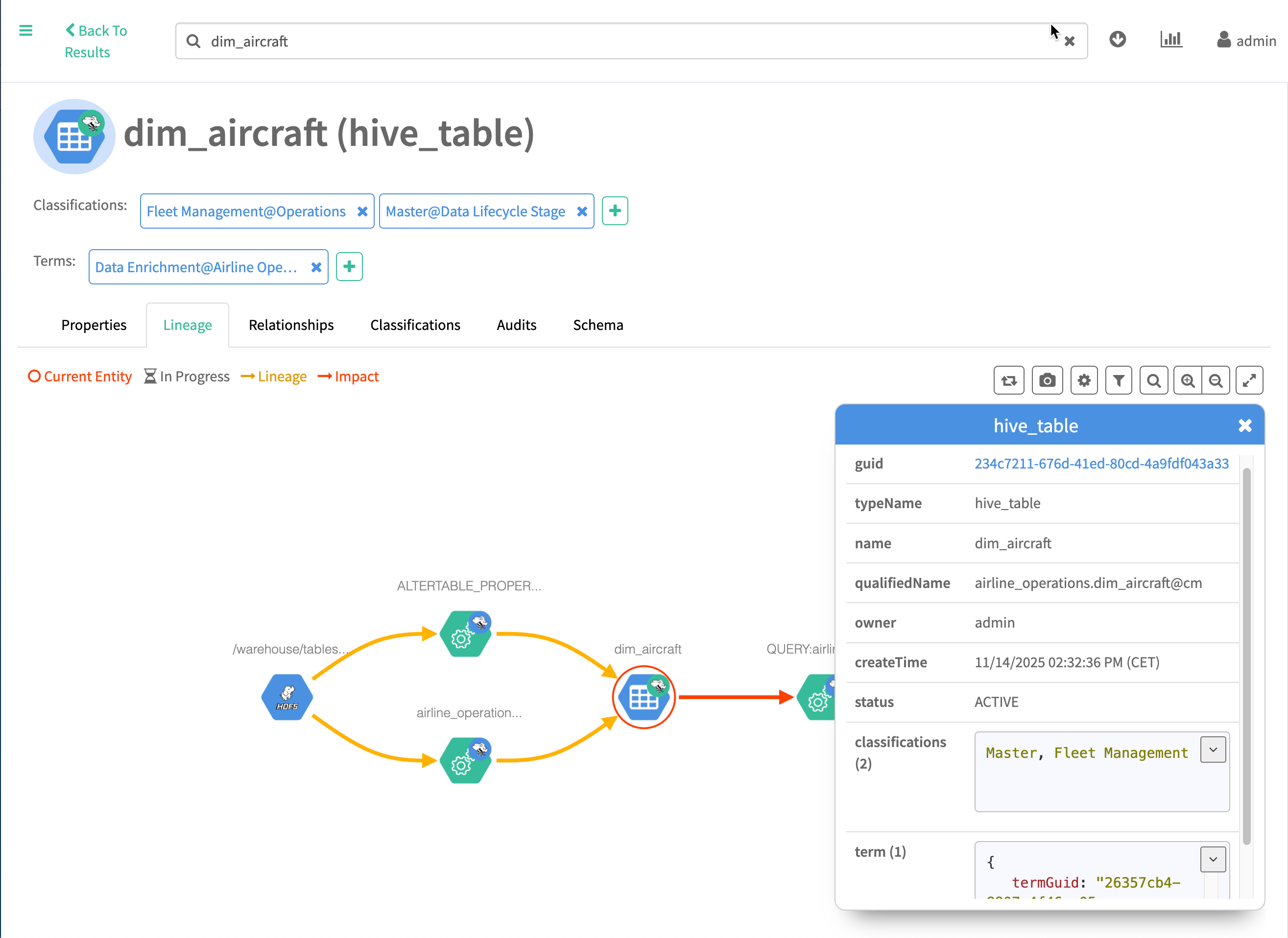
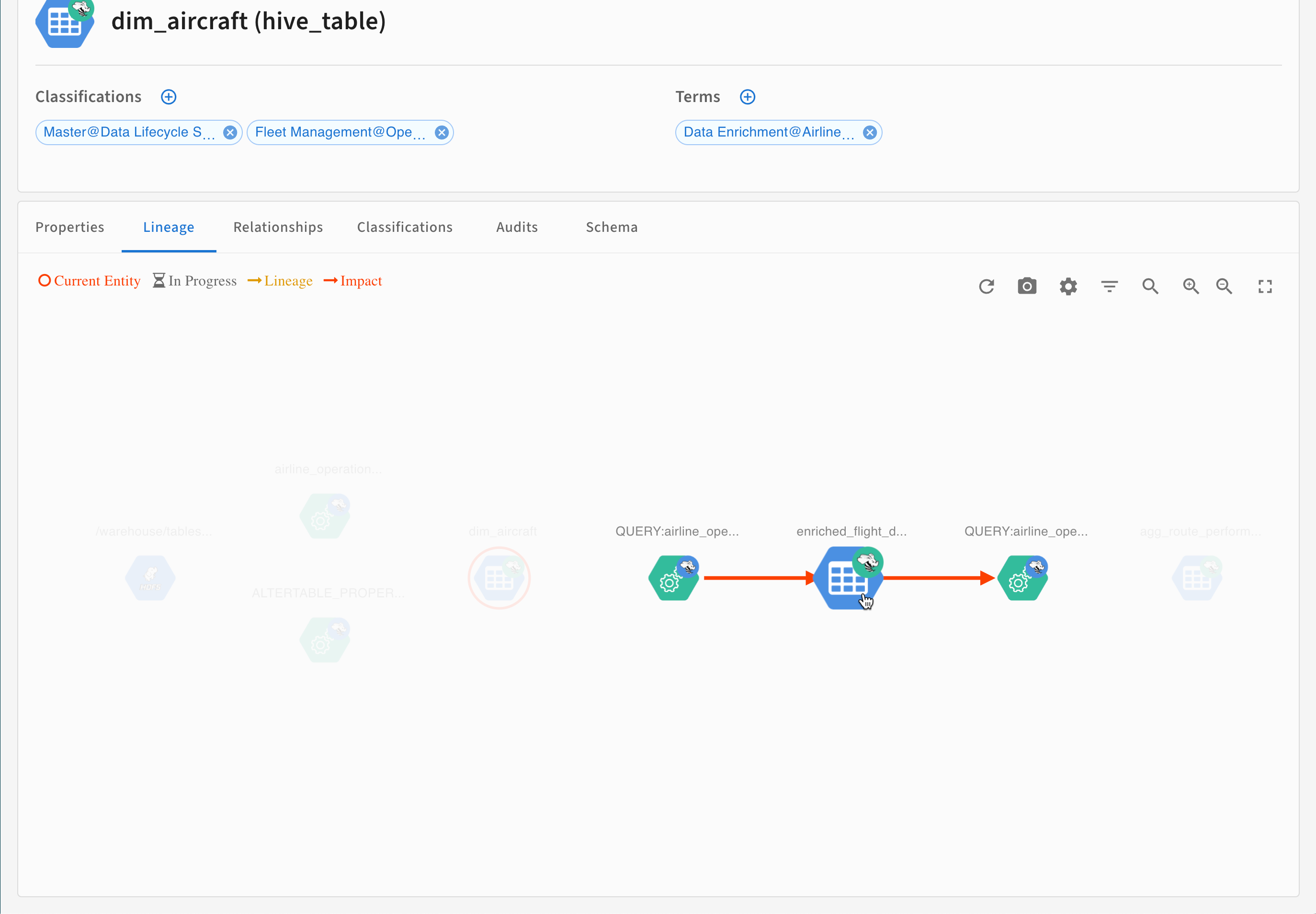
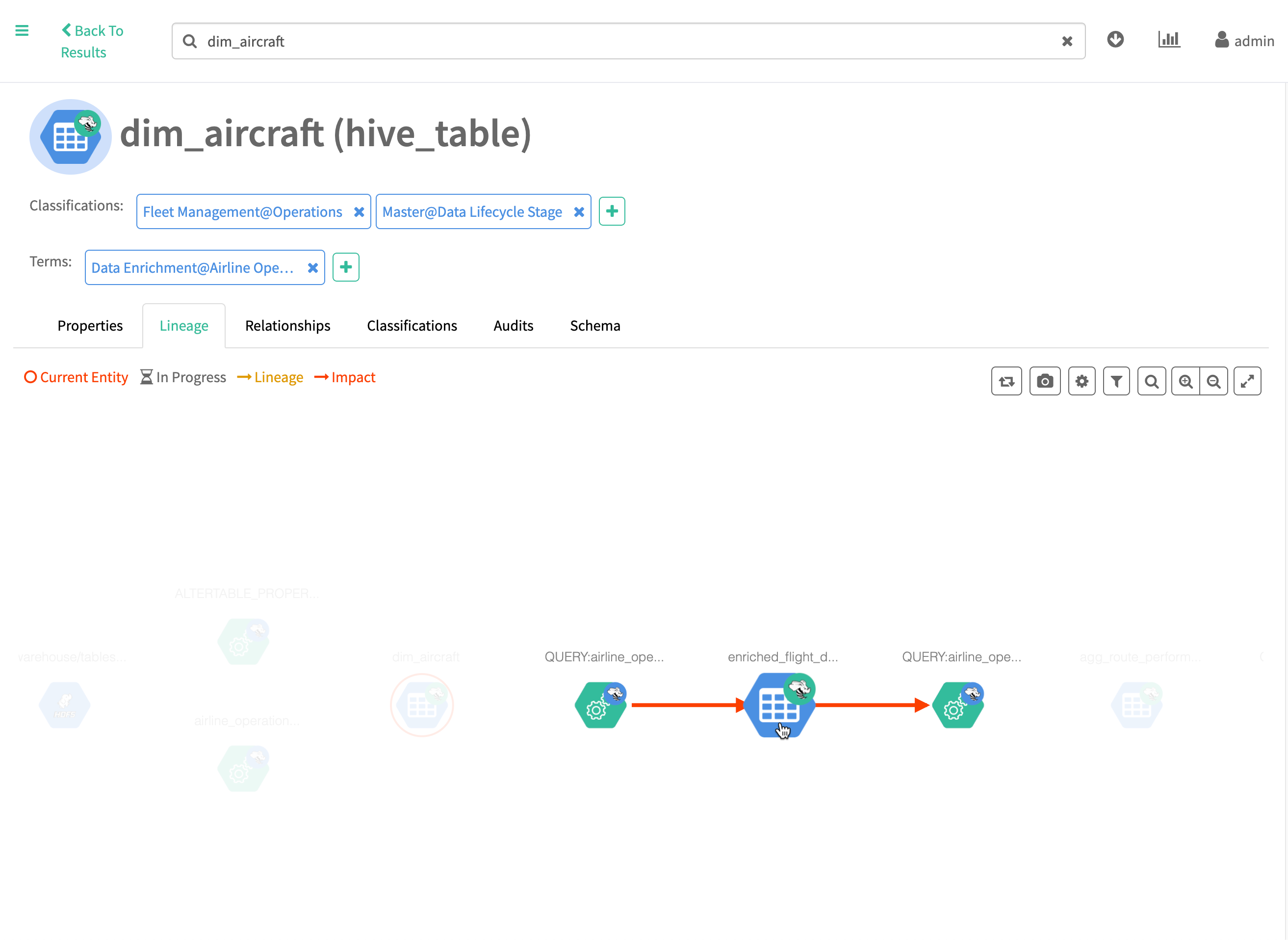
Use your cursor to explore a lineage graph:
- Click to show details for an entity
- Hover over an entity to show only one ancestor and descendant
The following symbols can appear in lineage graphs:
| Symbols | Name | Description and Actions |
|---|---|---|
 |
Data Set entity |
Represents a column, table, view, file, database, or other physical or logical data asset. While all data set entities are shown as a blue hexagon, the icon may vary based on the type of data asset and the source system. |
 |
Process entity | Represents a query, job, or other process that applied to data assets. While all process entities are shown as a green hexagon, the icon may vary based on the type of process and the source system. |
 |
Current entity | A red circle indicates the current entity in the lineage graph. |
 |
Selected entity | A blue circle indicates the entity selected in the lineage graph. |
 |
Lineage | Connects the current entity with entities that provided input data. Entities connected with yellow lines are ancestors of the current entity. |
 |
Impact | Connects the current entity with entities that could have an impact if data or schema information is changed in the current entity. Entities connected with red lines are descendants of the current entity. |
The upper right corner of the lineage picture includes the following controls:

- Realign lineage: reset the image to the default scale with the current entity in the center of the tab.

- Export to PNG: creates a PNG file of just the lineage picture as it currently appears. Uses the browser file download settings for the file location.

- Settings: set cursor display actions:
- On hover show current path
- Show node details on hover
- Display full name

- Filter: hide processes or deleted entities; set the number of lineage steps to show.

- Search: find entities in the lineage graph by name.

- Zoom In / Zoom Out: scale the lineage graph smaller or larger

- Toggle Full Screen: fill the current window with the lineage tab

- Realign lineage: reset the image to the default scale with the current entity in the center of the tab.

- Export to PNG: creates a PNG file of just the lineage picture as it currently appears. Uses the browser file download settings for the file location.

- Settings: set cursor display actions:
- On hover show current path
- Show node details on hover
- Display full name

- Filter: hide processes or deleted entities; set the number of lineage steps to show.

- Search: find entities in the lineage graph by name.

- Zoom In / Zoom Out: scale the lineage graph smaller or larger

- Toggle Full Screen: fill the current window with the lineage tab
