Basic Search and the global search bar in the React user interface finds entities,
classifications, terms, and business metadata using scoped quick search and left-panel filters
with logical conditions, partial matches, attribute-specific searches, and saved filters for
reuse.
Using Basic Search, Atlas returns all of the entities of the selected
type.
You can define a Basic Search multiple ways. Setting a value in more
than one search field builds a logical AND condition for the search. To repeat the same
search, click the Refresh button.
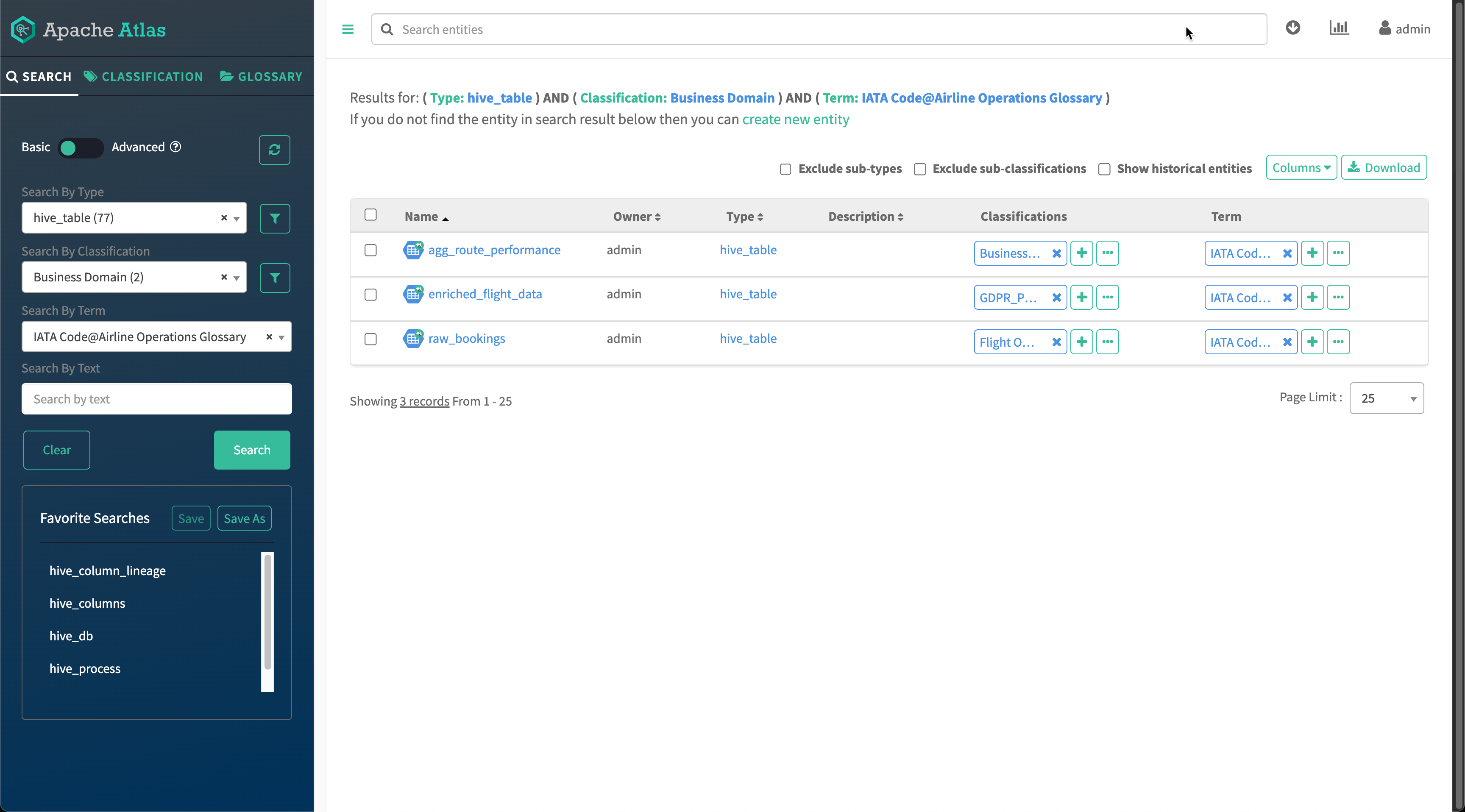
Use the left Basic Search panel to filter entities by type,
classification, or glossary term. You can combine multiple criteria to narrow your
results, or use the query bar to search by free text.
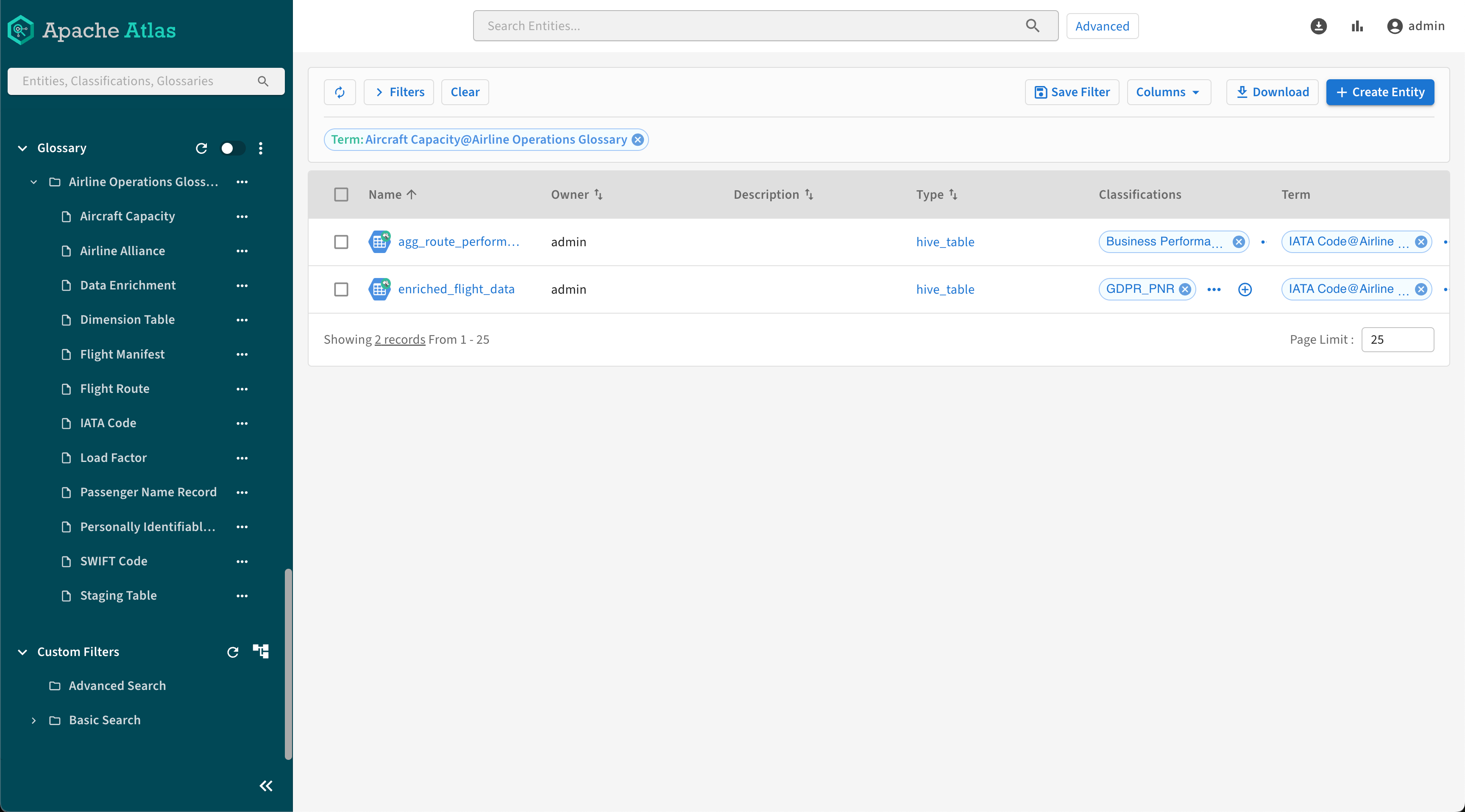
Figure 1. Basic search with classification and glossary term filters
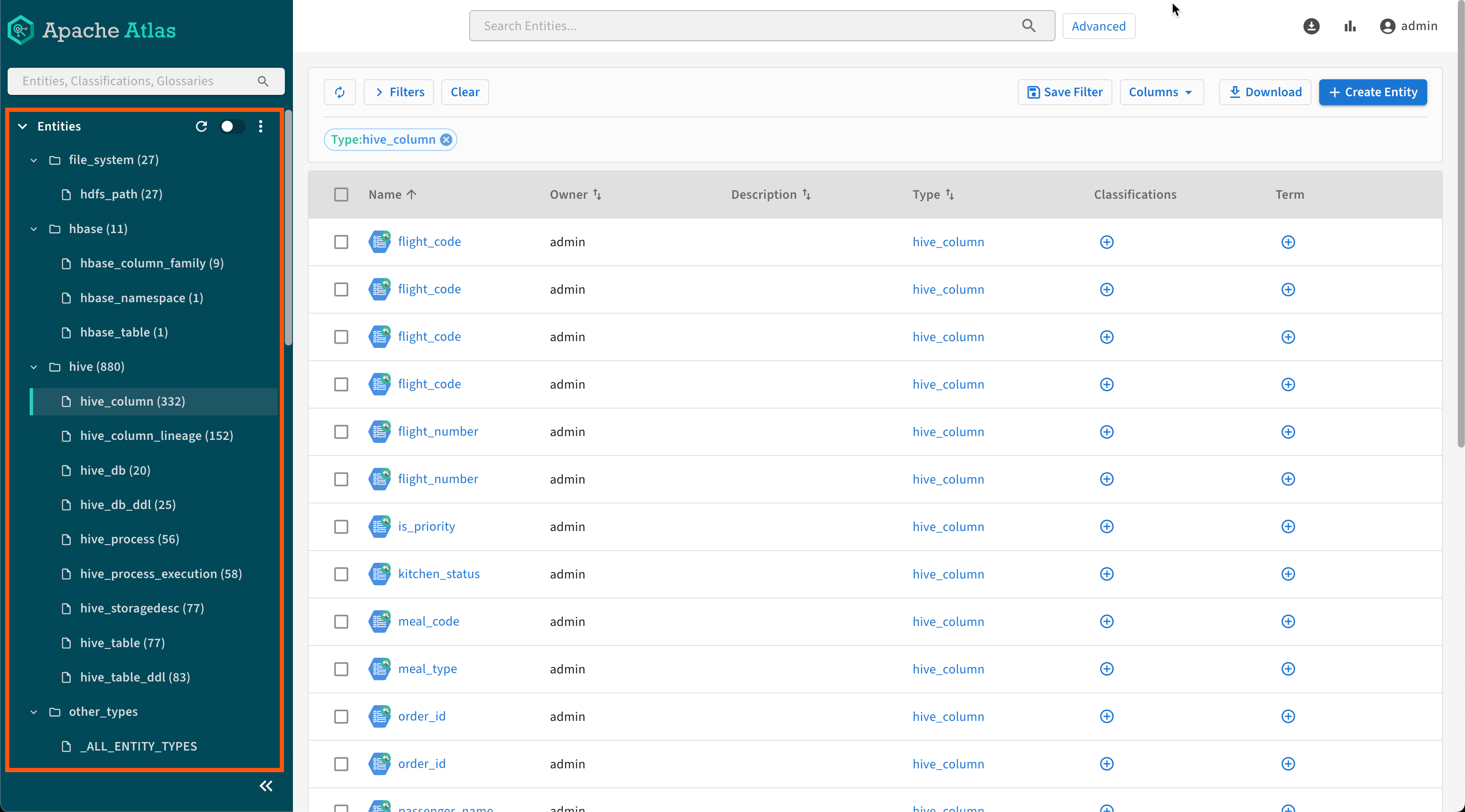
When using the New user interface, all entity types with available assets are listed
by default in the Basic Search view in a flat or grouped tree.
Click any type to initiate a search filtered to the specific entity type. Figure 2. Search by entity types Select _ALL_ENTITY_TYPES to apply an attribute filter
for all entity types.
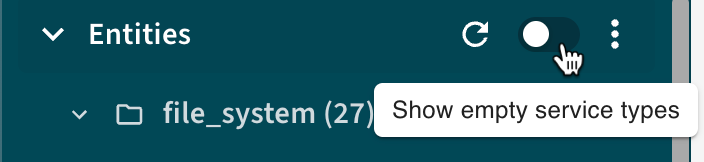
Click the icon to refresh the list of types. Click the Show empty
service types toggle to display all Atlas-supported entity types,
including those without assets.Figure 3. Entities filter options
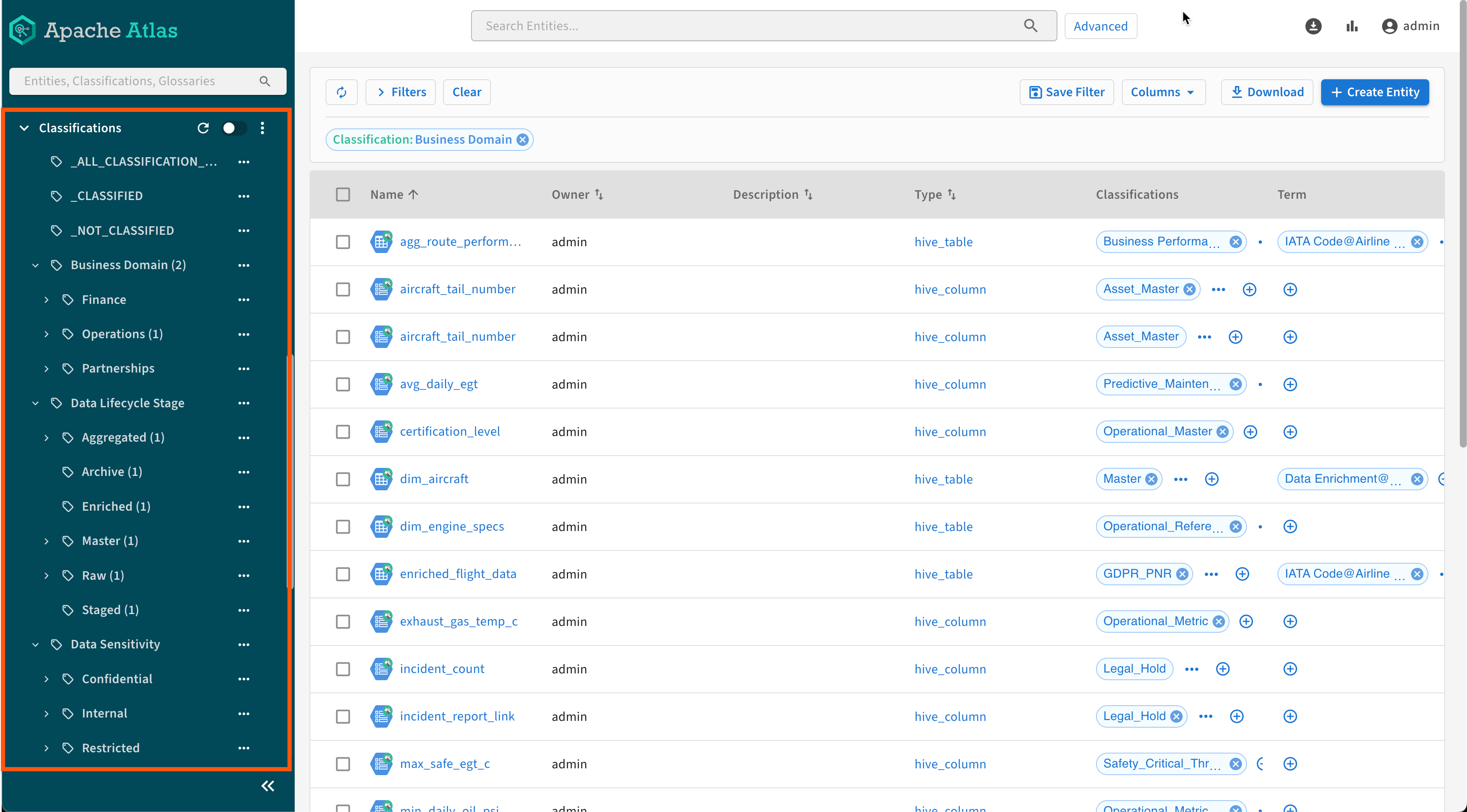
Classifications
All classifications that are assigned to assets are listed by default. Click any
classification to initiate a search filtered to the specific classification.Figure 4. Search by classifications
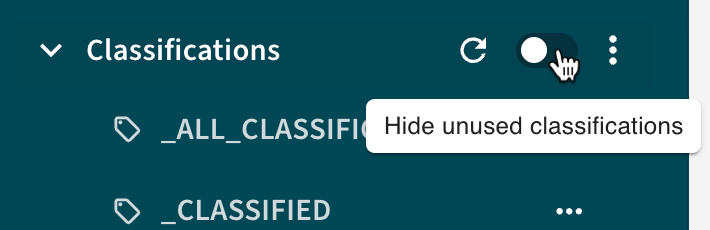
Click the icon to refresh the list of classifications. Click the Hide
unused classifications toggle to display all available classifications,
including those without assigned assets.Figure 5. Classifications filter options
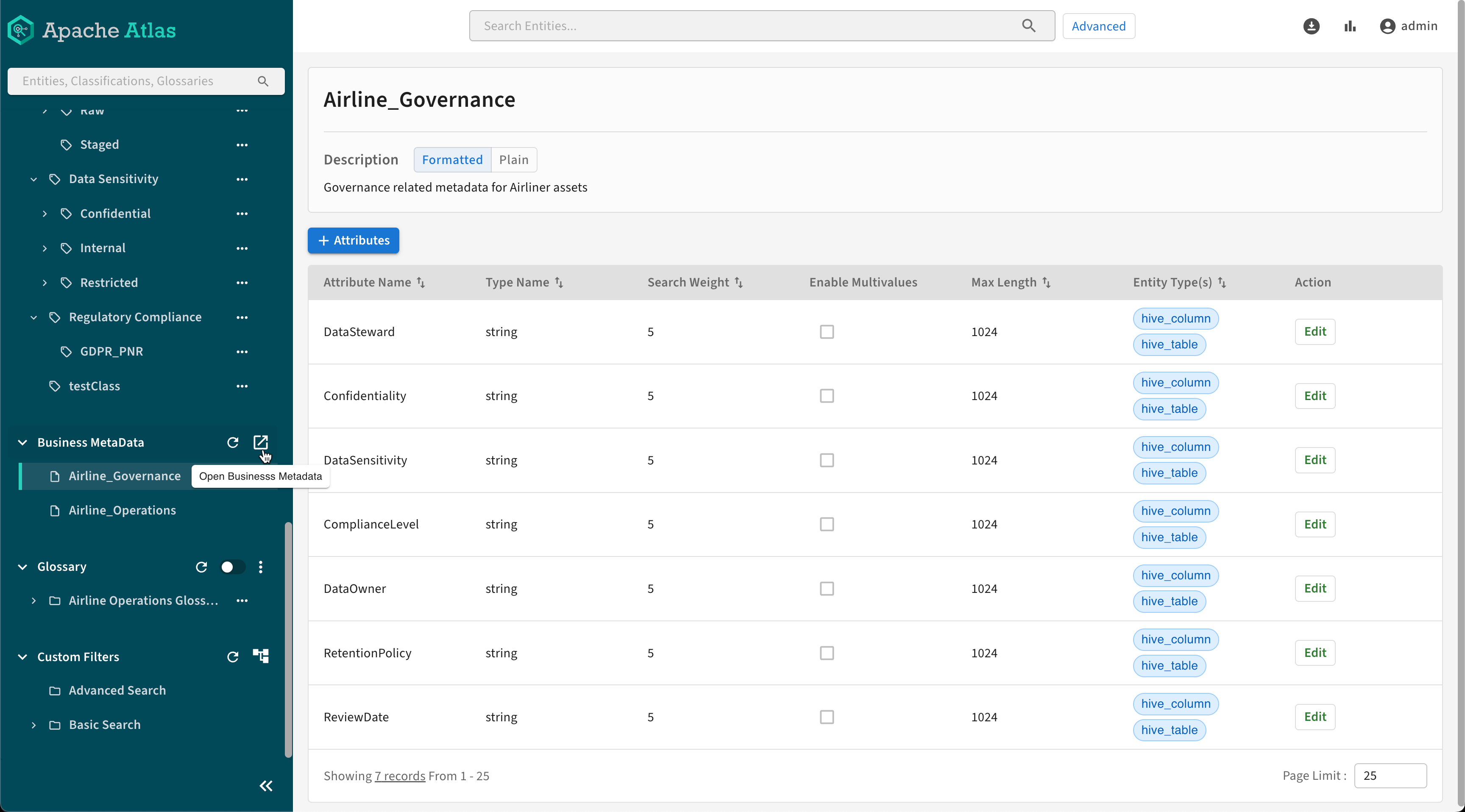
Business Metadata
Access your business metadata sets from the Basic Search
menu.
Figure 6. Business metadata sets
Glossary
All glossary terms are listed by default. Click any terms to initiate a search
filtered to the specific term.Figure 7. Search by glossary terms
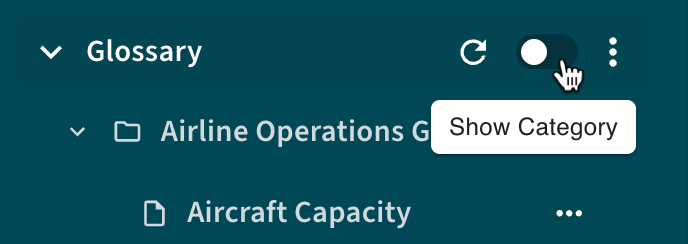
Click the icon to refresh the list of terms. Click the Show
Category toggle to display only the available glossary categories.Figure 8. Glossary filter options
Search Entities, Classifications, Glossaries by text
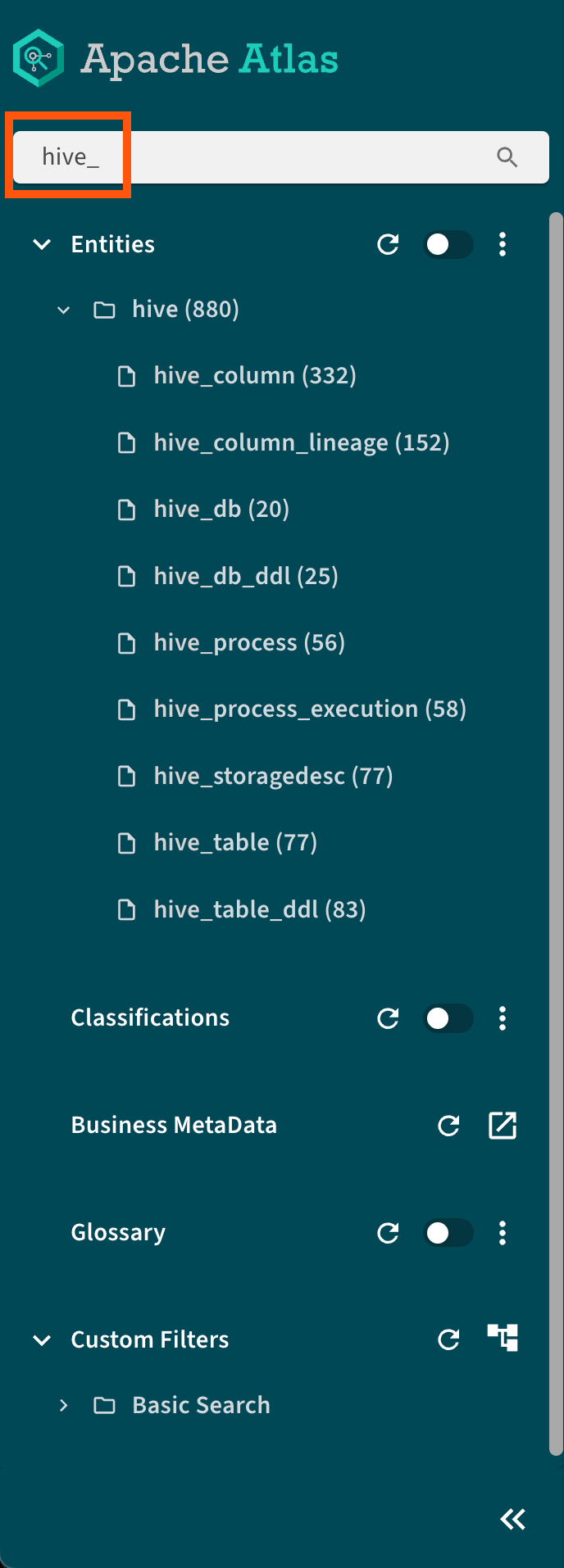
Quickly filter the available Entities, Classifications, or Glossaries by typing in a
name of an element.Figure 9. Filtering Hive entities
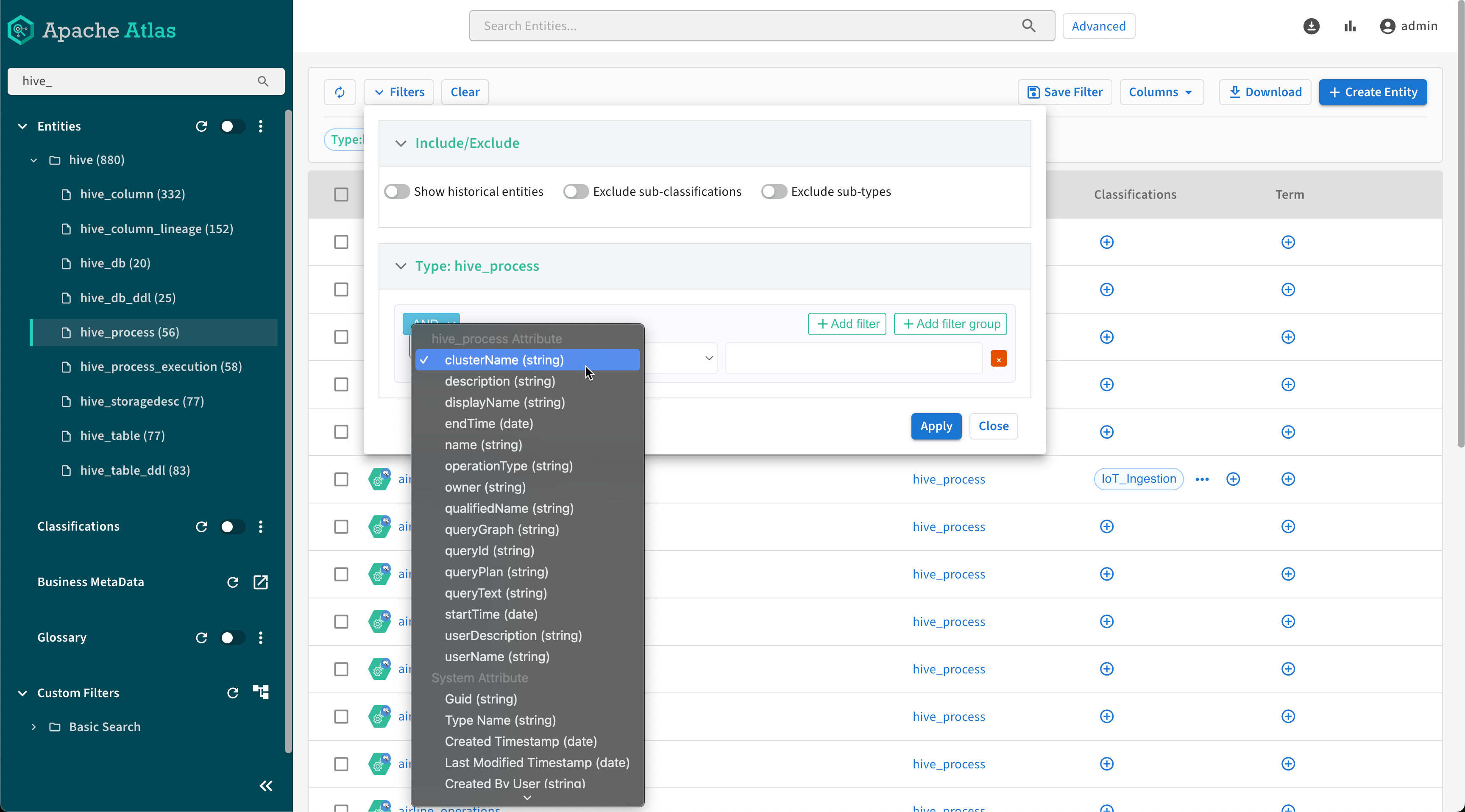
Filters
Add additional filters combined with logical operators to your entity,
classification, and glossary terms filter conditions.
Date conditions: =, !=,
>, <,
>=, <=, Time
Range, is_null,
not_null
Boolean conditions: =, !=,
is_null, not_null
Figure 10. Additional filters
Custom Filters
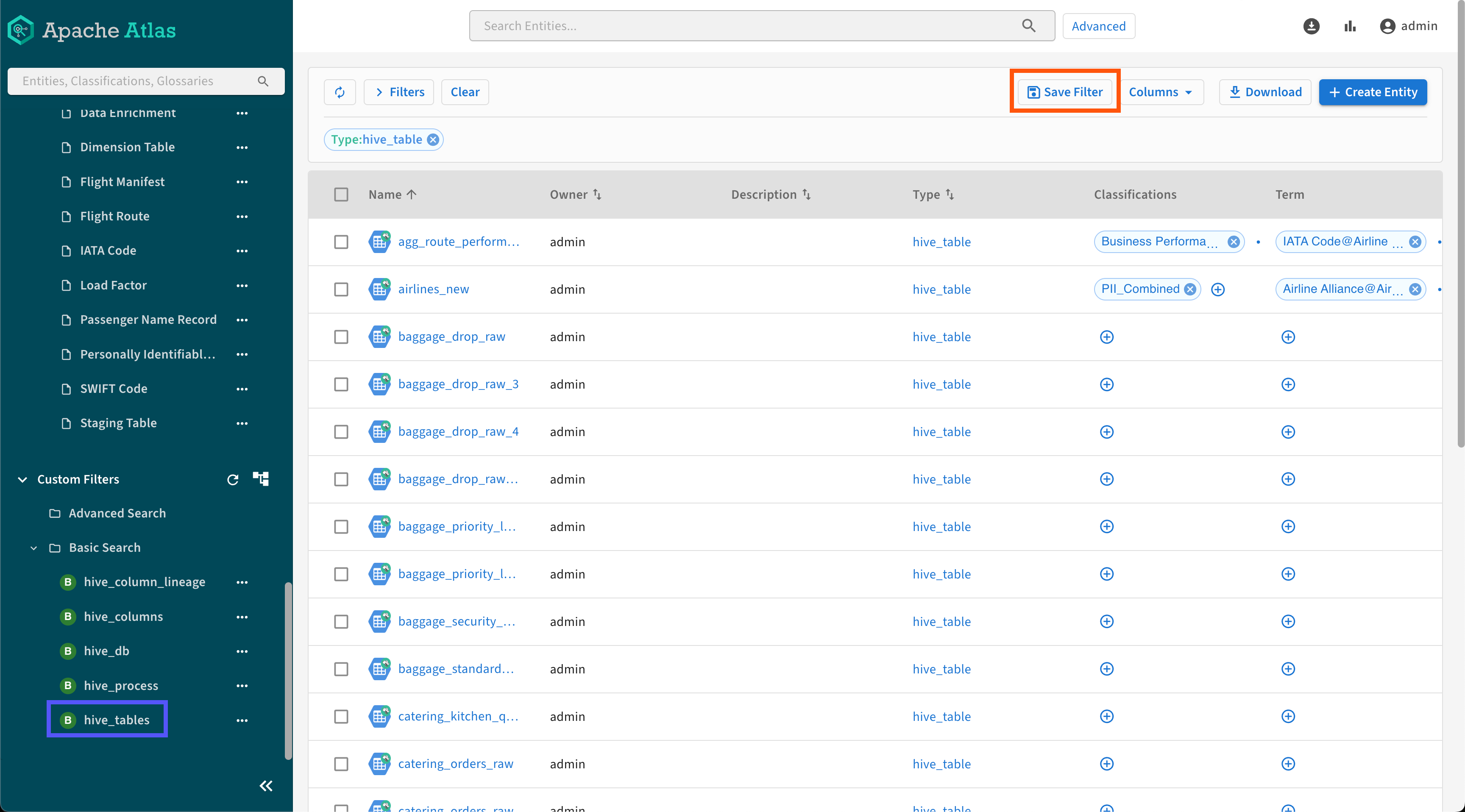
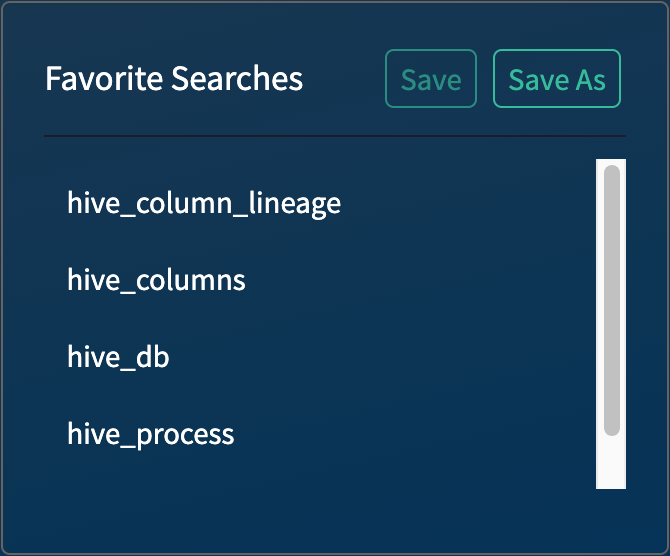
Save your search conditions as Custom Filters by clicking
Save Filter.
Figure 11. Save Filters button
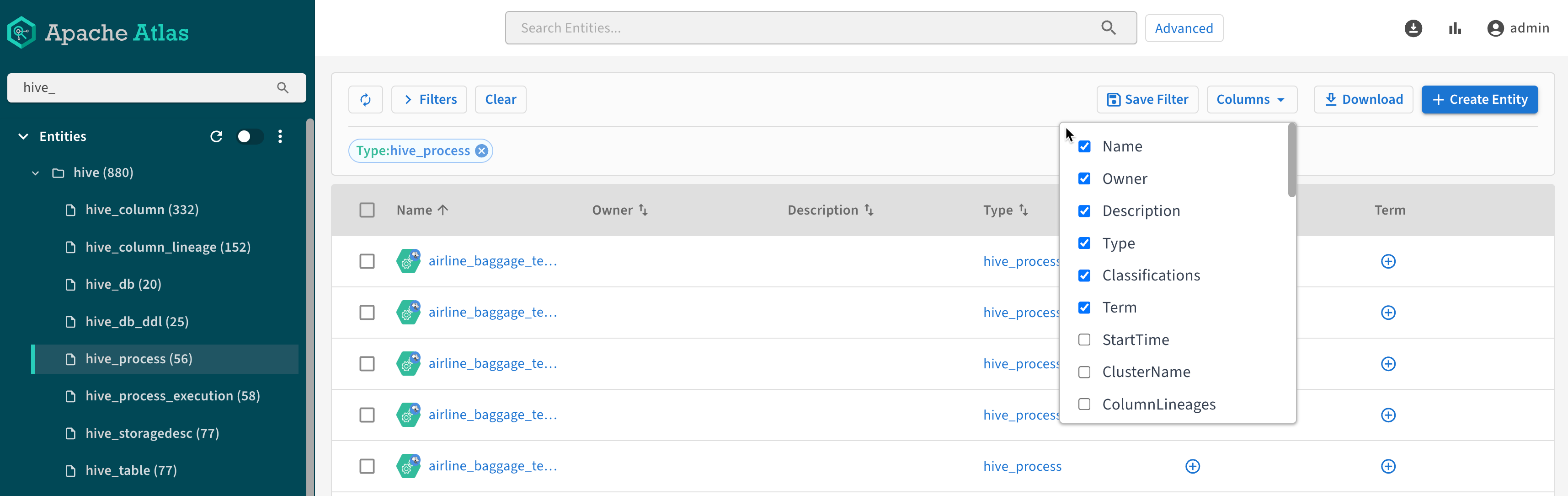
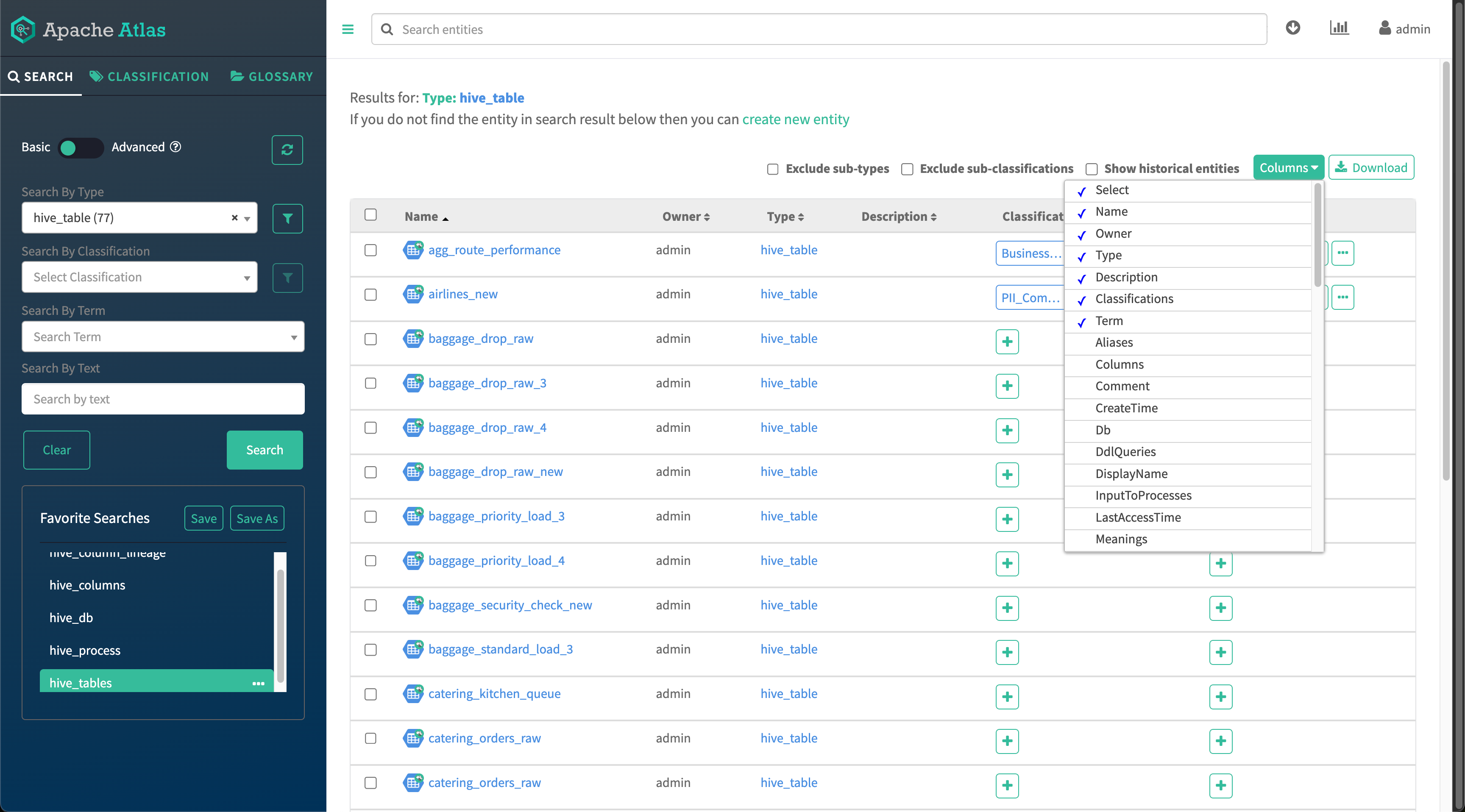
Columns
Select further column values for your search results to display. The available
values depend on the result types.
Figure 12. Column values
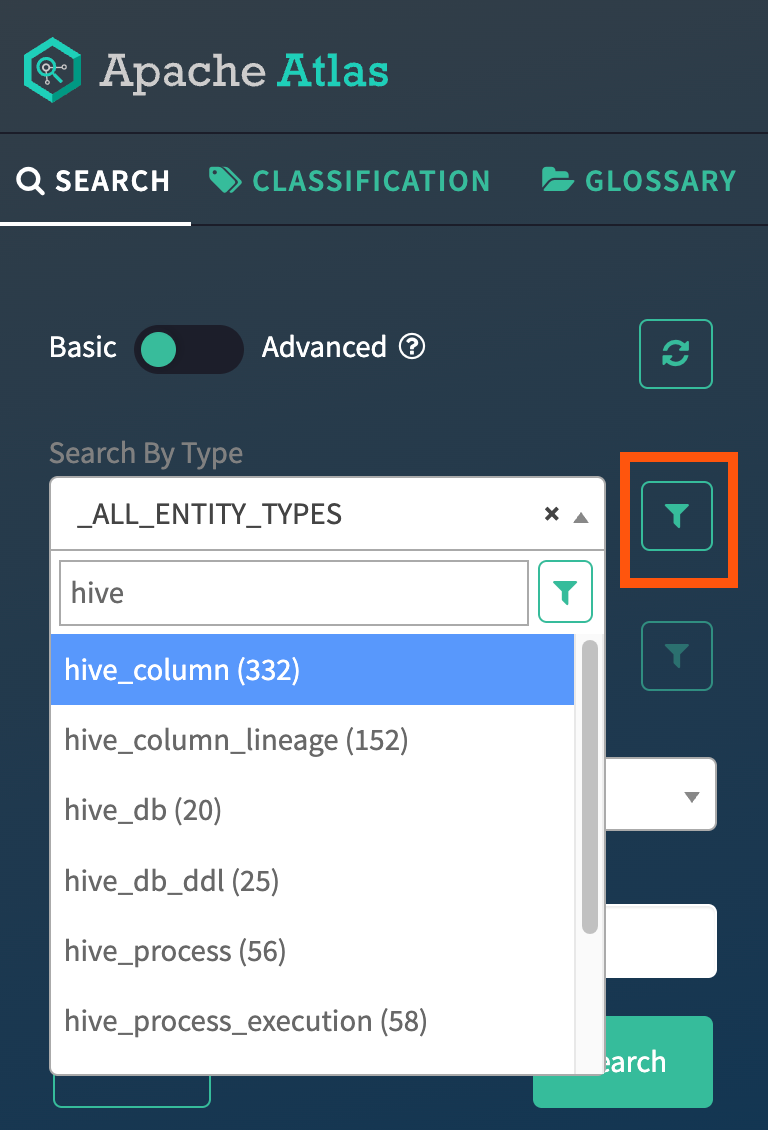
Search By Type
Select an entity type to limit the search.
Select _ALL_ENTITY_TYPES to apply an attribute filter for
all entity types.
Figure 13. Basic entity search
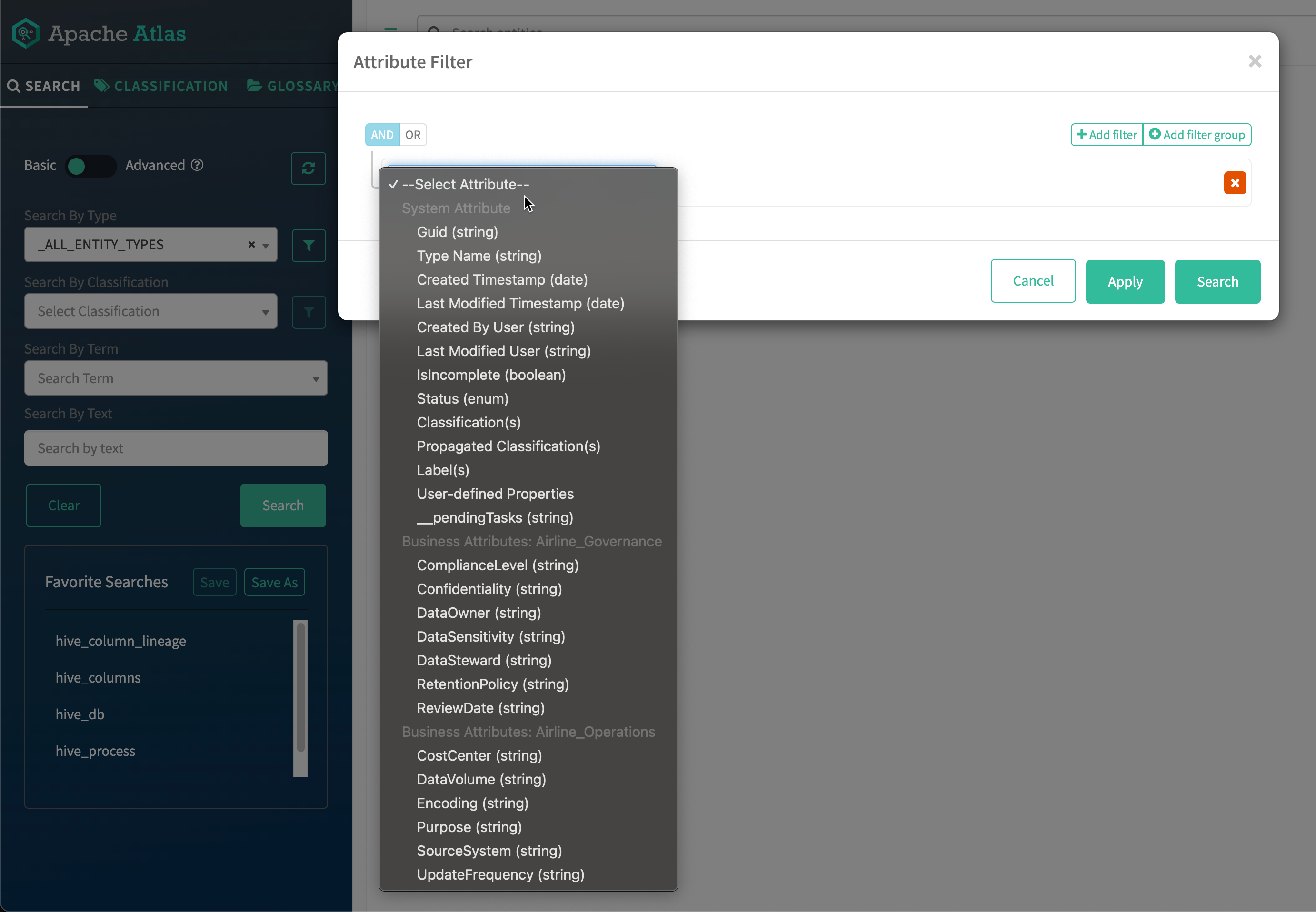
Search By Type and specify attribute values using the
Entity Attribute Filter
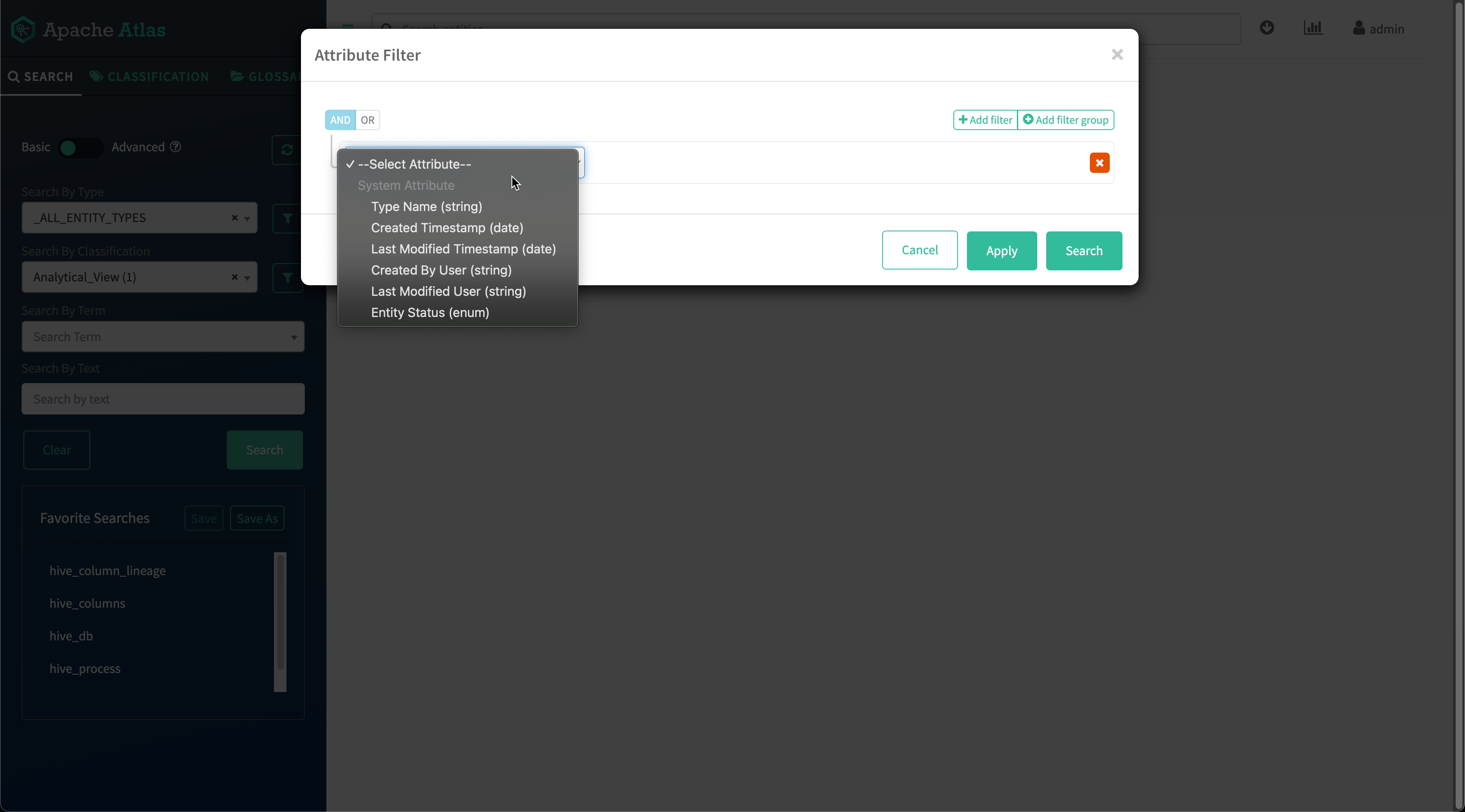
The Attribute Filter dialog box lists all the attributes that
correspond to the selected entity type, including the following ones:
Technical attributes specific to the entity type
System attributes, including classifications, labels, and user-defined
properties
Business Metadata attributes
Terms
Figure 14. Entity Attribute Filter options
Search By Classification
Select an existing classification. The search returns all entities that have
that classification assigned to them.
Select _ALL_CLASSIFICATION_TYPES to apply an attribute
filter across all classifications.
Select _CLASSIFIED or _NOT_CLASSIFIED with an entity type
selected to find entities of that type with any or no classifications
assigned.
Search By Classification and specify attribute values using the
Filter
The Attribute Filter dialog box lists all the attributes for
the selected classification. Set a value to one or more attributes to define the
search. Choose to match partial strings using the contains,
begins with, and ends with operators.Figure 15. Attribute Filter dialog box
Search by Term
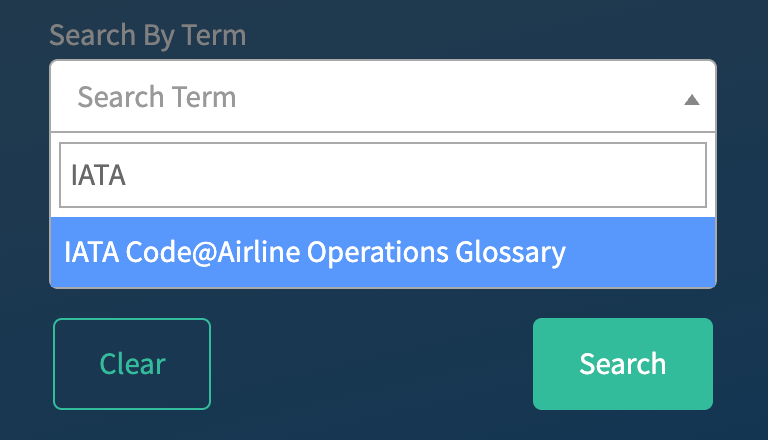
Select an existing glossary term. Enter the first few letters to select a term from
a list of matching terms. This filter is case-sensitive.Figure 16. Search By Term filter
Search by Text
Search on string values for technical, system, Business Metadata, and classification
attribute values. Labels and terms are also included. This search is the same as the
Free-Text search.
Columns
Select further column values for your search results to display. The available
values depend on the result types.


 icon to refresh the list of types. Click the Show empty
service types toggle to display all Atlas-supported entity types,
including those without assets.
icon to refresh the list of types. Click the Show empty
service types toggle to display all Atlas-supported entity types,
including those without assets.