Upgrade references
Review the Cloudera on cloud upgrade related references to learn more about the additional steps that might be required for your use case.
Phased JDK upgrade on 7.3.1 before upgrading to 7.3.2
If your cluster includes custom Java solutions, Cloudera recommends performing a phased JDK upgrade on Cloudera Runtime 7.3.1 before upgrading to 7.3.2. This approach allows you to validate your custom solutions against JDK 17 on a known runtime version, and roll back to Java 8 on 7.3.1 if issues arise. Once you have confirmed that your environment is compatible with JDK 17, you can proceed to upgrade to 7.3.2.
To perform a phased JDK upgrade, complete the following steps:
- Upgrade your Data Lake and Cloudera Data Hub cluster to Cloudera Runtime 7.3.1.
- Set the default Java version to 17. You can change the default Java version from 8 to 17 for your Data Lake and Cloudera Data Hub cluster on Cloudera Management Console.
- Navigate to the Upgrade tab of your Data Lake and Cloudera Data Hub cluster.
- Select the Default Java Version tab.
- Choose Java 17 as the Target Default Java Version.
- Select the Rolling restart services checkbox to enable rolling restart for the Data Lake and Cloudera Data Hub services.
- Click Set Default Java Version.
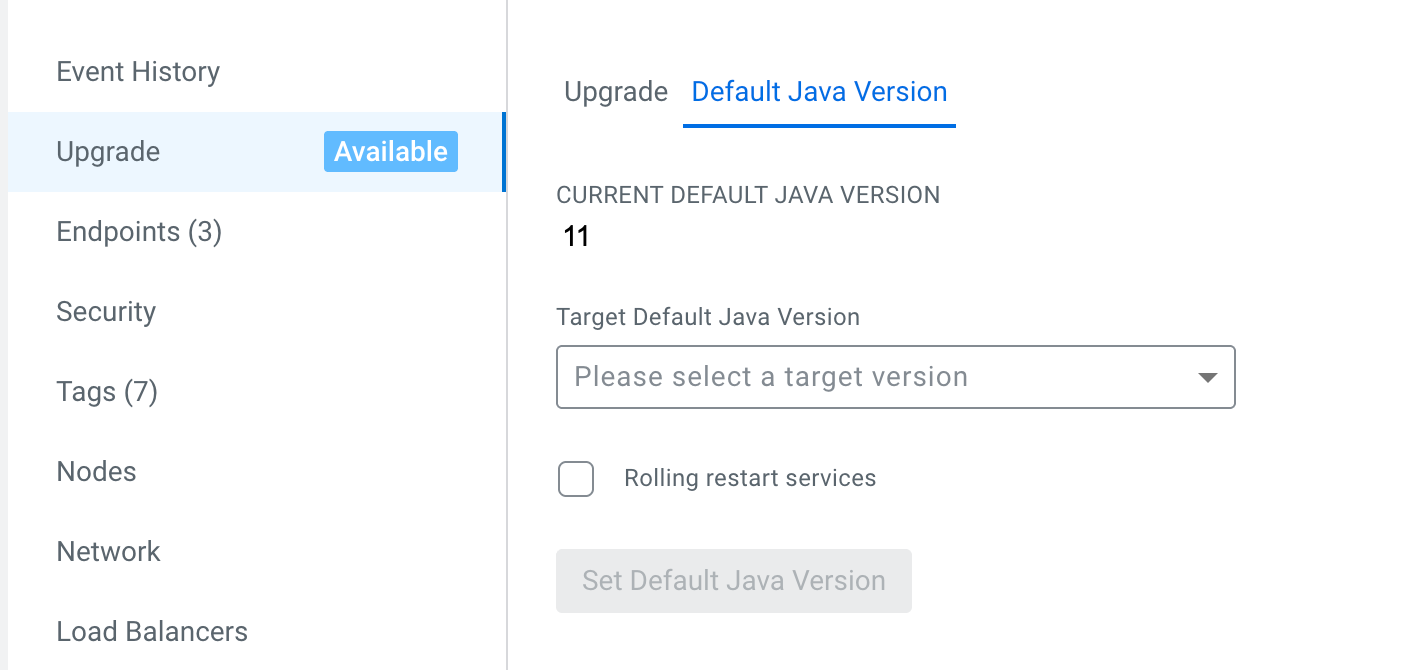
Use the following command to change the default Java version for the Data Lake:cdp datalake set-default-java-version --cluster-crn [***CRN***] --java-version 17Use the following command to change the default Java version for the Cloudera Data Hub cluster:cdp datahub set-default-java-version --cluster-crn [***CRN***] --java-version 17 - Validate that your custom Java solutions work with JDK 17.
- Upgrade your cluster to Cloudera Runtime 7.3.2.
Prerequisites before upgrading operating system (OS)
As part of FreeIPA, Data Lake, and Cloudera Data Hub upgrade, you have the option to upgrade the operating system (OS) on the virtual machines (VMs) to the new OS versions provided by Cloudera.
Prior to attempting the OS upgrade, ensure that you have taken care of the following prerequisites:
- Rewrite and test recipes if needed
- Check compatibility of third party software you might have installed on the nodes
- Opt in to use Azure Marketplace images (Azure only)
Rewrite and test recipes
If you are using FreeIPA, Data Lake, or Cloudera Data Hub recipes, you must ensure that they are compatible with the given RHEL version provided by Cloudera before the OS upgrade. The steps are:
- Rewrite your existing recipes so that they are compatible with the new RHEL version.
- Test the updated recipes on a newly created FreeIPA, Data Lake, or Cloudera Data Hub VM that uses the new RHEL version.
- Detach your existing recipes, which were created with the previous OS versions, and attach your updated RHEL recipes. You can find the steps here:
If after rewriting and testing your recipes are not working, contact Cloudera support for help.
Check compatibility of third party software
If you normally install additional software on your Data Lake, FreeIPA, or Cloudera Data Hub VMs (using recipes or manually), you may need to contact Cloudera support to make additional OS packages available. You should file a support ticket and provide details of the additional packages that you are installing (software name, version, and software URL).
