Managing agents in Cloudera Edge Management
Learn about the Agent Manager, which provides a centralized view for monitoring and managing individual agents across all agent classes..
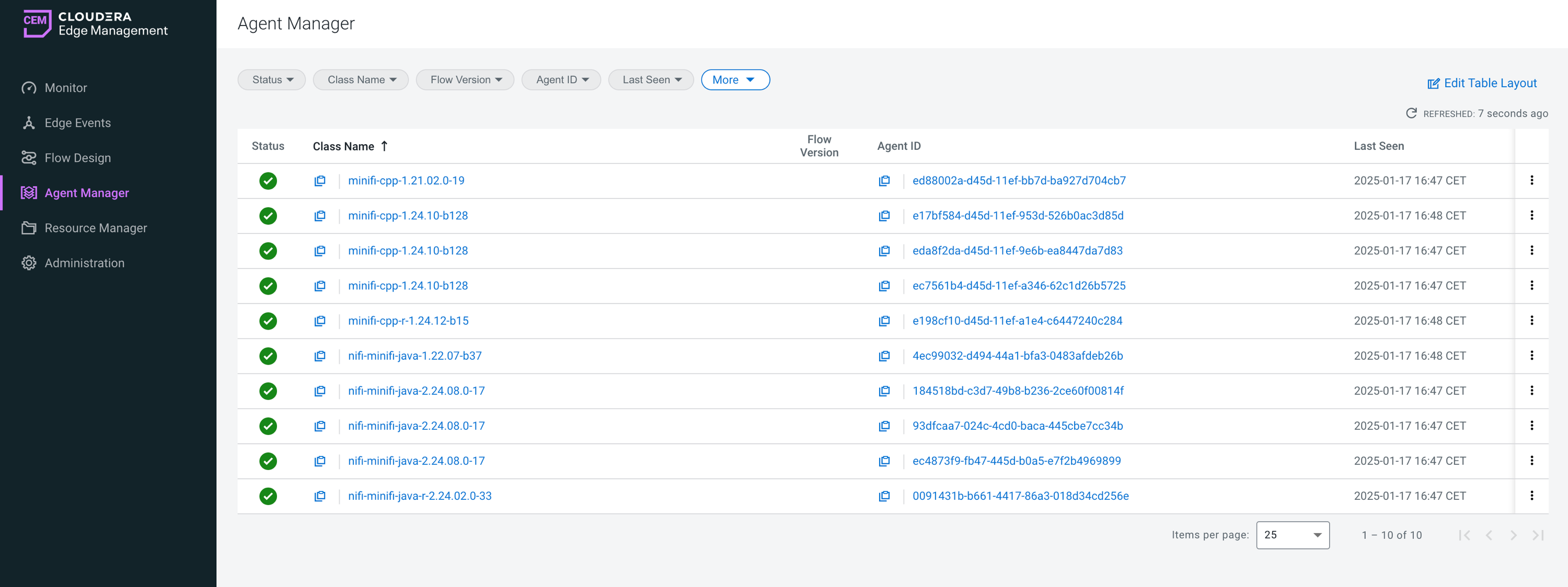
To access the Agent Manager view, click Agent Manager in the left navigation.
For more information about the Agent Manager, see Managing agents in Edge Flow Manager on the Cloudera Edge Management YouTube playlist:.
Agent list
The Agent Manager displays a list of agents across agent classes and provides filtering and customization options to help you focus on relevant agents.
You can:
- Filter agents using the available filters (for example, Status, Class Name, Flow Version, Agent ID, Last Seen)
- Customize the table layout to display relevant columns
- Identify agents with configuration inconsistencies (for example, manifest out of sync)
The Agent Manager provides the following information for each agent:
- Status
-
Indicates the current state of the agent:
- Running – The agent is active and sending heartbeats
- Stopped – The agent is registered but not currently running
- Missing – The agent is not sending heartbeats and is considered unavailable
Status helps you quickly identify agents that may require attention.
The Agent Manager helps you detect configuration inconsistencies at the agent level. Agents that are not aligned with the expected configuration (for example, using an outdated manifest) are indicated in the UI. You can also use the Agents with Manifest Out of Sync filter to quickly identify affected agents.
Configuration inconsistencies may occur when:
- Updates are still in progress
- Some agents did not receive the latest configuration
- Synchronization across nodes is delayed
Use this view together with the Dashboard alerts to identify and resolve inconsistencies.
- Class Name
-
Displays the agent class the agent belongs to.
- Flow Version
-
Shows the version of the flow currently assigned to the agent.
- Agent ID
-
Shows the unique identifier of the agent.
- Last Seen
-
Indicates the last time the agent sent a heartbeat to Edge Flow Manager.
Sorting and filtering
You can sort data by most of the columns in ascending or descending order by clicking the column header.
- Select a column from the filter drop-down at the top of the table.
- Enter a filter value.
- Click
 to apply the filter.
You can apply multiple filters across different columns to refine the results.
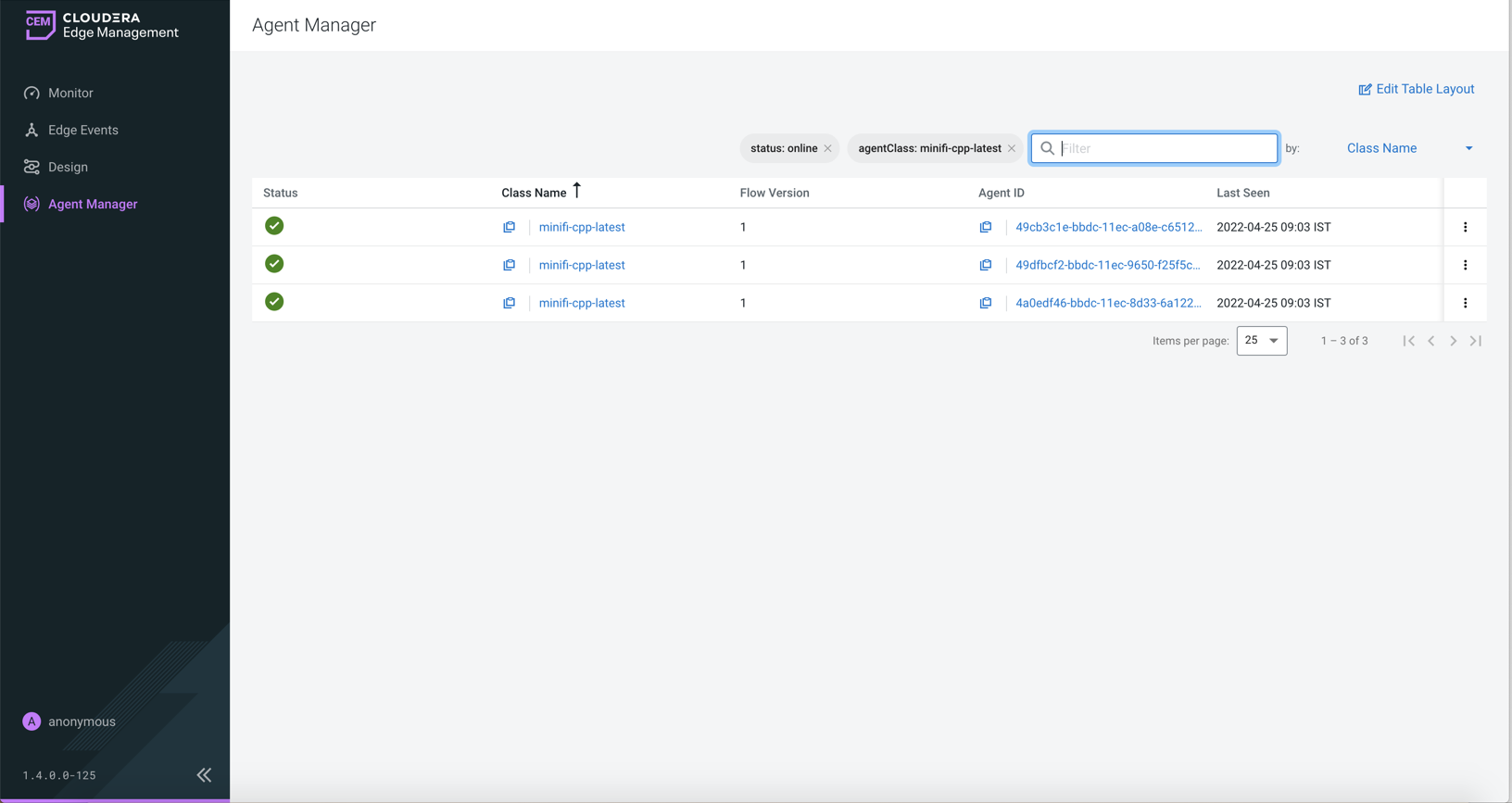
Items per page
Use the Items per page dropdown at the bottom of the table to control how many agents are displayed on a page.
If multiple pages are available, use the pagination controls to navigate between pages (first, previous, next, or last).
More options
Click at the end of an agent row to open the agent details pane, which provides detailed information about a selected agent, including its status, configuration, system properties, and available actions.
- View metrics
- View alerts
- View and assign resources
- View and modify configurations
