Managing datasets
You view, filter, search, create, edit, delete, or archive datasets from a paginated landing page that lists each dataset as a card with summaries and collaboration signals.
In Cloudera Data Catalog, click Datasets to open the Datasets landing page.
Datasets landing page
Datasets appear as cards inside a paginated list. Pagination controls split the catalog into manageable pages instead of loading every dataset at once.
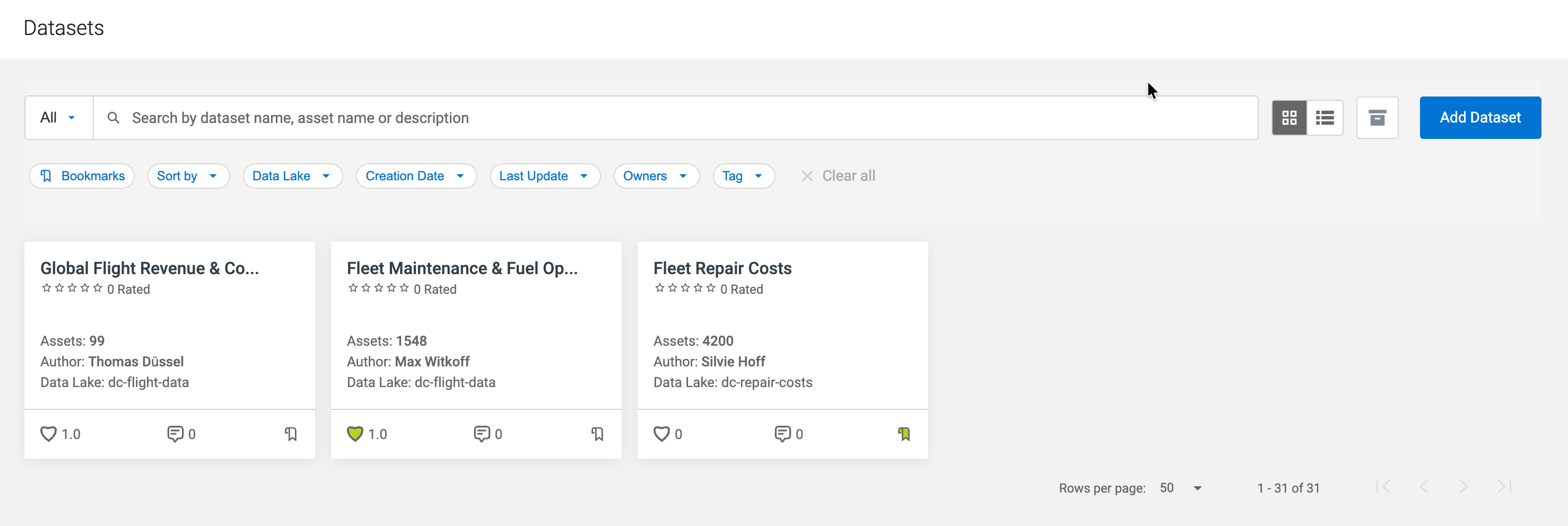
The information shown for each dataset on the landing page typically includes:
- Dataset name with the assigned Data Lake name
- Dataset description
- Contained asset names and counts
- Author
- Collaborators
- Bookmark state for your account
- Comments, rating, and likes
- Tags
- Created at and updated at timestamps
Search for datasets
On the Datasets page, enter text in the search box to run a full-text search. Search matches dataset name, tags, keywords, and asset names (not only description).

Filter datasets
Use filters to narrow the list. Available filters include:
- Data Lake
- Created date (Creation Date)
- Update date (Last Update)
- Owner
- Bookmarks
- Tag
