Notification center
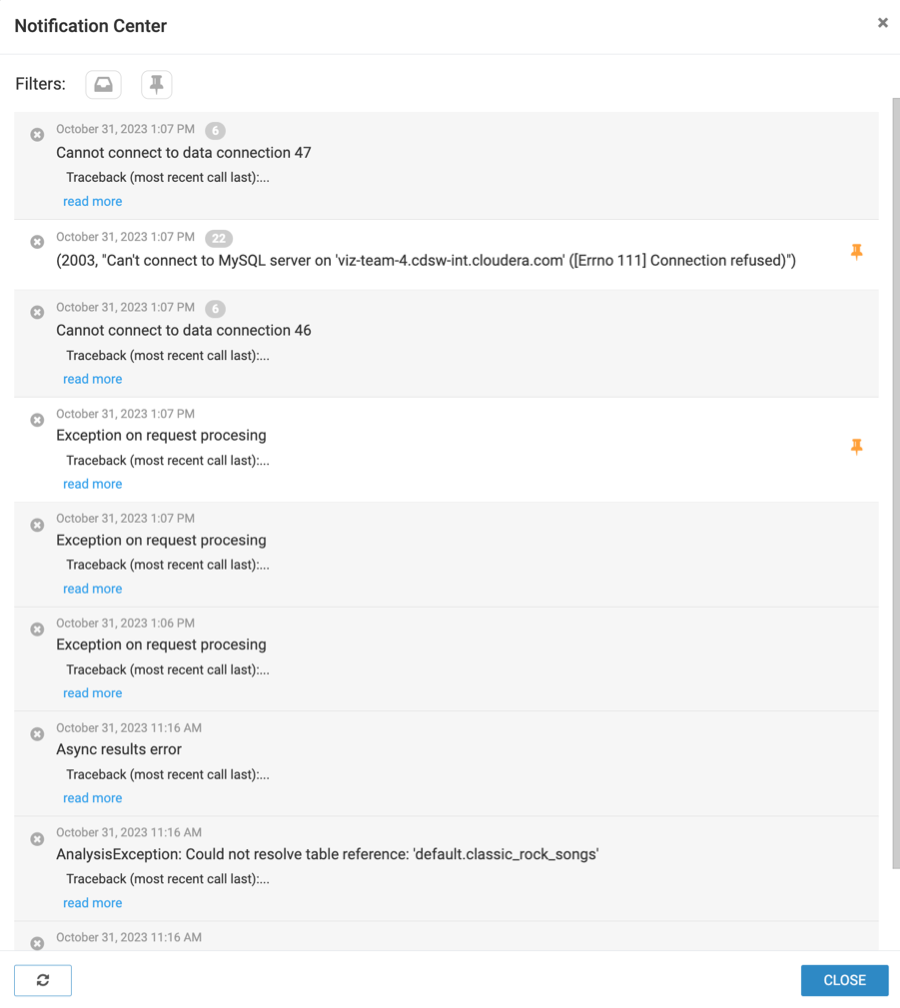
The notification center helps you monitor important events in Cloudera Data Visualization such as browser errors, system failures, security-related events, and other operational issues.
You can access and manage your notifications from any page by clicking  on the main navigation bar. An orange indicator on the icon shows that you have unread
notifications. When you open the Notification Center, notifications are
displayed in a single chronological list, with the most recent entries shown first.
on the main navigation bar. An orange indicator on the icon shows that you have unread
notifications. When you open the Notification Center, notifications are
displayed in a single chronological list, with the most recent entries shown first.
You can:
-
Refresh the list of notifications by clicking
 .
. -
Expand or collapse notification details using read more and read less.
-
Filter notifications.
-
Pin important notifications.
-
Review grouped duplicate notifications.
You can click to expand or collapse the full notification text.
Muting notifications
When notifications are muted, new notifications are automatically marked as read and are removed at the end of the day.
Administrators can enable notification muting for the entire Cloudera Data Visualization instance. For more information on enabling the Mute Notifications option, see Site Configuration.
Managing read notifications
Notifications are marked as read when you close the Notification Center. Read notifications are retained for one day before being removed. Pinned notifications are not removed when read notifications are cleared.
Administrators can configure the notification retention period. For more information, see Advanced Settings.
Managing duplicate notifications
Duplicate notifications are grouped together to prevent clutter and redundancy in error reporting. Grouping duplicate notifications helps you identify recurring issues and high-frequency errors more easily.
A counter displayed next to the notification timestamp indicates how many times the same notification occurred. Click the counter to view the timestamps of individual occurrences.
Pinning notifications
You can pin important notifications to prevent them from being removed when read notifications are cleared.
Pinned notifications are identified by a pin icon and remain available until they are manually unpinned.
Filtering notifications
You can filter notifications to streamline your view.
- Show unread
- This filter narrows the list to show only the messages that have not been read or acknowledged. This allows you to focus on managing new or unopened items without the distraction of previously viewed messages.
- Show pinned
- This filter narrows the list to show only the pinned notification messages, providing quick access to essential information.
- Show all
- This filter displays all available notifications.
