Creating a federation connector
Learn how you can create a federation connector that can be used by a Trino Virtual Warehouse to query and access data from different data sources.
- You must create a Trino Virtual Warehouse.
- You must register a secret for your Environment.
-
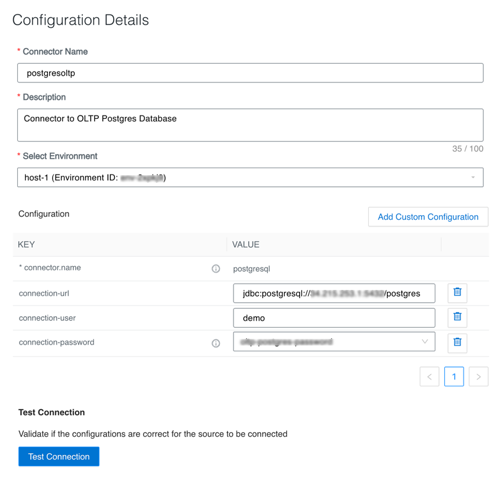
In the Configuration Details page, enter the following
information:
- Provide a catalog name and description for the connector.
- Select the appropriate environment.
- Under the Configuration pane, enter the following key-value pairs:
- Connector name
- Connector URL to connect to the required data source. For
example,
jdbc:postgresql://example.net:3306/postgres - Connection user name
- Connection password - Choose a registered secret from the environment selected above.
- Click Test Connection to verify if the
configurations are correct to establish a successful connection to the
data source.
A message is displayed indicating if the connection is successful or not. If the connection fails, modify the configuration details and try again.