Configuring Hive or Impala connector with HMS as the metadata source
HMS mode connects Octopai Client directly to the Hive Metastore (HMS) database to read databases, tables, columns, and views, using Kerberos or username and password authentication.
Apache Hive and Impala store their database and table definitions in a relational
database called the Hive Metastore (HMS). In HMS mode, also called direct metastore
access, Octopai Client reads metadata tables such as
DBS and TBLS directly from the database that backs
the metastore.
The HMS extraction method supports four database providers: PostgreSQL, MariaDB, MySQL, and Oracle. MariaDB and MySQL share the same setup path.
HMS mode compared to Hive Server connections
Supported HMS databases
In the New Metadata Source wizard, select the required Hive Hms Type depending on the backend database that your metastore uses. The following table lists the supported databases:
| HMS type | Typical use on Cloudera | Default port |
|---|---|---|
| MariaDB or MySQL | Very common for Hive HMS on Cloudera | 3306 |
| PostgreSQL | Some clusters use PostgreSQL for HMS | 5432 |
| Oracle | Less common; enterprise deployments | 1521 |
Supported authentication methods
| Method | What you need | Best for |
|---|---|---|
| Kerberos | Kerberos principal, keytab file, and cluster krb5 configuration | Production Cloudera clusters with Kerberos enabled (recommended) |
| Username and password | Database user and password from your administrator | Non-Kerberos environments, or clusters that allow SQL password login to the HMS database |
HMS database permissions
HMS mode uses read-only access to the HMS database. Octopai Client does not create, update, or delete HMS data.
DBSTBLSSDSCOLUMNS_V2
The connection test checks access to DBS. Full metadata extraction
also reads TBLS, SDS, and
COLUMNS_V2.
Ask your administrator to grant read-only access to the HMS tables, using statements similar to the following examples. Replace the database name, schema name, and user name with the values from your environment.
MariaDB or MySQL
GRANT SELECT ON hms.DBS TO 'octopai_user'@'%';
GRANT SELECT ON hms.TBLS TO 'octopai_user'@'%';
GRANT SELECT ON hms.SDS TO 'octopai_user'@'%';
GRANT SELECT ON hms.COLUMNS_V2 TO 'octopai_user'@'%';
PostgreSQL
GRANT SELECT ON TABLE public."DBS" TO octopai_user;
GRANT SELECT ON TABLE public."TBLS" TO octopai_user;
GRANT SELECT ON TABLE public."SDS" TO octopai_user;
GRANT SELECT ON TABLE public."COLUMNS_V2" TO octopai_user;
Oracle
GRANT SELECT ON HIVE.DBS TO OCTOPAI_USER;
GRANT SELECT ON HIVE.TBLS TO OCTOPAI_USER;
GRANT SELECT ON HIVE.SDS TO OCTOPAI_USER;
GRANT SELECT ON HIVE.COLUMNS_V2 TO OCTOPAI_USER;Where credentials are stored
Enter per-connection credentials, such as the principal, keytab, or username and password, in the Octopai Client connection. The kerberos.settings.json file on the Octopai Client machine holds machine-level settings only, such as the path to kinit, the Windows Subsystem for Linux (WSL) Kerberos configuration, and the Oracle network folder. It does not hold per-connection passwords.
Prerequisites for HMS connections
Before you configure a Hive or Impala HMS connection in Octopai Client, confirm network access to the metastore database. For Kerberos authentication, also confirm MIT Kerberos, the krb5 configuration, a keytab, and — for MariaDB, MySQL, or PostgreSQL — WSL.
Ensure the items in the following two lists are available before you configure an HMS connection. Use only the values that your administrator provides; the names in the examples are illustrative.
Required for all HMS connections
- Network access to the HMS database host, which is often the same host as Hive or Impala, or a dedicated metastore database host. A virtual private network (VPN) might be required.
- The HMS connection details from your administrator: hostname, port, and database name.
- Credentials for the authentication method that you plan to use: either a Kerberos principal and keytab, or a SQL username and password.
Required only for Kerberos authentication
- MIT Kerberos for Windows. You can download the relevant distribution from MIT
Kerberos Distribution. The default installation path is
C:\Program Files\MIT\Kerberos\. Verify that
C:\Program Files\MIT\Kerberos\bin\kinit.exe exists.
This path is used by
kerberos.settings.jsonunless explicitly changed. - The Kerberos configuration file krb5.ini from your
administrator, placed at
C:\ProgramData\MIT\Kerberos5\krb5.ini. It must include
your realm and key distribution center (KDC), for example:
[libdefaults] default_realm = YOUR.REALM dns_lookup_realm = false dns_lookup_kdc = false ticket_lifetime = 24h renew_lifetime = 7d forwardable = true [realms] YOUR.REALM = { kdc = kdc.example.com admin_server = kdc.example.com } [domain_realm] .example.com = YOUR.REALM - A keytab file with the extension .keytab for your service principal, stored securely on the Octopai Client machine, for example C:\Octopai\keytabs\my-service.keytab.
- Windows Subsystem for Linux (WSL) 2 with Ubuntu — required only for Kerberos authentication against MariaDB, MySQL, or PostgreSQL. Oracle HMS Kerberos runs natively on Windows and does not use WSL. Octopai Client uses Linux tools inside WSL for Kerberos database access on Windows. To install WSL, run wsl --install -d Ubuntu.
Configuring an HMS connection in Octopai Client
Configure a Hive or Impala HMS connection in Octopai Client by selecting the Hive Metastore metadata source, entering the metastore database details, and choosing Kerberos or password authentication.
These steps are common to all HMS database backends. For backend-specific Kerberos setup, see the MariaDB or MySQL, PostgreSQL, and Oracle topics.
Complete the items in the HMS connection prerequisites, and obtain the host, port, database name, and credentials from your administrator.
-
Enter the authentication details.
- For Username and Password, enter the UserName and Password.
- For Kerberos, enter the Keytab Path and Kerberos Principal.
Figure 1. HMS metadata source with Username and Password authentication 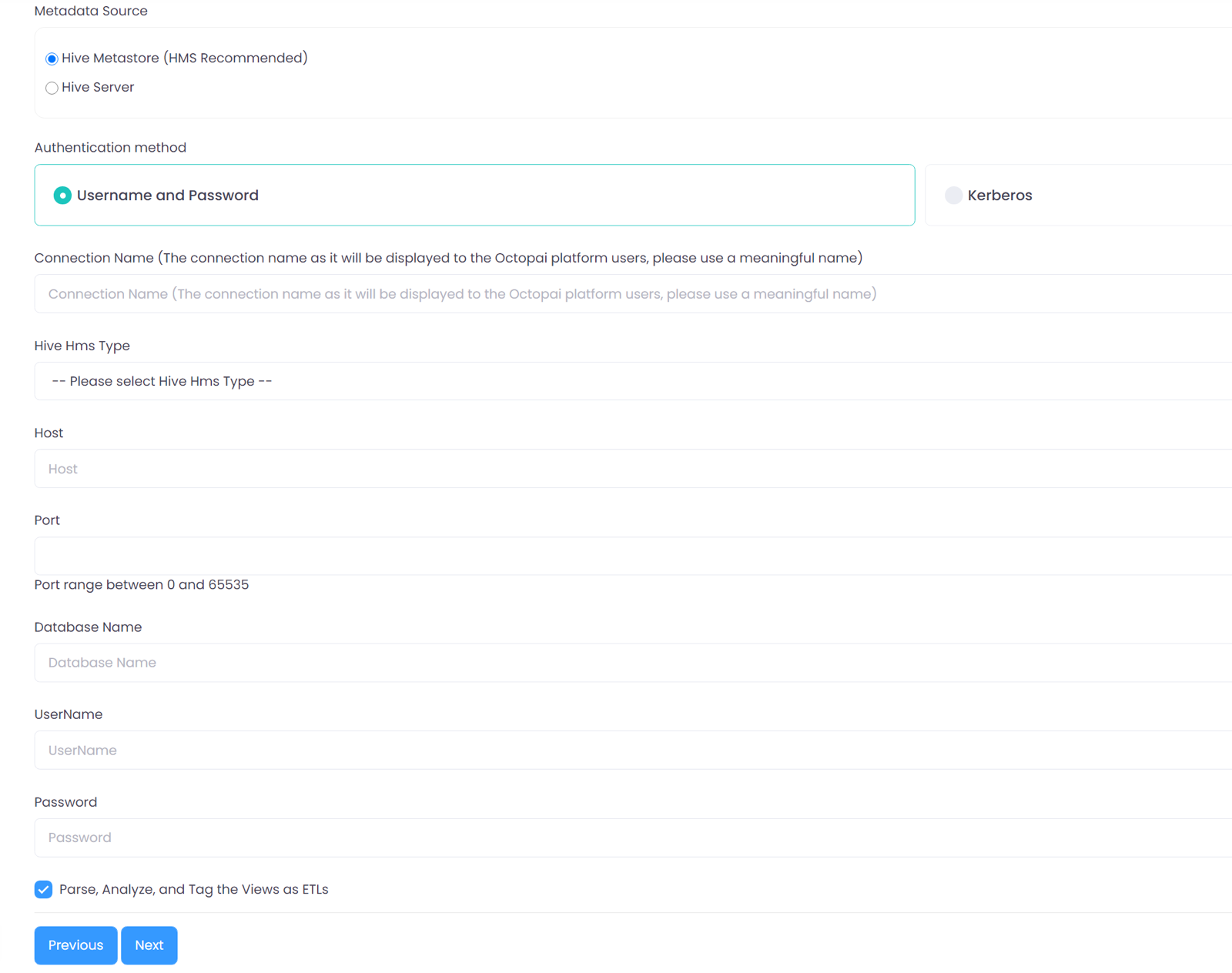
Figure 2. HMS metadata source with Kerberos authentication 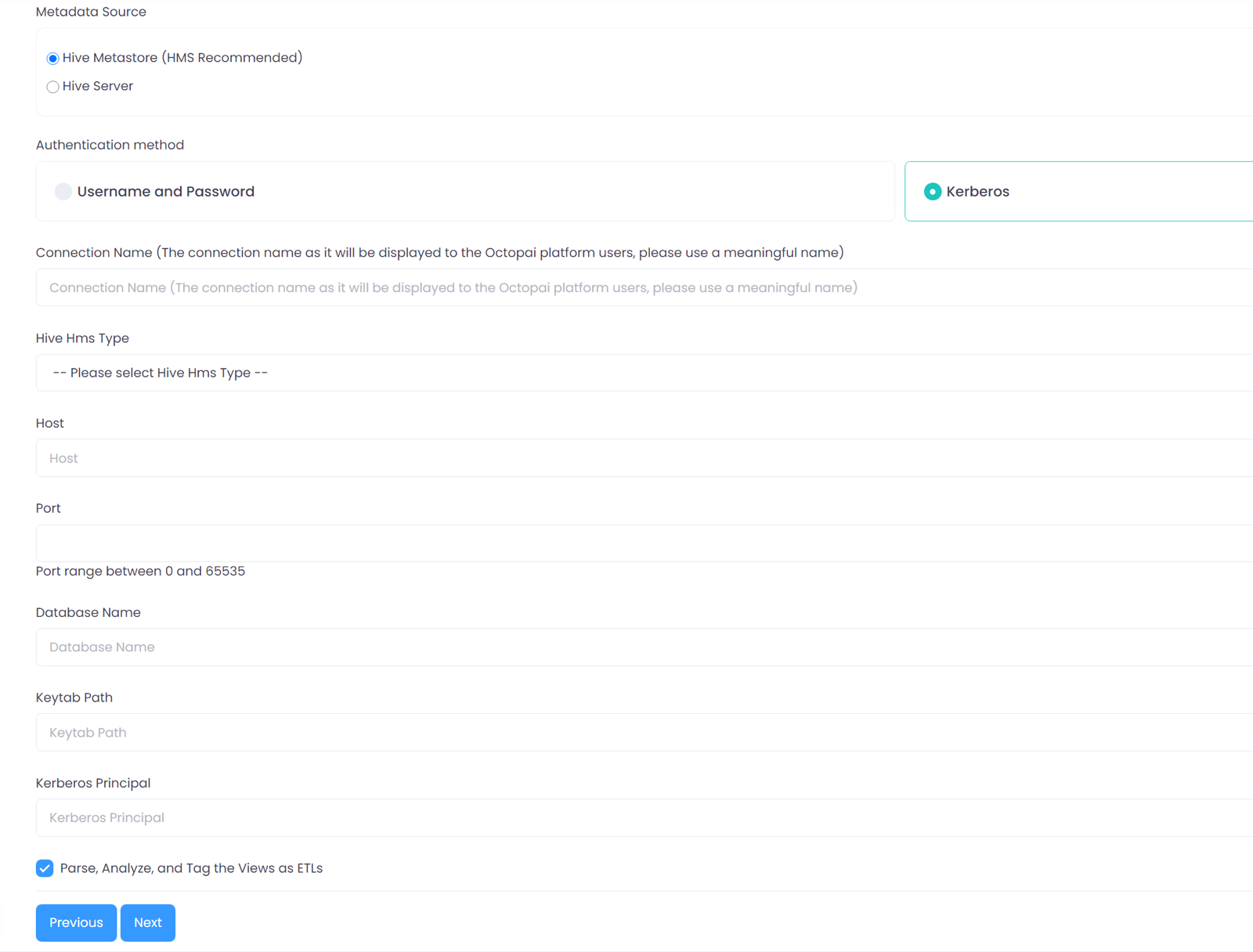
When you test the connection, Octopai Client does the following:
- For Kerberos, acquires a ticket by using kinit and your keytab.
- Connects to the HMS database with the settings you entered.
- Runs a simple query against the metastore tables, for example a row count from
DBS. - Shows a success or an error message.
The test confirms that Octopai Client can reach the HMS database and read the metastore tables. It does not run a full metadata extraction. If the test fails, see the HMS connection troubleshooting topic.
Machine settings for HMS Kerberos authentication
The kerberos.settings.json file on the Octopai Client host defines machine-level Kerberos settings and one enabled profile per HMS database type.
Top-level entries
Edit Data\kerberos.settings.json on the Octopai Client host and enable the one profile that matches your HMS database type. Do not provide your keytab path or principal here for HMS connections; those belong in each connection.
{
  "Kerberos": {
    "KinitPath": "C:\\Program Files\\MIT\\Kerberos\\bin\\kinit.exe",
    "DefaultCacheName": "FILE:C:\\Octopai\\krb5cc",
    "Krb5ConfigPath": ""
  }
}| Setting | Description |
|---|---|
| KinitPath | Path to kinit.exe from your MIT Kerberos installation. |
| DefaultCacheName | Ticket cache used for Hive Server ODBC Kerberos connections. HMS Kerberos on MariaDB or PostgreSQL uses WSL instead. For Oracle, this value must match SQLNET.KERBEROS5_CC_NAME in sqlnet.ora if you set one. |
| Krb5ConfigPath | Leave empty to use the default C:\ProgramData\MIT\Kerberos5\krb5.ini. |
Profile: MariaDB or MySQL (HmsMariaDbMySql)
"HmsMariaDbMySql": {
  "Enabled": true,
  "WslKrb5ConfigPath": "/etc/krb5.conf",
  "MysqlClientBinary": "mariadb",
  "MysqlGssapiPluginDir": "/usr/lib/x86_64-linux-gnu/libmariadb3/plugin"
}| Setting | Description |
|---|---|
| Enabled | Set to true when this Octopai Client host uses MariaDB
or MySQL HMS with Kerberos. |
| WslKrb5ConfigPath | Path to the Kerberos configuration inside WSL, usually /etc/krb5.conf. |
| MysqlClientBinary | Name of the SQL client command in WSL. Use
mariadb, the default on Ubuntu. Set it to
mysql only if your WSL installation provides
that binary instead. |
| MysqlGssapiPluginDir | Folder in WSL that contains auth_gssapi_client.so, the Generic Security Services Application Program Interface (GSSAPI) Kerberos plugin. Locate this on your machine after you install the packages. |
Profile: PostgreSQL (HmsPostgres)
"HmsPostgres": {
  "Enabled": true,
  "WslKrb5ConfigPath": "/etc/krb5.conf"
}
To install the client, run sudo apt install -y krb5-user postgresql-client.
PostgreSQL HMS Kerberos also uses WSL. For more information, see Running the Octopai Client Windows Service with WSL.
Profile: Oracle (HmsOracle)
"HmsOracle": {
  "Enabled": true,
  "OracleTnsAdminPath": "C:\\Octopai\\oracle\\network\\admin"
}
The HmsOracle profile is one part of the Oracle Kerberos setup. It only tells Octopai Client where the local Oracle network folder is. OracleTnsAdminPath is a Windows folder on the Octopai Client machine that must contain a file named sqlnet.ora, and Octopai Client uses this folder as TNS_ADMIN when it connects with Kerberos. The actual Kerberos behavior still comes from sqlnet.ora, MIT Kerberos on the client host, the keytab, and the connection fields — see Configuring Oracle HMS access.
HmsOracle is not required for Oracle password authentication.
For password-only Oracle HMS connections, ensure that
HmsOracle.Enabled is set to false or
exclude the profile.
Running the Octopai Client Windows service with WSL
MariaDB and PostgreSQL HMS Kerberos access uses WSL, which is installed per Windows user, so the Octopai Client Windows service must run as the local administrator user that owns the WSL profile.
MariaDB and PostgreSQL HMS Kerberos run kinit on Windows and then run mariadb or psql inside WSL. WSL is installed per Windows user, so it is not available to built-in service accounts in the same way. Oracle HMS Kerberos does not use WSL, so this requirement applies only to MariaDB and PostgreSQL.
When you install Octopai Client as a Windows service,
rather than only opening it as a desktop application, you must register the service to
log on as a local administrator user account, for example
.\octopai-admin. Do not use any of the following:
- Local System
- Network Service
- A dedicated Windows service account that does not have a WSL profile
Recommended setup order
To set up scheduled extractions that use MariaDB or PostgreSQL HMS Kerberos, complete the setup in the following order:
- Create or choose the Windows user that runs the Octopai Client service. The user must be a member of the local Administrators group.
- Log in as that user on the Octopai Client machine.
- Install WSL, the packages, and /etc/krb5.conf under that user.
- Install MIT Kerberos, the keytab, and kerberos.settings.json on that machine.
- Install or reconfigure the Octopai Client Windows service to run as that same user, with the password stored for the service.
- Restart the service and run Test Connection.
Configuring MariaDB or MySQL HMS access for Kerberos
Configure Kerberos access to a MariaDB or MySQL Hive Metastore database by setting up WSL, the Kerberos client, and the GSSAPI plugin on the Octopai Client host.
Your administrator must provide the following permissions and details:
- The HMS database name.
- For Kerberos, a database user or role mapped to your Kerberos principal.
- For password authentication, a SQL user and password allowed from your client IP address.
- The Kerberos service principal in the form
mariadb/<hostname>@<REALM>.
| Field | Example | Notes |
|---|---|---|
| Hive Hms Type | MariaDB or MySql | Match the cluster backend |
| Host | hms-db.example.com | From your administrator |
| Port | 3306 | From your administrator |
| Database Name | hms | From your administrator |
| Kerberos Principal | my-service@YOUR.REALM | Kerberos only |
| Keytab Path | C:\Octopai\keytabs\my-service.keytab | Kerberos only |
| UserName and Password | From your administrator | Password authentication only |
HmsMariaDbMySql in kerberos.settings.json. If
Octopai runs as a Windows Service, it must use a local administrator user
account—not Local System or a service account without
WSL.
Perform the following steps to set up Kerberos authentication inside WSL:
To verify Kerberos access from WSL before you test the connection, acquire a ticket and query the metastore:
kinit -kt /mnt/c/Octopai/keytabs/my-service.keytab my-service@YOUR.REALM
klist

mariadb --plugin-dir=/usr/lib/x86_64-linux-gnu/libmariadb3/plugin \
  -h hms-db.example.com -P 3306 \
  -u my-service hms \
  -e "SELECT COUNT(*) FROM DBS;"
Replace my-service, keytab path, host, and database name with the
values that you received from your administrator. The -u user must
match the MariaDB user mapped to your Kerberos principal.
For password authentication, no WSL or Kerberos profile is required. Enter the username and password in the connection, and ensure that the database server allows password login from your machine.
Configuring PostgreSQL HMS access for Kerberos
Configure Kerberos access to a PostgreSQL Hive Metastore database by setting up WSL and the PostgreSQL client on the Octopai Client host.
Your administrator must provide the following permissions and details:
- The HMS database name.
- For Kerberos, a PostgreSQL role mapped to your Kerberos principal in pg_ident.conf.
- For password authentication, a role and password, with your client IP address allowed in pg_hba.conf.
- The Kerberos service principal in the form
postgres/<hostname>@<REALM>.
| Field | Example | Notes |
|---|---|---|
| Hive Hms Type | Postgres | N/A |
| Host | hms-db.example.com | From your administrator |
| Port | 5432 | From your administrator |
| Database Name | hms | From your administrator |
| Kerberos Principal | my-service@YOUR.REALM | Kerberos only |
| Keytab Path | C:\Octopai\keytabs\my-service.keytab | Kerberos only |
| UserName and Password | From your administrator | Password authentication only; not used for Kerberos |
For Kerberos connections, you enter only the principal and keytab. Octopai Client derives the PostgreSQL login role
from the principal: the part before @, with hyphens changed to
underscores. For example, my-service@REALM becomes the role
my_service. Your administrator must create or map that role to
match your principal.
For Kerberos, Octopai Client runs
kinit on Windows and then uses the psql
client inside WSL. If Octopai runs as a Windows Service, it must use a local
administrator user account—not Local System or a service account
without WSL.
Perform the following steps to set up Kerberos authentication inside WSL:
To verify Kerberos access from WSL before you test the connection, acquire a ticket and query the metastore:
kinit -kt /mnt/c/Octopai/keytabs/my-service.keytab my-service@YOUR.REALM

psql "host=hms-db.example.com port=5432 dbname=hms user=my_service" \
  -c 'SELECT COUNT(*) FROM public."DBS";'
For password authentication, use a SQL username and password. Password authentication must be enabled in pg_hba.conf for your client IP address. If login fails with a correct password, ask your administrator to verify that the pg_hba.conf authentication settings match how the password was created.
Configuring Oracle HMS access
Oracle HMS supports both password and Kerberos authentication. Both modes use the Oracle .NET driver that Octopai Client ships, and neither requires Oracle Database software on the client. Kerberos additionally requires MIT Kerberos and a local folder containing sqlnet.ora, configured through OracleTnsAdminPath. Oracle HMS Kerberos does not use WSL.
Your administrator must provide the following permissions and details:
- The Oracle service name for the pluggable database (PDB) — required for both authentication modes.
- The metastore schema and tables — required for both authentication modes.
- For password authentication, an Oracle user and password.
- For Kerberos authentication, an Oracle user mapped to your principal, the
service principal
oracle/<hostname>@<REALM>, and a sqlnet.ora folder for the Octopai Client host.
You do not need Oracle Database software on the Octopai Client machine for either authentication mode; Octopai Client ships the Oracle .NET driver. The two authentication modes differ as follows:
- Password authentication needs only the shipped Oracle .NET driver and the database credentials.
- Kerberos authentication additionally needs MIT Kerberos on the Octopai Client host and a local folder containing sqlnet.ora, configured through OracleTnsAdminPath in kerberos.settings.json. It runs natively on Windows — no WSL.
The following table lists the connection fields:
| Field | Example | Notes |
|---|---|---|
| Hive Hms Type | Oracle | N/A |
| Host | oracle-hms.example.com | HMS database host, from your administrator |
| Port | 1521 | From your administrator |
| Database Name | ORCLPDB1 | Oracle service name, from your administrator |
| Kerberos Principal | my-service@YOUR.REALM | Kerberos only |
| Keytab Path | C:\Octopai\keytabs\my-service.keytab | Kerberos only |
| UserName and Password | From your administrator | Password authentication only |
The following steps apply only when you use Kerberos authentication. For password authentication, skip the steps and see the postrequisite at the end of this topic.
Oracle HMS Kerberos runs on Windows and does not use WSL. Octopai Client uses kinit and the Oracle driver with Kerberos.
The HmsOracle profile in kerberos.settings.json is one part of the Oracle Kerberos setup, not a separate mechanism. It only tells Octopai Client where the local Oracle network folder is; the actual Oracle Kerberos behavior still comes from sqlnet.ora inside that folder, MIT Kerberos on the client host, the keytab, and the connection fields.
For password authentication, enter the Oracle username and password in the
connection. No HmsOracle profile in
kerberos.settings.json is required; leave
HmsOracle.Enabled at false (or omit the
profile) unless the same Octopai Client host
also uses Oracle HMS Kerberos.
Troubleshooting HMS connections
Resolve common failures when you test or run a Hive or Impala HMS connection in Octopai Client, such as Kerberos ticket, KDC, firewall, and WSL service-account errors.
Match the symptom to a cause and resolution, and confirm the details with your cluster administrator.
| Symptom | Cause | Resolution |
|---|---|---|
kinit: Password incorrect |
Keytab is outdated because of a key version number (KVNO) mismatch | Ask your administrator for a new keytab file |
Cannot contact KDC |
VPN is off or krb5.ini is incorrect | Connect the VPN, and verify the realm and KDC with your administrator |
| Connection timeout to the database | Due to a firewall, an incorrect host or port, or the service is not running | Confirm the host, port, and network path with your administrator |
no pg_hba.conf entry (PostgreSQL) |
Client IP address is not allowed | Ask your administrator to add a rule in pg_hba.conf |
auth_gssapi_client.so not found (MariaDB) |
WSL MariaDB plugin is missing | Install libmariadb3 and set
MysqlGssapiPluginDir |
| WSL Kerberos works in the desktop application but not as a service | Service runs as Local System or the wrong account | Reinstall the service under the local administrator user that owns WSL, and complete the WSL setup while logged in as that user |
| Oracle SQL or schema errors | Metastore schema or grants differ from the cluster defaults | Confirm the metastore schema and permissions with your administrator |
| Oracle Kerberos connection or authentication failure | sqlnet.ora folder is incorrect or missing | Verify OracleTnsAdminPath and sqlnet.ora with your administrator |
