Importing Glossary terms in bulk

You can import a comma-separated list of glossary terms into Atlas.

Create the glossary or glossaries before you begin the import. Then, download a template CSV file to organize your term list so Atlas can consume it.

To import terms:

  1. Log into Atlas.
  2. Do the following steps to download the glossary import template:

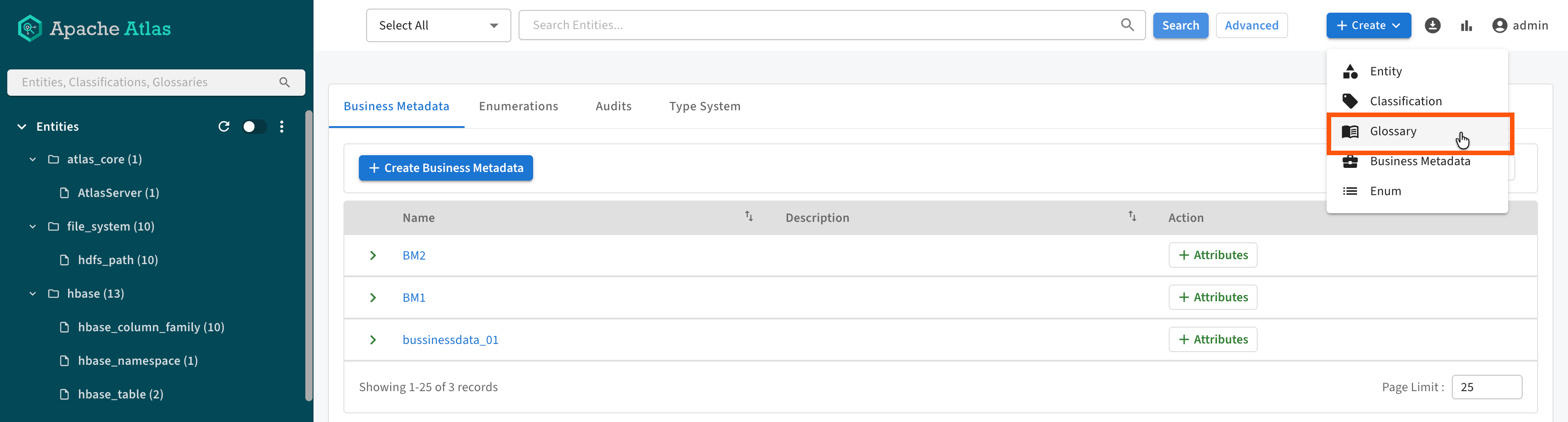
    Click Create > Glossary > Import Glossary Terms > Download import template

    From the user menu, choose Bulk Import > Glossary > Download Import template to download a template for the bulk import file.

  3. Fill in the template with the Glossary term details.
    Consider the following guidelines for the import file:
    • Each line in the file produces a term in a pre-defined Glossary.
    • Only the GlossaryName and TermName are required.
    • Only new terms can be added; if your list contains an existing term, it will fail to import any terms.
    • If you provide other metadata for a term, be sure to include the correct separators so the value is applied to the correct relationship type.
  4. When you have a term list to import, upload it to Atlas with the following steps:

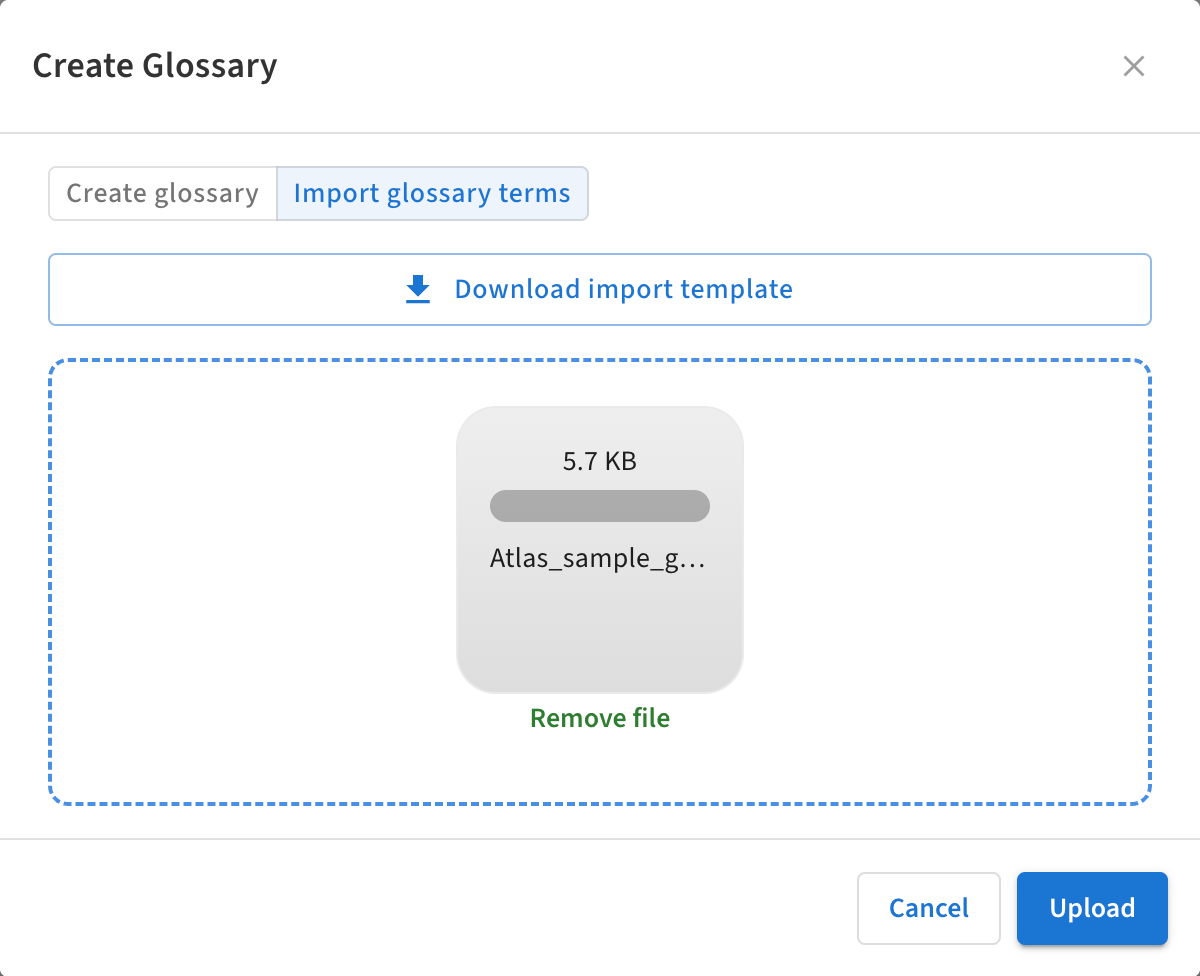
    Click Create > Glossary > Import Glossary Terms, then drag and drop your prepared CSV file into the highlighted area.

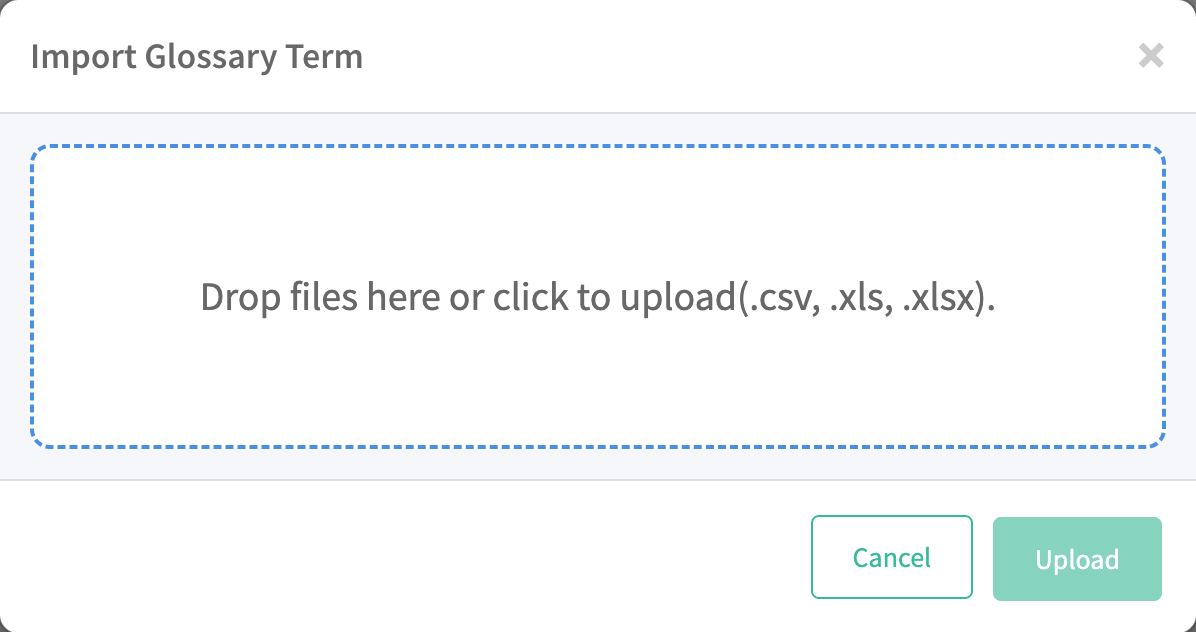
    From the user menu, choose Bulk Import > Glossary > Import Glossary Term and select the file to upload.

  5. Click Upload.
    If a row in the input file does not import successfully, you will see an error in the UI; additional errors in the same import are not shown. Rows that are correct import even if you see an error for a row that does not import. If you see an error, fix the error, remove the rows previous to the error row, and reimport the file.