Natural language search user interface
Use Natural Language Search (NLS) o ask questions about your data in everyday language and view the results as visualizations.
For instructions on how to enable Natural Language Search (NLS) globally, see Enabling NLS in Site Settings. For the required configurations, see Enabling dataset for NLS.
When NLS is available and datasets are configured for search, you can open Search your data in either of these ways:
- Click the search icon in the upper-right corner of Cloudera Data Visualization to open search across available datasets.
- Open , select the Datasets tab, and click the search icon next to a dataset to search that dataset.
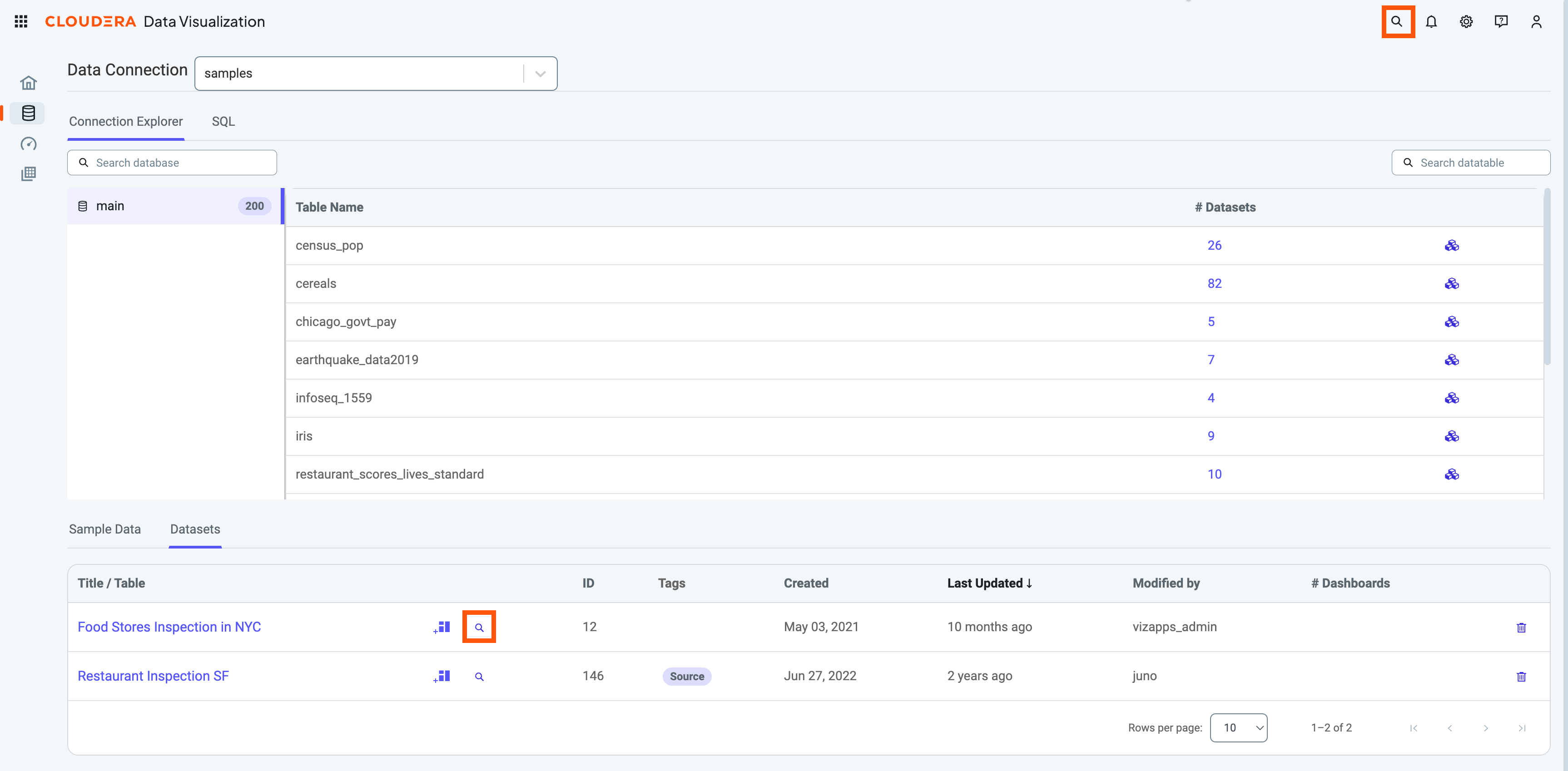
The Search your data modal has the following parts:
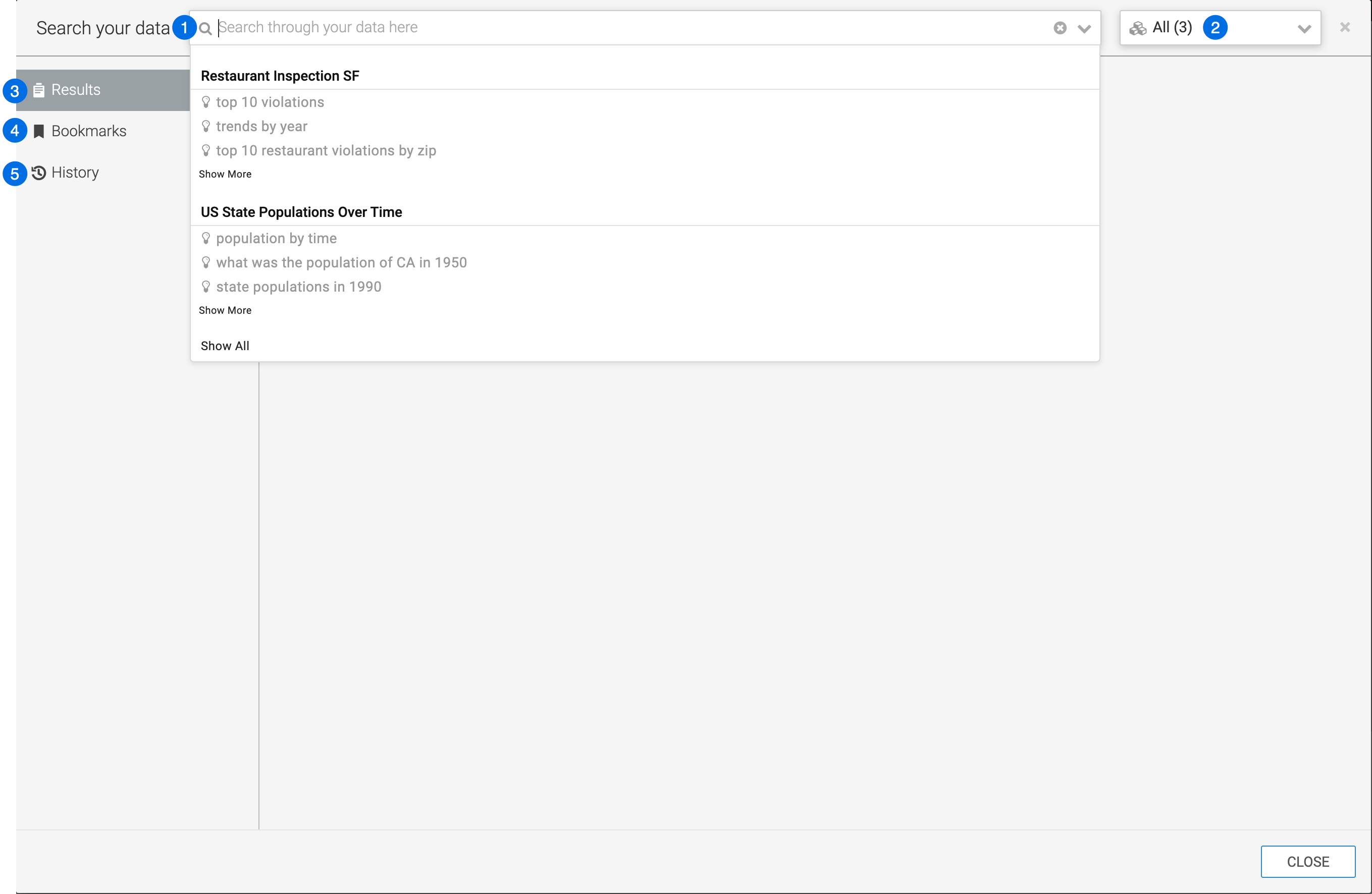
- Search icon - Click it to open the Search your data modal andeEnter a question or phrase about your data. Before you type, the drop-down list shows recent searches grouped by dataset. As you type, it displays matching suggestions. For more information, see Search types.
- Dataset selector - Choose the datasets to search. The selector defaults to All when you open global search. If you open search from the Datasets list, it is scoped to the selected dataset. You can change the scope to one or more datasets. For more information, see Changing the dataset search domain.
- Results tab - View the results of your search. For more information, see Search results.
- Bookmarks tab - Return to bookmarked searches. For more information, see Search bookmarks.
- History tab - Review previous searches. For more information, see Search history.
