Cloudera Data Visualization Home view
Access recent items and start creating content.
The Home view is the starting point for working in Cloudera Data Visualization. It provides an overview of your environment and quick access to content creation workflows and recently used items.
When you log in, the Home view opens by default. The content and actions available to you depend on your role and permissions. To return to it from another view, click Home in the left navigation panel.
The default Home view consists of the following areas:
- Quick actions
- Content summary
- Recent content
- Content gallery
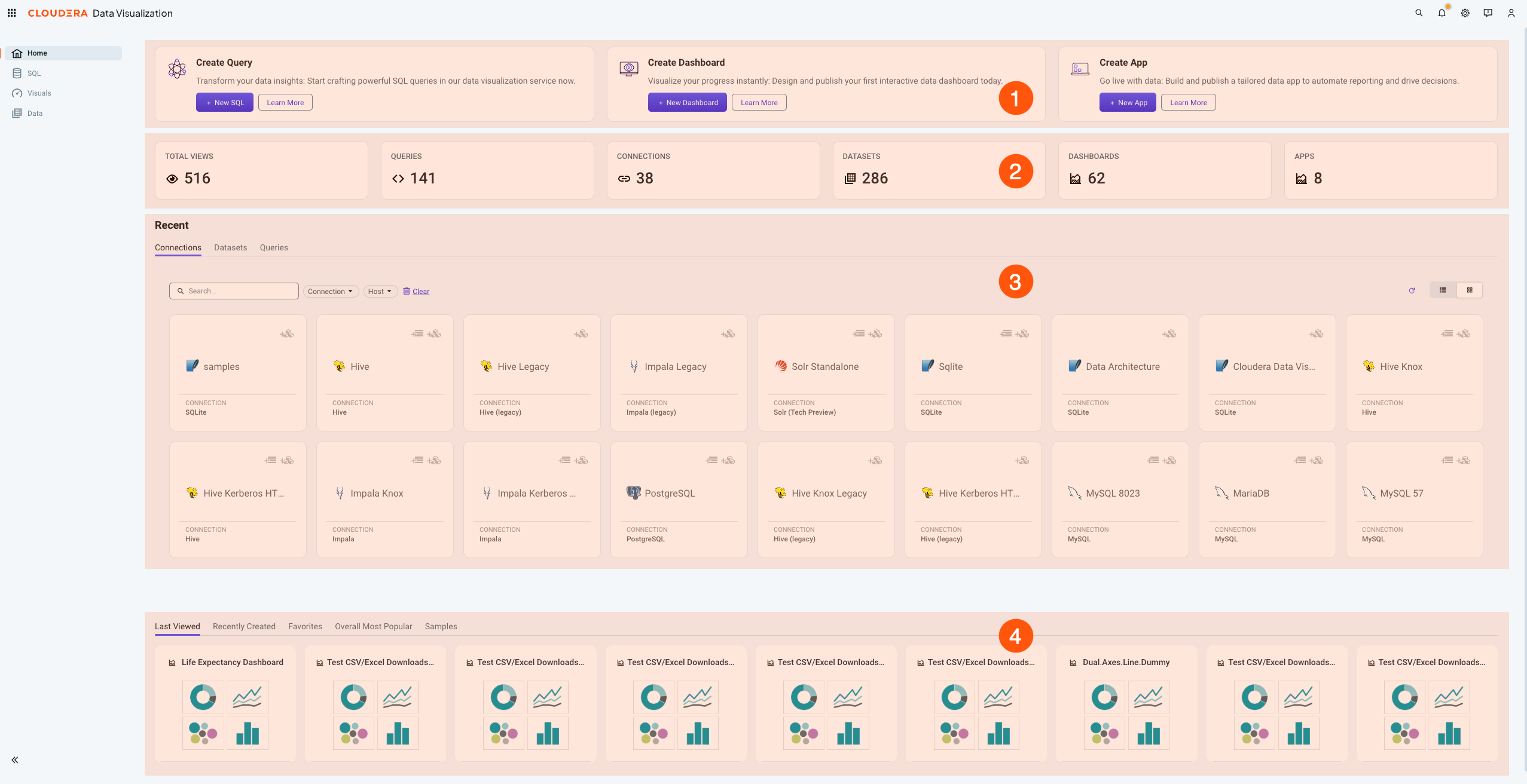
Quick actions
The cards at the top of the page provide access to common content creation workflows:
- Create Query: Click New SQL to open the SQL editor and create a query. This option is available only if Direct Access is enabled and you have the required permissions for at least one data connection.
- Create Dashboard: Click New Dashboard to open the Dashboard Designer and create a dashboard and visuals.
- Create App: Click New App to open the App Designer and build an application from existing dashboards and visuals.
Click Learn More on a card to access additional information about the corresponding workflow.
Content summary
The summary tiles provide a high-level overview of the content available in your Cloudera Data Visualization environment. Click a tile to access the corresponding content.
The tiles show the number of:
- Total views
- Queries
- Connections
- Datasets
- Dashboards
- Apps
Recent content
The Recent section provides quick access to content you recently worked with. Use the tabs to view recent:
- Connections
- Datasets
- Queries
Click a card to open the corresponding item.
You can use the available controls to:
- Search for an item.
- Filter the displayed items.
- Clear the applied filters.
- Refresh the displayed content.
- Switch between grid and list views.
Connection cards also include shortcuts for adding data or creating a dataset. Dataset cards include a shortcut for creating a dashboard based on the selected dataset.
Content gallery
The content gallery provides quick access to dashboards, applications, and other visual content. Use the tabs to browse content by category:
- Last Viewed
- Recently Created
- Favorites
- Overall Most Popular
- Samples
Click a content card to open the corresponding item. The content displayed in this section depends on your activity, available sample content, and access permissions.
