Cloudera Data Visualization Visuals view
Browse, create, and manage dashboards and applications in your workspaces.
The Visuals view provides access to your dashboards and applications. Use this view to browse, create, and manage visual content in your available workspaces.
To open this view, click Visuals in the left navigation panel. The workspaces, content, and actions available to you depend on your permissions.
The Visuals view contains the following main areas:
- Workspaces panel
- Workspace header and content tabs
- Content controls
- Content area
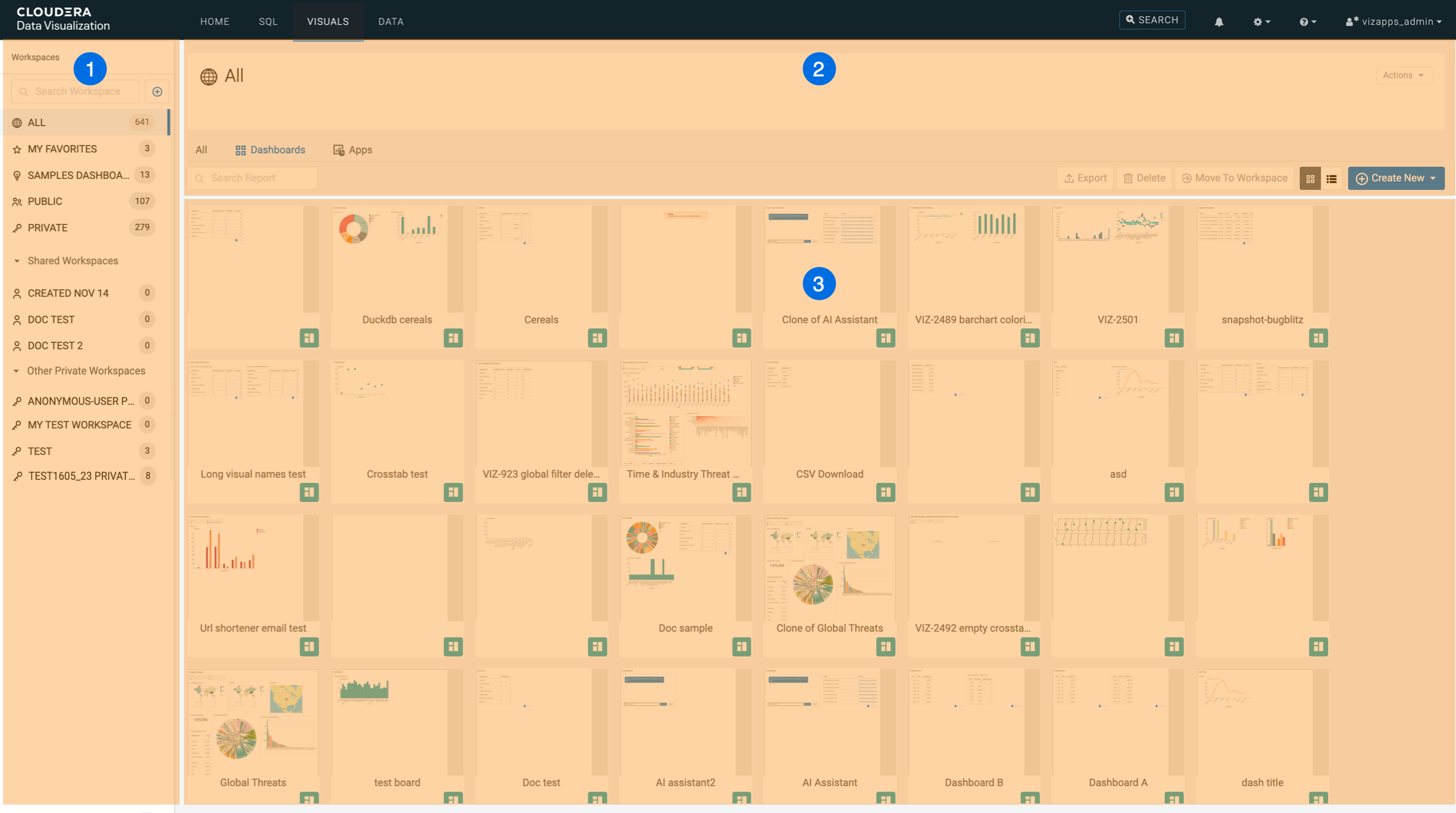
Workspaces panel
The Workspaces panel displays the workspaces and standard content groupings available to you. The number next to each item indicates how many artifacts it contains.
You can:
- Search for a workspace.
- Click the + button to create a workspace.
- Select a workspace to view its content.
- Collapse the workspace panel to provide more space for the content area.
The standard groupings include:
- ALL: Displays all visual content available to you.
- MY FAVORITES: Displays content that you marked as a favorite.
- SAMPLES: Displays sample dashboards and applications.
- PUBLIC: Displays content in the system-wide public workspace.
- PRIVATE: Displays content in your private workspace.
The panel also lists shared workspaces and other private workspaces that you have permission to access. You can expand or collapse workspace groups to simplify the navigation.
Workspace header and content tabs
The workspace header displays the name and description of the selected workspace.
Use the Actions menu to manage the workspace. The available actions depend on your permissions.
Use the following tabs to control which artifacts are displayed:
- All: Displays both dashboards and applications.
- Dashboards: Displays dashboards only.
- Apps: Displays applications only.
Content controls
Use the controls above the content area to find and manage visual artifacts:
- Search Report: Search for content in the selected workspace.
- Data Connection: Filter content by data connection.
- Dataset: Filter content by dataset.
- Clear: Remove the applied filters.
- Accelerate: Accelerate selected eligible content.
- Export: Export the selected content.
- Delete: Delete the selected content.
- Move To Workspace: Move the selected content to another workspace.
- List view / Grid view: Switch between the two display formats.
- Create New: Create a dashboard or application.
Actions that require a content selection remain unavailable until you select one or more items. Your permissions also determine which actions you can use.
Content area
The content area displays the dashboards and applications in the selected workspace.
- Grid view
-
Grid view displays dashboards and applications as thumbnail cards. Click a card to open the artifact in View mode.
When you hover over a card, the following controls appear:
 : Select the artifact. Selecting one or more artifacts
enables the applicable actions above the content area.
: Select the artifact. Selecting one or more artifacts
enables the applicable actions above the content area.  : Open the artifact in Edit mode.
  : Access additional actions, such as exporting, moving, or
deleting the artifact.
: Access additional actions, such as exporting, moving, or
deleting the artifact.
The available controls and actions depend on your permissions.
- List view
-
List view displays dashboards and applications in a table with the following information:
- Title
- ID
- Number of related artifacts
- Creation date
- Last update
- Last modified by
- Total views
- Dataset
- Data connection
- Workspace
You can:
- Click a title to open the artifact.
- Click a dataset or workspace name to open the corresponding item.
- Select one or more artifacts using the checkboxes. Selecting artifacts enables the applicable actions above the table.
- Sort the table by clicking a column heading.
- Open the three-dot menu at the end of a row to access Edit and Delete actions for that artifact.
- Set the number of rows displayed per page and use the pagination controls to move between pages.
The available actions depend on your permissions.
