After creating a data extract, run a newly created data extract at least once to
populate its target table before building datasets or dashboards based on it. You can also run
the extract manually to refresh its data.
On the left navigation panel, click Data.
The Data view opens, displaying the
Datasets tab.
Select a connection from the connection list on the left side panel that contains the
source dataset.
Select the dataset used for the extract.
Click Data Extracts in the left navigation panel.
Locate the extract you want to run. Use Search Extracts to
filter the list if needed.
In the extract’s Actions column, click
and select Run Now.
In the confirmation modal, click Run Extract.
A success message appears and the extract state changes to Running. After
the refresh is successfully completed, the state changes to Completed.
Monitoring extract runs
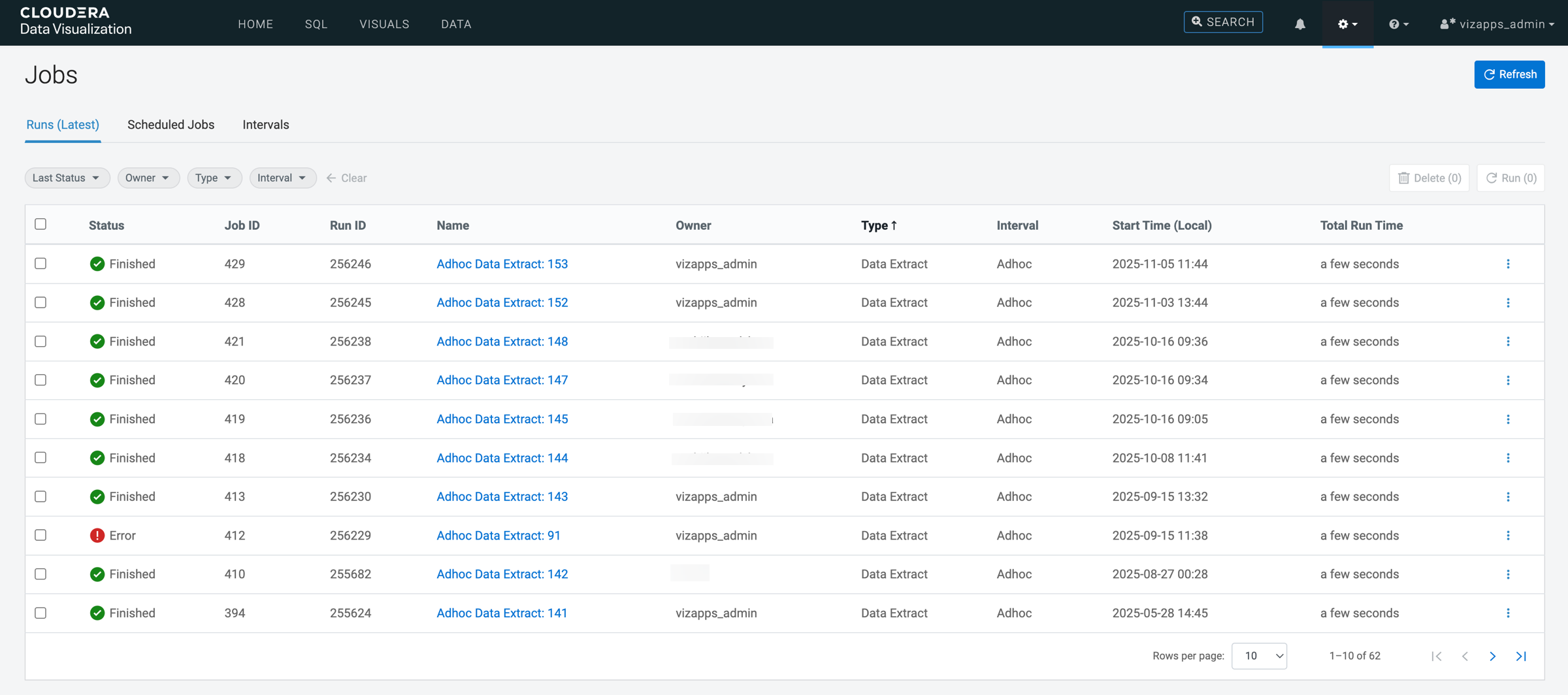
To track progress and
review logs for extract refresh jobs, open the Runs (Latest) tab
of the Jobs page. For more information, see Job
runs.
Scheduling automatic refreshes
You can
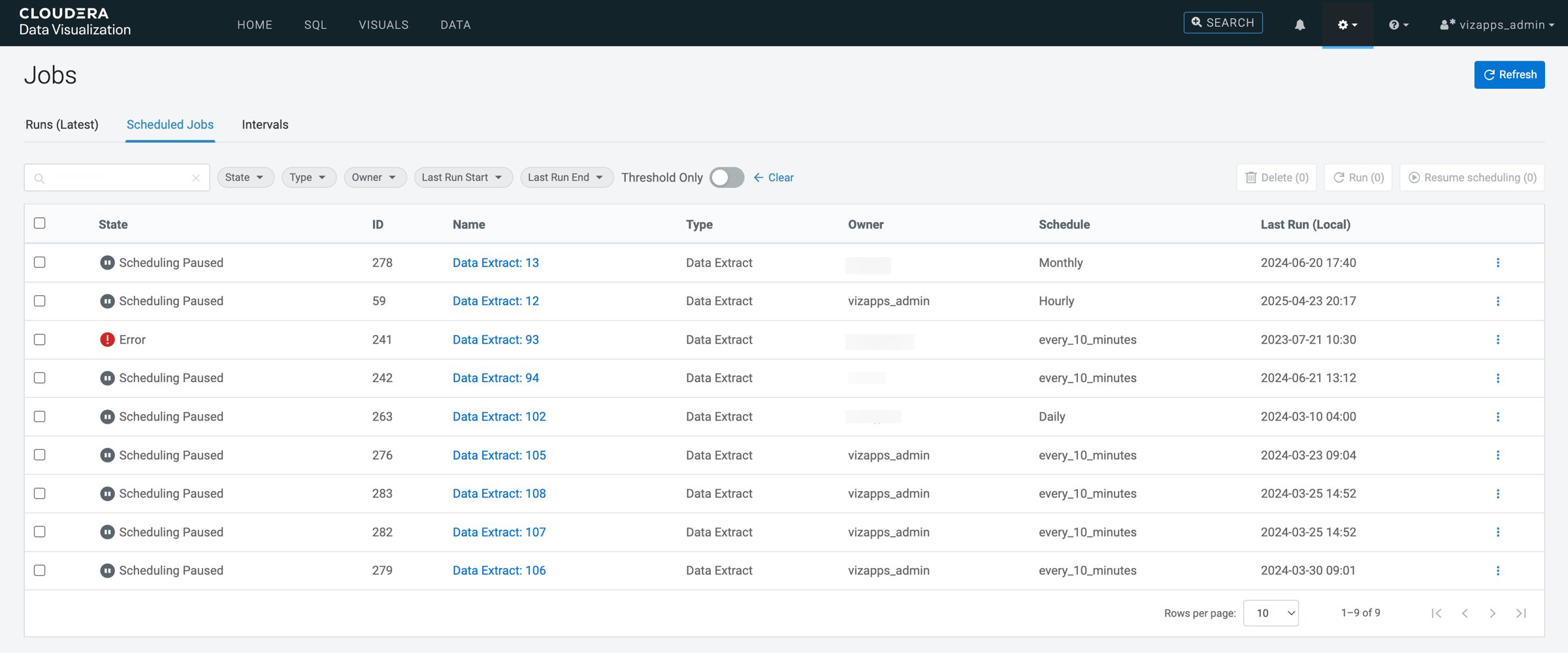
configure extracts to refresh automatically by defining a schedule. If a refresh
schedule is configured, you can review the job logs on the Scheduled
Jobs tab of the Jobs page. For more information,
see Scheduled jobs.
To modify an existing schedule:
Edit the schedule in the Edit Data Extract modal from the
Data Extracts view. For instructions, see Editing a
data extract.
Update existing schedule intervals in the Manage Schedule
Intervals interface. For instructions, see Editing schedule
intervals.
 and select Run Now.

 To modify an existing schedule: