Prerequisites for using API key

To enable using API keys, you must manually configure the Knox service in the Cloudera Base cluster. This includes installing and configuring Knox and setting up the Cloudera AI Inference service instance in the Cloudera AI Control Plane.

The Knox API key support is available only on Cloudera Runtime 7.1.9 SP2 and 7.3.2 versions.

  1. Install the Cloudera Base cluster Knox.

    For instructions on installing Cloudera Base cluster Knox, see Installing Apache Knox.

  2. Validate the API key by reusing the cdp_proxy_token topology, and adding the APIKEY service to the existing Knox topology.
    1. In the Cloudera Manager, select your cluster.
    2. Open the Knox service.
    3. Select the Configuration tab.
    4. Search for gateway_descriptor_cdp_proxy_api.
    5. Add the APIKEY service with the following setting:
      KNOX-AUTH-SERVICE:preauth.auth.header.actor.id.name=x-cdp-actor-username
      KNOX-AUTH-SERVICE:preauth.auth.header.actor.groups.prefix=x-cdp-actor-groups
      KNOX-AUTH-SERVICE:preauth.group.filter.pattern=[^\s]+
      KNOX-AUTH-SERVICE:ignore.additional.path=true
      
  3. Generate the API key.
    1. Option 1 - To reuse the cdp-proxy-api topology, add the APIKEY service to a Knox topology.
      1. In the Cloudera Manager, select your cluster.
      2. Open the Knox service.
      3. Select the Configuration tab.
      4. Search for gateway_descriptor_cdp_proxy_api.
      5. Add the APIKEY service with the following setting:
        APIKEY:apikey.knox.token.exp.server-managed=true
      6. Configure gateway_api_authentication_provider to use your LDAP service.
        1. In the Cloudera Manager, open the Knox service.
        2. Go to the Configuration tab.
        3. Search for gateway_api_authentication_provider.
        4. Edit this property and configure it to use your LDAP authentication provider for the cdp-proxy-api topology. For instructions, see Configure Apache Knox authentication for AD/LDAP.
        5. Retrieve the correct values for your environment:
          1. Open Cloudera Manager
          2. Select Administration from the left navigation pane.
          3. Open Settings and search for External Authentication. All the required details are displayed. After applying the changes, navigate to Knox and refresh the service.
    2. Option 2 - Add a custom topology.
      1. Configure the API key service by using the cdp-proxy-api Knox topology. That is the default option.
      2. To use a different topology, add a custom descriptor to Knox.

        For instructions on adding a custom topology, see Add a custom descriptor to Apache Knox.

        1. In the custom topology’s descriptor add the APIKEY service by adding:
          APIKEY:apikey.knox.token.exp.server-managed=true

          In the topology descriptor you can either refer to a configured LDAP provider, or add your own provider. For instructions, see Add a new shared provider configuration.

      3. Configure Cloudera AI Inference service.

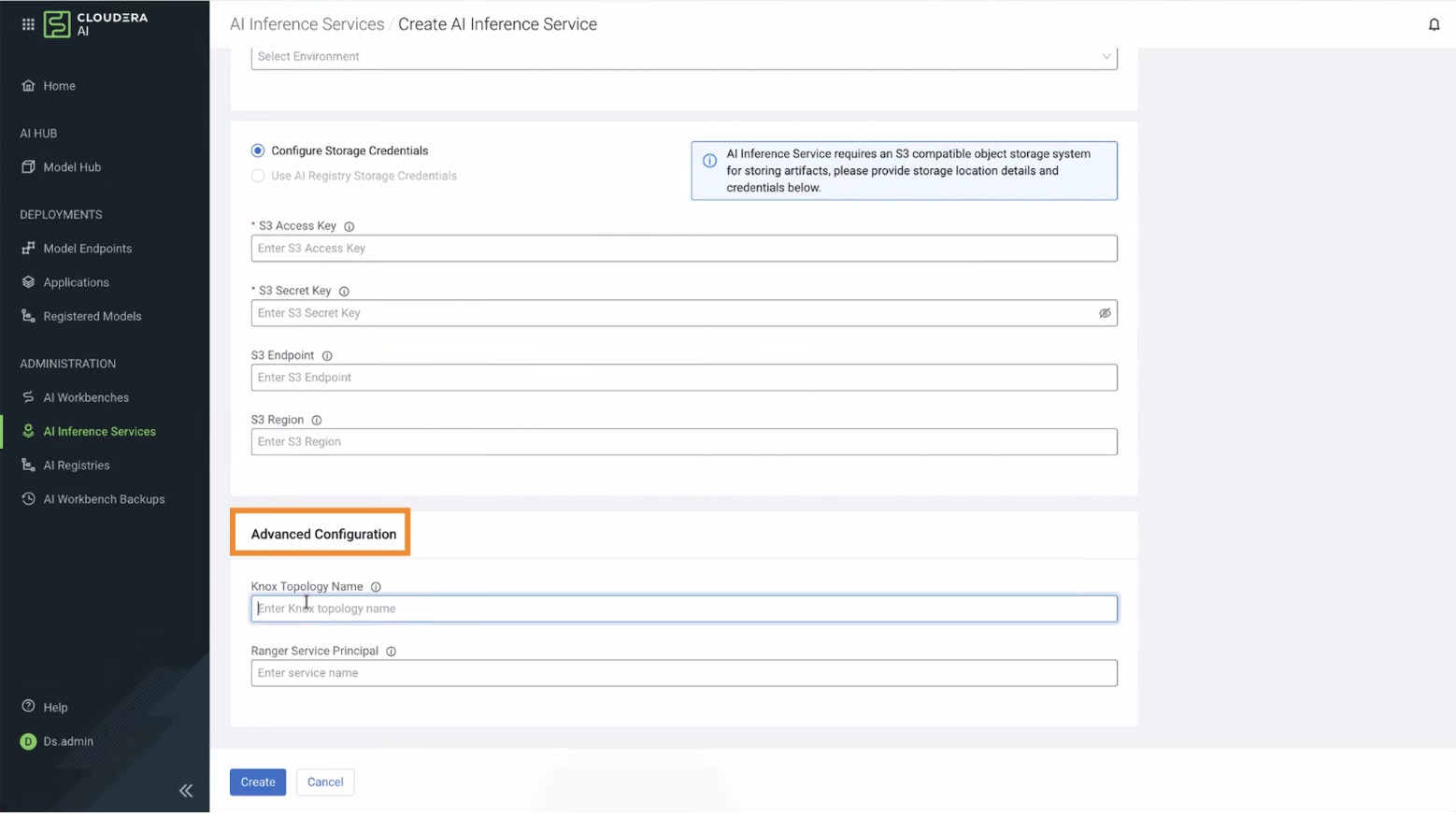
        If you are using a custom Knox topology, provide its custom name when installing the Cloudera AI Inference service. Specify the custom topology name in the UI or include it in the CLI payload during installation.

        Figure 1. Configuring Knox and Ranger details in Cloudera AI Inference service Advanced configuration